 rjbhide/wireshark-forensics-plugin
Wireshark plugin that correlates network traffic with threat intelligence, asset tags, and vulnerability data to accelerate forensic analysis of PCAP files and live captures.

Wireshark is the most widely used network traffic analyzer. It is an important tool for both live traffic analysis & forensic analysis for forensic/malware analysts. Even though Wireshark provides incredibly powerful functionalities for protocol parsing & filtering, it does not provide any contextual information about network endpoints. For a typical analyst, who has to comb through GBs of PCAP files to identify malicious activity, it's like finding a needle in a haystack.
Wireshark Forensics Toolkit is a cross-platform Wireshark plugin that correlates network traffic data with threat intelligence, asset categorization & vulnerability data to speed up network forensic analysis. It does it by extending Wireshark native search filter functionality to allow filtering based on these additional contextual attributes. It works with both PCAP files and real-time traffic captures.
This toolkit provides the following functionality

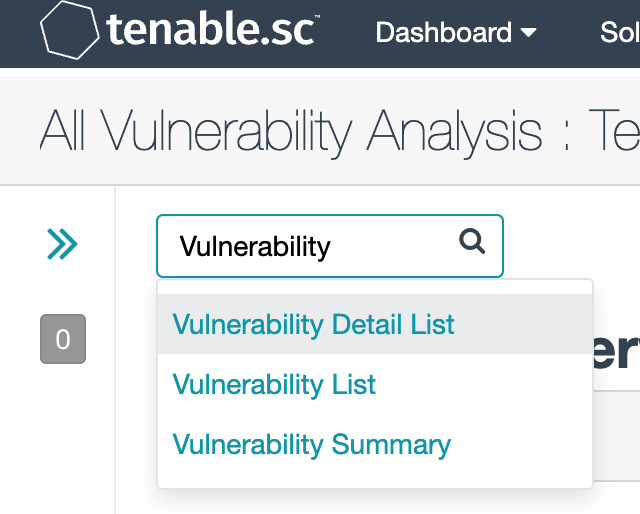
Then goto Options->Export as CSV->Select All->Submit. Rename downloaded file as nessus.csv and copy it to raw_reports/nessus.csv
If you planning to download data from ThreatStream instead of using MISP, provide username, api_key and filter in config.json file. Each time you run python script, it will try to grab latest IOCs from threatstream & store them in data/formatted_reports/indicators.csv file.
Run wft.exe if you are on windows, else run 'python wft.py' on Mac or Ubuntu to install and/or replace updated report files. Script will automatically pick up Wireshark Install location. If you have installed wireshark on custom path or using Wireshark Portable App then you can provide location as command line argument. E.g. while using Portable App, location would look something like this 'C:\Downloads\WiresharkPortable\Data'
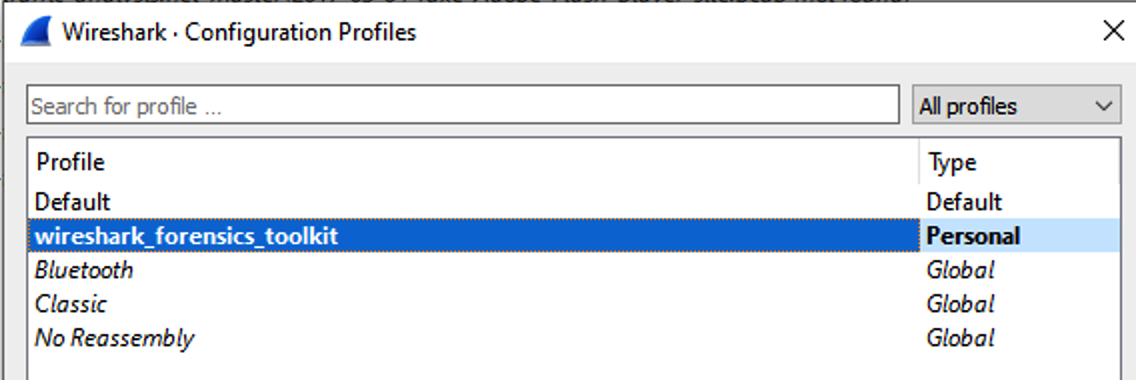
Post Installation, Open Wireshark & go to Edit->Configuration Profiles and select wireshark forensic toolkit profile. This will enable all additional columns
Now relaunch Wireshark either open a PCAP file or start a live capture. In search filter you can use additional filtering parameters each starting with 'wft'. Wireshark will show dropdown for all filtering parameters available. Note all these additional filtering parameters are available for both source & destinations IP/Domain values.
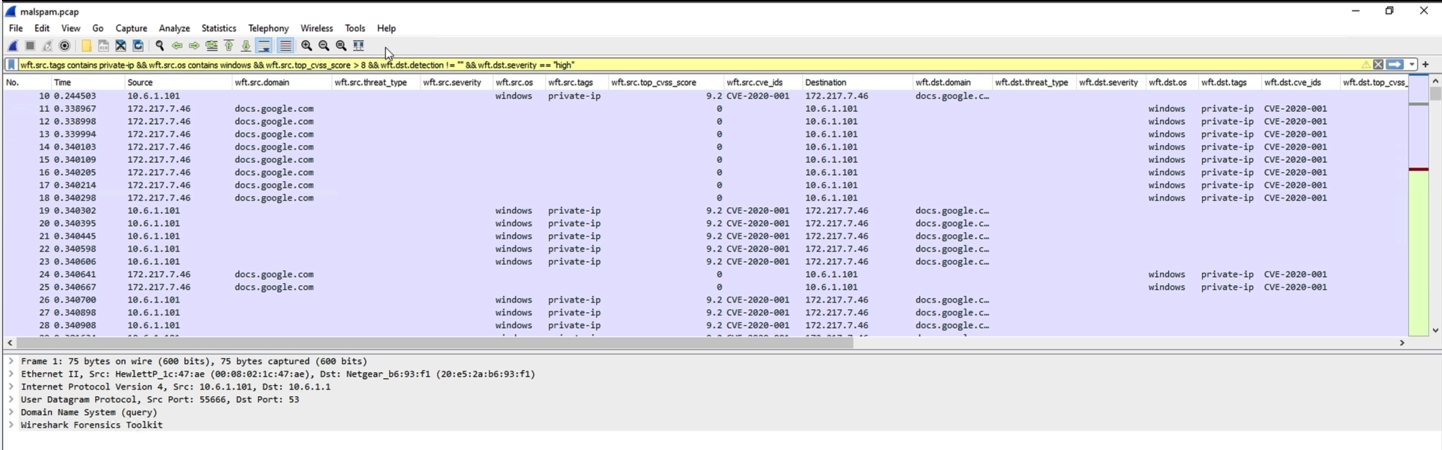
Note all these options also available for destination, just replace 'wft.src' with 'wft.dst'

This work is licensed under a Creative Commons Attribution-NonCommercial-ShareAlike 4.0 International License.
