 ramonvermeulen/whosthere
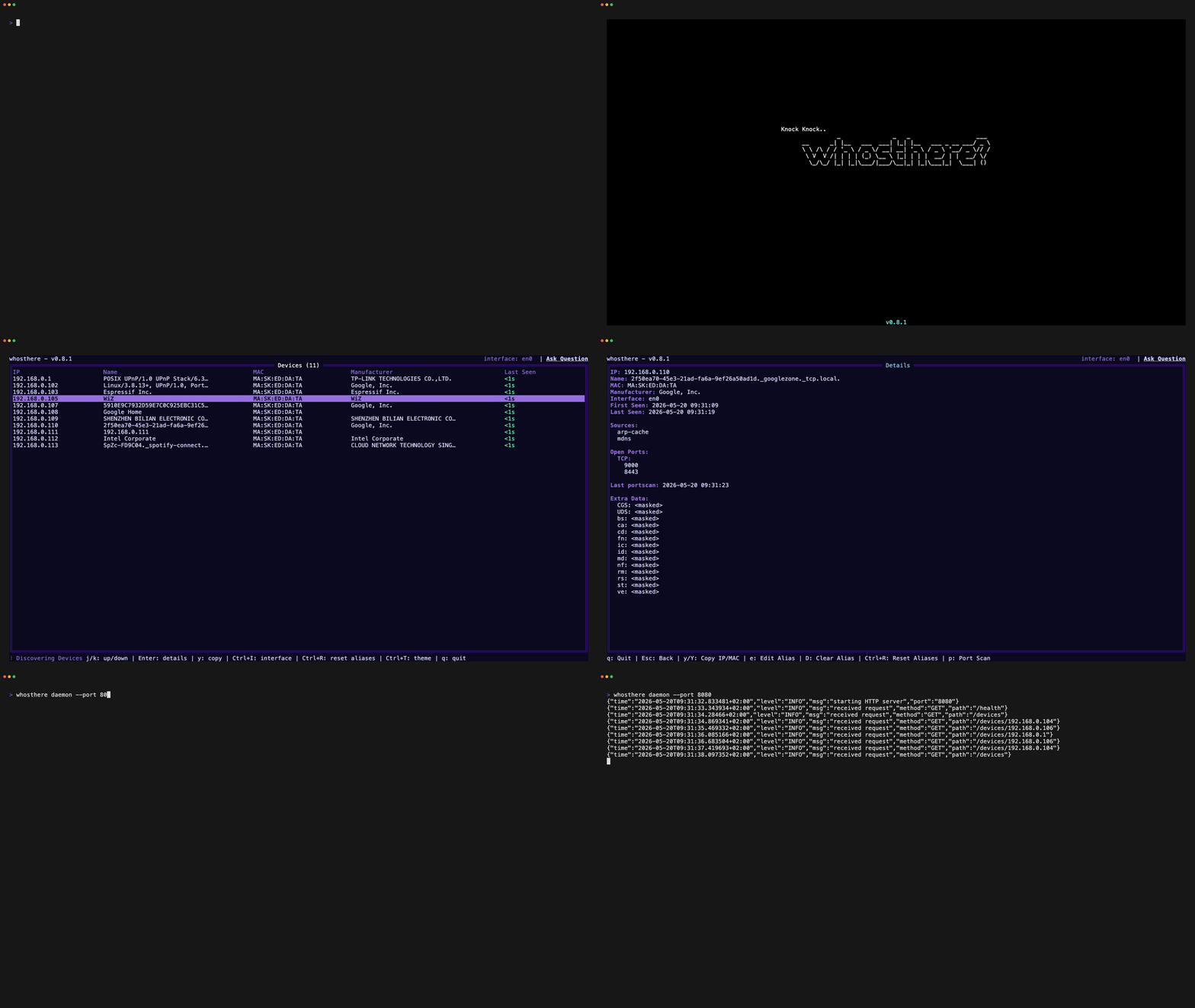
Local Area Network discovery tool with an interactive Terminal User Interface (TUI) written in Go. Discover, explore, and understand your LAN in an intuitive way. Knock Knock.. who's there? 🚪

# Whosthere
[](https://go.dev/doc/devel/release)
[](LICENSE)
[](https://github.com/ramonvermeulen/whosthere/releases)
[](https://github.com/ramonvermeulen/whosthere/releases)
[](https://github.com/ramonvermeulen/whosthere)
Local Area Network discovery tool with an interactive Terminal User Interface (TUI) written in Go.
Discover, explore, and understand your LAN in an intuitive way.
Whosthere performs **unprivileged, concurrent scans** using [**mDNS**](https://en.wikipedia.org/wiki/Multicast_DNS)
and [**SSDP**](https://en.wikipedia.org/wiki/Simple_Service_Discovery_Protocol) scanners. Additionally, it sweeps the
local subnet by attempting TCP/UDP connections to trigger ARP resolution, then reads the
[**ARP cache**](https://en.wikipedia.org/wiki/Address_Resolution_Protocol) to identify devices on your Local Area Network.
This technique populates the ARP cache without requiring elevated privileges. All discovered devices are enhanced with
[**OUI**](https://standards-oui.ieee.org/) lookups to display manufacturers when available.
Whosthere provides a friendly, intuitive way to answer the question every network administrator asks: "Who's there on my network?"
## Features
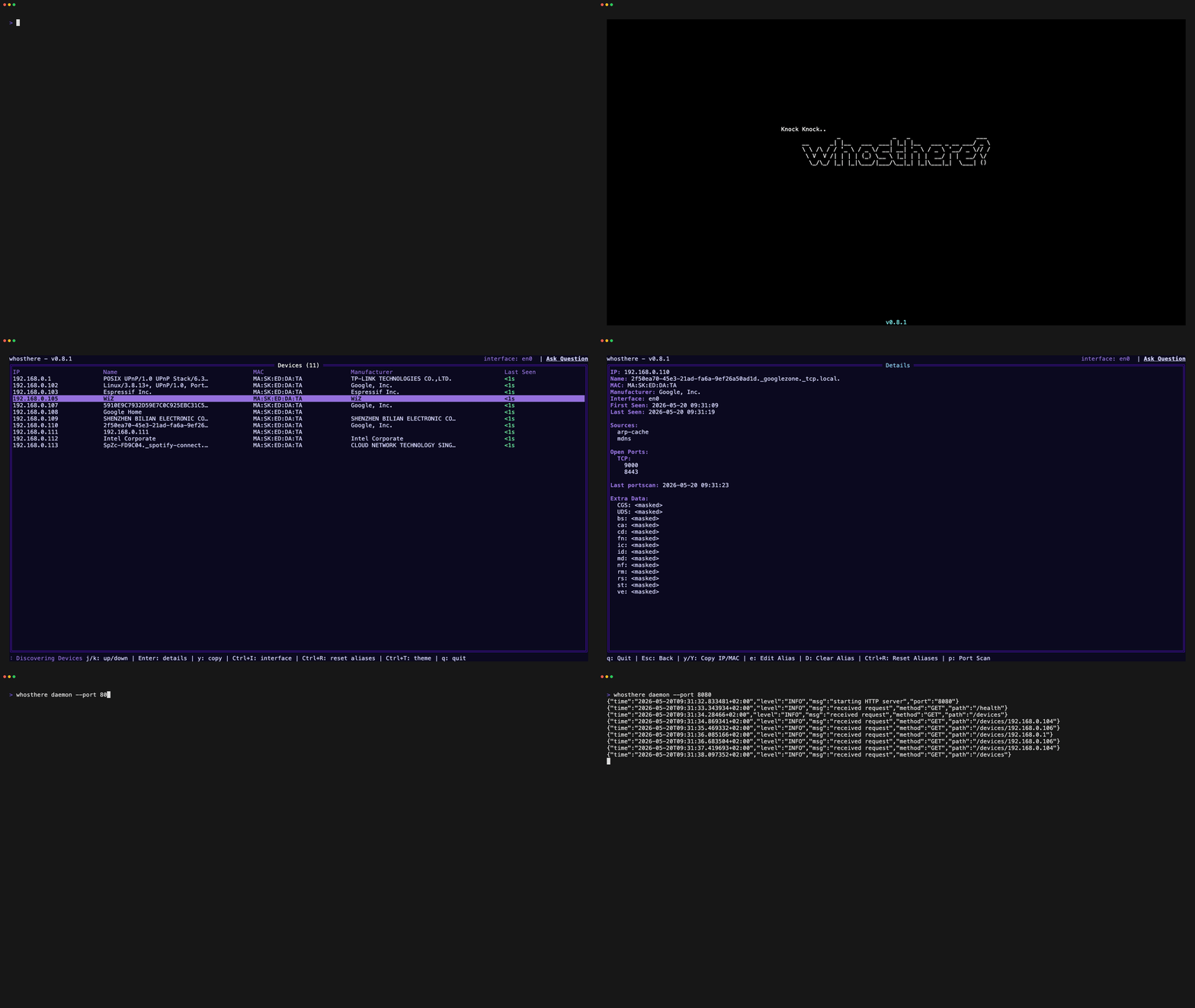
- **Interactive TUI:** Navigate and explore discovered devices intuitively.
- **Fast & Concurrent:** Leverages multiple discovery methods simultaneously.
- **No Elevated Privileges Required:** Runs entirely in user-space.
- **Device Enrichment:** Uses [**OUI**](https://standards-oui.ieee.org/) lookup to show device manufacturers.
- **Integrated Port Scanner:** Optional service discovery on found hosts (only scan devices with permission!).
- **Daemon Mode with HTTP API:** Run in the background and integrate with other tools.
- **Theming & Configuration:** Personalize the look and behavior via YAML configuration.
## Installation
Via [**Homebrew**](https://brew.sh/) with `brew`:
```bash
brew install whosthere
```
On [**NixOS**](https://nixos.org/) with `nix`:
```bash
nix profile install nixpkgs#whosthere
```
On [**Arch Linux**](https://archlinux.org/) with `yay`:
```bash
yay -S whosthere-bin
```
If your package manager is not listed you can always install with [**Go**](https://go.dev/):
```bash
go install github.com/ramonvermeulen/whosthere@latest
```
Or **build from source**:
```bash
git clone https://github.com/ramonvermeulen/whosthere.git
cd whosthere
make build
```
Additionally, you can download pre-built binaries from the
[**releases page**](https://github.com/ramonvermeulen/whosthere/releases).
## Usage
Run the TUI for interactive discovery:
```bash
whosthere
```
Run as cli to do a single scan and output results:
```bash
whosthere scan -t 5
```
Output results to a JSON file:
```bash
whosthere scan -t 5 --json --pretty > devices.json
```
Run as a daemon with HTTP API:
```bash
whosthere daemon --port=8080
```
Import aliases in bulk from a file, or export the current ones:
```text
whosthere aliases import ./aliases.yaml
whosthere aliases export --stdout
```
Additional command line options can be found by running:
```bash
whosthere --help
```
## Key bindings (TUI)
| Key | Action |
| ------------------ | --------------------------- |
| `/` | Start regex search |
| `k` | Up |
| `j` | Down |
| `g` | Go to top |
| `G` | Go to bottom |
| `y` | Copy IP of selected device |
| `Y` | Copy MAC of selected device |
| `enter` | Show device details |
| `CTRL+t` | Toggle theme selector |
| `CTRL+i` | Toggle interface selector |
| `CTRL+c`/`q` | Stop application |
| `ESC` | Clear search / Go back |
| `p` (details view) | Start port scan on device |
| `tab` (modal view) | Switch button selection |
## Configuration
Whosthere supports multiple configuration methods with the following precedence (highest to lowest):
1. **Command line flags** - Highest priority. See `whosthere --help` for available flags.
1. **Environment variables** - Prefix with `WHOSTHERE__`. See [**Configuration via Environment Variables**](#configuration-via-environment-variables).
1. **Configuration file** - YAML config file. See [**Configuration File**](#configuration-file).
1. **Default values** - Fallback defaults. See `DefaultConfig()` in [**config.go**](https://github.com/ramonvermeulen/whosthere/blob/main/internal/core/config/config.go).
### Configuration File
Whosthere looks for the configuration file in the following order, using the first one found:
1. Path specified via `--config` flag or `WHOSTHERE_CONFIG` environment variable
1. `$XDG_CONFIG_HOME/whosthere/config.yaml` (if `XDG_CONFIG_HOME` is set)
1. `~/.config/whosthere/config.yaml` (default location)
**Example configuration:**
```yaml
# Uncomment the next line to configure a specific network interface - uses OS default if not set
# network_interface: eth0
# When enabled, devices from all network interfaces are shown and persist when switching interfaces
# Note: if two interfaces share the same subnet (e.g. both use 192.168.1.x), devices may get merged
# since they are identified by IP address. Use with caution on overlapping subnets.
all_interfaces: false
# Optional IPv4 CIDR subnets to sweep. When set, the sweeper skips the auto-detected interface subnet unless it is listed here.
# target_subnets: ["10.0.0.0/24", "10.0.1.0/24"]
# WARNING: scanning subnets larger than /16 sends packets to 65535+ IPs per subnet. Enable only if you understand the traffic implications. Consider using smaller /24 subnets for targeted scanning.
# scan_large_subnets: false
# How often to run discovery scans
scan_interval: 20s
# Maximum timeout for each scan, recommended to be less than the scan interval
scan_timeout: 10s
scanners:
mdns:
enabled: true
ssdp:
enabled: true
arp:
enabled: true
sweeper:
enabled: true
interval: 5m
timeout: 20s
port_scanner:
timeout: 5s
# List of TCP ports to scan on discovered devices
tcp: [21, 22, 23, 25, 80, 110, 135, 139, 143, 389, 443, 445, 993, 995, 1433, 1521, 3306, 3389, 5432, 5900, 8080, 8443, 9000, 9090, 9200, 9300, 10000, 27017]
splash:
enabled: true
delay: 1s
theme:
# When disabled, the TUI will use the terminal it's default ANSI colors
# Also see the NO_COLOR environment variable to completely disable ANSI colors
enabled: true
# See the complete list of available themes at https://github.com/ramonvermeulen/whosthere/tree/main/internal/ui/theme/theme.go
# Set name to "custom" to use the custom colors below
# For any color that is not configured it will take the default theme value as fallback
name: default
# Disable ANSI colors completely, overrides theme.enabled
# Can also be set via NO_COLOR or WHOSTHERE__THEME__NO_COLOR environment variables
# no_color: false
# Custom theme colors (uncomment and set name: custom to use)
# primitive_background_color: "#000a1a"
# contrast_background_color: "#001a33"
# more_contrast_background_color: "#003366"
# border_color: "#0088ff"
# title_color: "#00ffff"
# graphics_color: "#00ffaa"
# primary_text_color: "#cceeff"
# secondary_text_color: "#6699ff"
# tertiary_text_color: "#ffaa00"
# inverse_text_color: "#000a1a"
# contrast_secondary_text_color: "#88ddff"
aliases:
# Uncomment to import aliases.yaml into the local database on startup (only when it changed)
# auto_import: false
# Override the aliases file path - defaults to the app config directory
# file: "/path/to/aliases.yaml"
```
## Environment Variables
### General Environment Variables
| Variable | Description |
| ------------------ | ------------------------------------------------------------------------------- |
| `WHOSTHERE_CONFIG` | Path to the configuration file, to be able to overwrite the default location. |
| `WHOSTHERE_LOG` | Set the log level (e.g., `debug`, `info`, `warn`, `error`). Defaults to `info`. |
| `NO_COLOR` | Disable ANSI colors in the TUI. |
### Configuration via Environment Variables
Any configuration option that is available in the YAML configuration, can be set via environment variables using the
`WHOSTHERE__` prefix (note the double underscore). Nested configuration keys are separated by double underscores, and
keys are case-insensitive.
Examples:
- `WHOSTHERE__SPLASH__ENABLED=false` - Disable the splash screen, equivalent to `splash.enabled: false` in the YAML config
- `WHOSTHERE__SPLASH__DELAY=2s` - Set splash screen delay to 2 seconds, equivalent to `splash.delay: 2s` in the YAML config
- `WHOSTHERE__SCAN_INTERVAL=30s` - Set scan interval to 30 seconds, equivalent to `scan_interval: 30s` in the YAML config
- `WHOSTHERE__TARGET_SUBNETS=10.0.0.0/24,10.0.1.0/24` - Set target subnets, equivalent to `target_subnets: ["10.0.0.0/24", "10.0.1.0/24"]` in the YAML config
- `WHOSTHERE__SCANNERS__MDNS__ENABLED=false` - Disable mDNS scanner, equivalent to `scanners.mdns.enabled: false` in the YAML config
- `WHOSTHERE__PORT_SCANNER__TCP=80,443,8080` - Set custom TCP ports to scan, equivalent to `port_scanner.tcp: [80, 443, 8080]` in the YAML config
- `WHOSTHERE__THEME__NAME=cyberpunk` - Set theme to cyberpunk, equivalent to `theme.name: cyberpunk` in the YAML config
## Device aliases
Aliases live in a local [bbolt](https://github.com/etcd-io/bbolt) database in the state directory. To
set many at once, import them from a YAML file (`aliases.yaml` in the config directory; override with
the `aliases.file` config key or a path argument).
The file is a **patch, not a mirror**, and is only ever read: importing upserts the MACs it contains
and leaves others untouched, and TUI edits are **never written back to the file**. Use `export` to
regenerate it.
```yaml
version: 1
aliases:
aa:bb:cc:dd:ee:ff: "Living Room TV"
de:ad:be:ef:00:01: "Office Printer"
```
- `version` is the file format version; use `1` (files without it default to 1).
- MACs are accepted in any common format and normalized, so `AA:BB:CC:DD:EE:FF`, `aa-bb-cc-dd-ee-ff`
and `aabbccddeeff` are equivalent. An empty alias (`""`) clears one.
- Invalid MACs are skipped and reported; the rest of the import still goes through.
```bash
whosthere aliases import # from the default location
whosthere aliases import ./aliases.yaml
whosthere aliases export # to the default location
whosthere aliases export --stdout # to stdout
```
Opt in to importing on startup with `aliases.auto_import: true`. The file is hash-checked and only
re-imported when it changed, so an untouched file never clobbers your TUI edits — but a **changed
file does overwrite** the aliases for every MAC it contains. Keep TUI-only aliases out of the file,
or `export` after editing to keep it in sync.
## Daemon mode HTTP API
When running Whosthere in daemon mode, it exposes an very simplistic HTTP API with the following endpoints:
| Method | Endpoint | Description |
| ------ | -------------- | ---------------------------------- |
| GET | `/devices` | Get list of all discovered devices |
| GET | `/device/{ip}` | Get details of a specific device |
| GET | `/health` | Health check |
## Themes
Theme can be configured via the configuration file, or at runtime via the `CTRL+t` key binding.
A complete list of available themes can be found [**here**](https://github.com/ramonvermeulen/whosthere/blob/main/internal/ui/theme/theme.go), feel free to open a PR to add your own theme!
Example of theme configuration:
```yaml
theme:
enabled: true
name: cyberpunk
```
When the `name` is set to `custom`, the other color options can be used to create your own custom theme.
When the `enabled` option is set to `false`, the TUI will use the terminal's default ANSI colors.
When `NO_COLOR` environment variable is set, all ANSI colors will be disabled.
## Logging
Logs are written to the application's state directory:
- `$XDG_STATE_HOME/whosthere/app.log` (if `XDG_STATE_HOME` is set)
- `~/.local/state/whosthere/app.log` (fallback Linux/MacOS)
- `%LOCALAPPDATA%/whosthere/app.log` (fallback Windows)
When not running in TUI mode, logs are also written to the console.
## Platforms
Whosthere is supported on the following platforms:
- [x] Linux
- [x] macOS
- [x] Windows
## Known Issues
For clipboard functionality to work, a [**fork of go-clipboard**](https://github.com/dece2183/go-clipboard) is used.
Ensure you have the appropriate copy tool installed for your OS:
| OS | Supported copy tools |
| -------------------------------------- | -------------------------------------------- |
| Darwin | `pbcopy` |
| Windows | `clip.exe` |
| Linux/FreeBSD/NetBSD/OpenBSD/Dragonfly | X11: `xsel`, `xclip` <br> Wayland: `wl-copy` |
## Disclaimer
Whosthere is intended for use on networks where you have permission to perform network discovery and scanning,
such as your own home network. Unauthorized scanning of networks may be illegal and unethical.
Always obtain proper authorization before using this tool on any network.
This tool was created primarily for educational purposes and home network exploration. While functional
and useful, it should not be considered a professional-grade network monitoring solution. Results are
based on unprivileged scanning techniques and may not be comprehensive. For critical network analysis
or security assessments, consider using established professional tools with formal support.
## Contributing
Contributions and suggestions such as feature requests, bug reports, or improvements are welcome!
Feel free to open issues or submit pull requests on the GitHub repository.
Please make sure to discuss any major changes on a Github issue before implementing them.