 quahac/azure-ad-password-checker
Azure AD Password Checker

In an Azure AD environment, it's possible to determine whether a user has Multi-Factor Authentication (MFA) disabled without requiring any special privileges. This can be accomplished by analyzing the account's creation date and last password change date.
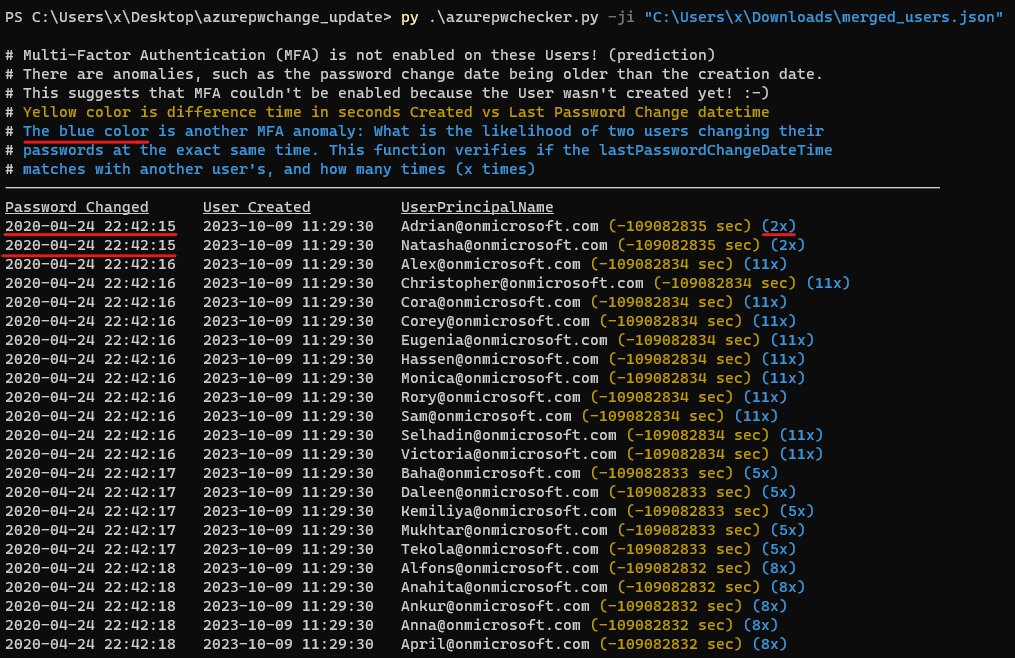
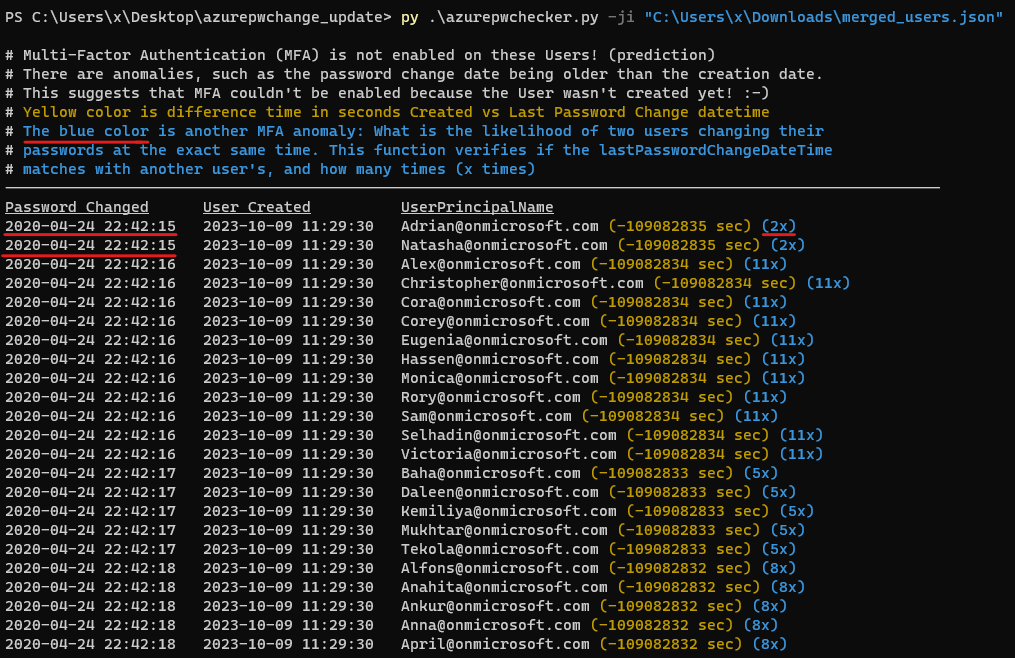
If an account's creation date and time match its last password change date and time, it may indicate that no human interaction has occurred since the account was created, and the user has not been able to enable Multi-Factor Authentication (MFA) or change their password. And there are other 'anomalies' such as the password change date being older than the creation date. This suggests also that Multi-Factor Authentication (MFA) couldn't be enabled because the User wasn't created yet!
Update on 16-10-2023:
Update on 18-02-2024:
This information can be useful for identifying potential security risks designed for use by both red and blue teams.
The roadrecon database file or JSON file that has been extracted with the help of --code-javascript option is needed for this tool.
Roadrecon tool is developed by dirkjanm and can be download on github https://github.com/dirkjanm/ROADtools or pip install roadrecon.
How to use see:
python3 azurepwchecker.py
usage: azurepwchecker.py [-h] [--roadrecon-dump] [--roadrecon-dump-mfa] [-d DB] [-m] [-l] [-ll] [-lll] [-la] [-lo]
                         [-ji JSON_INPUT] [-c]

Azure AD Password Checker - This is a parser for generated JSON file or the roadrecon database file designed for use by both red and blue teams.
Database can be created when using --code-javascript option to extract 'merged_users.json' file with be created to later input this file with --json-input argument.
And roadrecon generated roadrecon.db file can be used! roadrecon is developed by https://github.com/dirkjanm credits to him!

options:
  -h, --help            show this help message and exit
  -d DB, --db DB        Specify the path to the 'roadrecon.db' database file, default is this location
  -m, --mfa-list        User Accounts without MFA (No privileged user required)! This argument helps identify user
                        accounts that have not enabled Multi-Factor Authentication (MFA). If an account's creation
                        date and time match its last password change date and time, it may indicate that no human
                        interaction has occurred since the account was created, and the user has not been able to
                        enable MFA or change their password. And there are other 'anomalies' such as the password
                        change date being older than the creation date. This suggests also that Multi-Factor
                        Authentication (MFA) couldn't be enabled because the User wasn't created yet! :-]
  -mo OUTFILE, --outfile OUTFILE
                        Output users with MFA anomalies to file
  -l, --pw-month        User accounts that had their passwords changed last month
  -ll, --pw-year        User accounts that had their passwords changed last year
  -lll, --pw-older      User accounts that haven't changed their passwords in a long time, oldest first
  -la, --admin          User accounts that are members of 'Admin' named groups, including 'Global Reader'
  -lo, --out-of-hours   User password change that occurred outside of office hours, specifically between 5:00 PM
                        (17:00) and 8:00 AM (08:00) on weekdays, as well as on Saturdays and Sundays
  -ji JSON_INPUT, --json-input JSON_INPUT
                        Provide the JSON file imported from your web browser's console using JavaScript. For
                        'createdDateTime' and 'lastPasswordChange' details, ensure you download the JSON output using
                        the '--code-javascript' option.
  -c, --code-javascript
                        Perform extraction even if 'azurepwchecker.py' or 'roadrecon' is unavailable. This script
                        enables extraction through the JavaScript console of a web browser. To proceed, ensure you
                        have a valid account to log in at https://portal.azure.com/#view/Microsoft_AAD_UsersAndTenants
                        /UserManagementMenuBlade/~/AllUsers or an active session on a computer. Copy and paste the
                        provided JavaScript code into the browser's console. Once the session is validated and you
                        have the necessary permissions, a JSON file named 'merged_users.json' will be generated. You
                        can then import it using the following command as example: 'azurepwchecker.py --json-input
                        merged_users.json -m'
  -v, --version         show program's version number and exit

run roadrecon first:
  (Run the following command to install the tool "pip install roadrecon)"

  --roadrecon-dump      "roadrecon dump" command or do it with roadrecon
  --roadrecon-dump-mfa  "roadrecon dump --mfa" command (requires privileged access) or do it with roadrecon
azurepwchecker.py --code-javascript or js file in folder:Follow these steps to retrieve a list of users along with their account information using the provided script.
Login to Azure Portal
Access User Management
Open Developer Tools
F12 on your web browser to open the developer tools.Execute the Script
Retrieve UsersList and UserInfo
Download Merged User Information
merged_users.json will be generated if everything went smoothly.Run on Azure AD Password Checker
azurepwchecker.py --json-input merged_users.jsonSee example:
See intro:
Update 16-10-2023: