
Comprehensive guide for hardening WordPress installations: covers admin user changes, HTTPS enforcement, plugin security, file permissions, and server configuration for static corporate sites.
This document is written with the aim of being suitable for web applications developed using WordPress that do not interact with users. It is primarily intended for corporate brand pages, various static views, recruitment pages, and similar sites.
For websites where users register and freely use the site, such as open communities, some items in this document may not be applicable. Please keep this in mind as you read.
This document does not include all of the content necessary for securing WordPress.
However, it includes general and detailed information to a level that allows for security risk assessments and vulnerability responses based on the guide.
If you find this helpful, please the "star"🌟 to support further improvements.
When you install WordPress, the default admin username is "admin" unless you change it during the setup process. The "admin" account name is widely known, so it should be changed to a different name. If you continue to use "admin" as your admin username, an attacker could attempt a brute-force attack using "admin" to gain access to your WordPress site.
If an attacker gains access to the WordPress admin account, they will have full control over the website. The default WordPress admin username should be changed to a different name.
Audit:
Remediation:
Note:
By default, WordPress has five user roles - "Administrators", "Editors", "Authors", "Contributors", "Subscribers"
These roles allow you to control what tasks users can perform on your website by assigning appropriate permissions. If user roles and permissions are not properly managed, users might gain unnecessary access to critical functionalities, posing a significant security risk.
Audit:
Remediation:
Note:
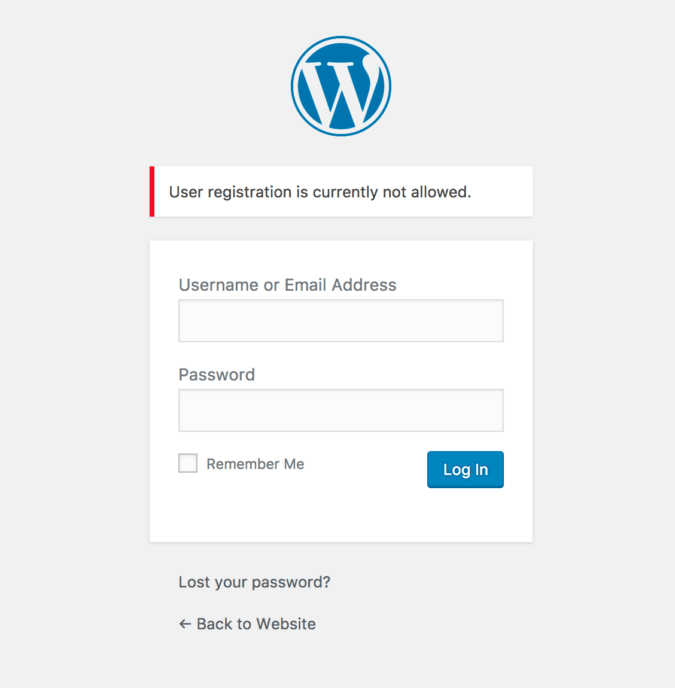
WordPress includes a built-in user registration feature. This feature is disabled by default, but it can be activated by an administrator.
If this feature is enabled, anyone can register and potentially access the WordPress admin dashboard, which can lead to security issues. For most websites that are not intended to operate as open communities, the user registration feature is unnecessary and should remain disabled.
Audit:
Using a web browser

Using curl
# curl -i -k "https://yourwordpress.com/wp-login.php?action=register"
(response)
HTTP/1.1 302 Moved Temporarily
cache-control: no-cache, no-store, must-revalidate, max-age=0
content-type: text/html; charset=UTF-8
server: Apache
content-length: 0
...
location: https://yourwordpress.com/wp-login.php?registration=disabled
Remediation:

If an attacker breaks into a WordPress Administrator account, they can take full control of your website. They can edit the coding of your theme and plugins through the built-in "Editor" feature, upload malicious scripts, deface your site, spam your users, and more.
Common hacks via these editors include SQL injections, SEO spam hacks, and Japanese SEO spam.
Audit:
Remediation:
/* That’s all, stop editing! Happy publishing. */define('DISALLOW_FILE_EDIT', true);Many vulnerabilities in WordPress stem from plugin security issues. Plugins are open-sourced, making it easier for attackers to find and exploit vulnerabilities. It is crucial to keep the plugins you use up-to-date and to deactivate any unused plugins to prevent potential exploitation.
Audit:
Remediation:
Use Plugin Check - PCP:
Install and Activate Plugin Check (PCP):
Run a Plugin Check:
Analyze the Scan Results:
Identify Problematic Plugins:
Resolve Issues:
Plugin Management:
Plugin Selection:
Regular Updates
Deactivate and Delete Unused Plugins
Today, most websites are configured to operate over SSL (HTTPS). However, some web servers may still be mistakenly set up to handle both HTTP and HTTPS connections. This can allow access to WordPress via both protocols, which is a security risk. WordPress, including WordPress Admin, should be forced to use HTTPS exclusively.
Audit:
Remediation:
Steps to Enable FORCE_SSL_ADMIN:
/* That’s all, stop editing! Happy publishing. */ define('FORCE_SSL_ADMIN', true);
`Redirect HTTP to HTTPS on the Web Server:
<VirtualHost *:80>
ServerName yourwordpress.com
RewriteEngine On
RewriteCond %{HTTPS} off
RewriteRule ^(.*)$ https://%{HTTP_HOST}%{REQUEST_URI} [L,R=301]
</VirtualHost>
server {
listen 80;
server_name yourwordpress.com;
location / {
return 301 https://$host$request_uri;
}
}
By ensuring that WordPress and WordPress Admin are accessible only via HTTPS, you can significantly enhance the security of your website, protecting data and preventing unauthorized access.
Verify that IP access restrictions are applied
To securely operate WordPress, it's essential to apply IP access restrictions to certain URLs, including WordPress Admin, to prevent unwanted users, computers, and bots from accessing them. This involves allowing access only from permitted IP addresses, such as administrator IPs. Additionally, disabling unused features is necessary to minimize attack surfaces.
The URLs to secure include WordPress Admin, user registration (wp-signup.php), JSON REST API, and the XML-RPC feature.
This security guide targets service-oriented websites like company blogs, recruitment pages, brand sites, and promotional sites where user interaction is minimal and content is primarily showcased.
By implementing IP access restrictions, you can significantly reduce the risk of unauthorized access and enhance the overall security of your website.
WordPress admin access path is fixed in the form of wp-login.php or /wp-admin, making it easily accessible to unauthorized users. Ensure that ip access restriction is applied to prevent unauthorized access to the admin page.
Audit:
Remediation:
Applying IP Access Restriction to WordPress Admin:
# Files Directive
<Files "wp-login.php">
Require ip 10.10.77.49 # Replace with your IP address
</Files>
# FilesMatch Directive
<FilesMatch "^wp-login\.php$">
Require all granted
</FilesMatch>
# Directory, Files Mixing Directive
<Directory /www/vhosts/yourwordpress>
Require all granted
AllowOverride None
<Files "wp-login.php">
Require ip 10.10.77.49 # Replace with your IP address
</Files>
</Directory>
# Location Directive
<Location "/wp-admin">
Require ip 10.10.77.49 # Replace with your IP address
</Location>
<Location "/wp-login.php">
Require ip 10.10.77.49 # Replace with your IP address
</Location>
location /wp-admin {
allow 10.10.77.49; # Replace with your IP address
deny all;
}
location ~* \wp-login.php {
allow 10.10.77.49; # Replace with your IP address
deny all;
}
WordPress provides two REST functionalities (xmlrpc, json rest api) and is enabled by default upon WordPress installation. The REST API provides endpoints for WordPress data types, allowing remote interaction with the site for tasks such as querying posts or data, modifying resources, editing, and deleting.
For most WordPress, the REST API feature is not essential. Enabling it may expose WordPress to DDoS attacks and could result in resource consumption and site slowdowns.
Audit:
# curl -i -k https://yourwordpress.com/wp-json
(response)
HTTP/1.1 200 OK
cache-control: no-cache, no-store, must-revalidate, max-age=0
content-type: text/html; charset=UTF-8
...
Server: Apache
{"name":"mywordress","description":"".......................
Remediation:
Install "Disable REST API" Plugin, Activate:
IP Access Restriction for JSON REST API:
<Location "/wp-json">
Require ip 10.10.77.49 # Replace with your IP address
</Location>
location ~ ^/wp-json/ {
allow 10.10.77.49; # Replace with your allowed IP address
deny all;
}
Similar to the JSON REST API, it's advisable to disable the XML-RPC API since it's not required for most WordPress installations.
If the REST API is needed, it's recommended to use the JSON REST API instead.
XML-RPC has two main weaknesses:
Brute force attacks:
Denial of Service Attacks via Pingback:
If XML-RPC is enabled, it can still be exploited for such attacks.
Audit:
# curl -i -k https://yourwordpress.com/xmlrpc.php
(response)
HTTP/1.1 405 Method Not Allowed
Date: Mon, 25 Jun 2018 08:30:24 GMT
Server: Apache
Allow: POST
Content-Length: 42
Content-Type: text/plain; charset=UTF-8
XML-RPC server accepts POST requests only.
Remediation:
Install "Disable XML-RPC-API" Plugin, Activate:
About XML-RPC pingbacks attacks:
# curl -i -k https://yourwordpress.com/xmlrpc.php
(response)
HTTP/1.1 405 Method Not Allowed
Date: Mon, 25 Jun 2018 08:30:24 GMT
Server: Apache
Allow: POST
Content-Length: 42
Content-Type: text/plain; charset=UTF-8
XML-RPC server accepts POST requests only.
(request)
POST /xmlrpc.php HTTP/1.1
Host: yourwordpress.com
Content-Length: 135
<?xml version="1.0" encoding="utf-8"?>
<methodCall>
<methodName>system.listMethods</methodName>
<params></params>
</methodCall>
(response)
HTTP/1.1 200 OK
cache-control: no-cache, no-store, must-revalidate, max-age=0
...
Server: Apache
Content-Length: 4272
Content-Type: text/xml; charset=UTF-8
<?xml version="1.0" encoding="UTF-8"?>
<methodResponse>
<params>
<param>
<value>
<array><data>
<value><string>system.multicall</string></value>
<value><string>system.listMethods</string></value>
<value><string>system.getCapabilities</string></value>
<value><string>demo.addTwoNumbers</string></value>
<value><string>demo.sayHello</string></value>
<value><string>pingback.extensions.getPingbacks</string></value>
<value><string>pingback.ping</string></value>
<value><string>mt.publishPost</string></value>
...
<value><string>wp.getUsersBlogs</string></value>
</data></array>
</value>
</param>
</params>
</methodResponse>
In WordPress, WP-Cron (wp-cron.php) is used to automate tasks such as scheduled post publishing, plugin/theme update checks, and notification email dispatching.
WP-Cron essentially functions by checking the list of scheduled tasks every time a page is loaded. The issue arises when there is heavy page loading.
As WP-Cron tasks are performed with each page load, multiple repeated accesses result in corresponding WP-Cron invocations. Consequently, system resources may become scarce, causing the site to slow down or even halt. This is a real occurrence and is frequently exploited in vulnerability attacks targeting WordPress.
If WP-Cron is not necessary, it is advisable to deactivate it. If necessary, restrict access to local hosts only.
Audit:
# curl -i -k https://yourwordpress.com/wp-cron.php
(response)
HTTP/1.1 200 ok
Date: Mon, 25 Jun 2018 08:30:24 GMT
Server: Apache
Allow: POST
Content-Length: 42
Content-Type: text/plain; charset=UTF-8
Remediation:
Steps to Disable WP-Cron:
/* That’s all, stop editing! Happy publishing. */define('DISABLE_WP_CRON', true);# Files Directive
<Files "wp-cron.php">
Require ip 127.0.0.1 # localhost only
</Files>
# FilesMatch Directive
<FilesMatch "^wp-cron\.php$">
Require ip 127.0.0.1 # localhost only
</FilesMatch>
# Location Directive
<Location "/wp-cron.php">
Require ip 127.0.0.1 # localhost only
</Location>
location = /wp-cron.php {
allow 127.0.0.1;
deny all;
access_log off;
log_not_found off;
}
Steps to Activate "ALTERNATE_WP_CRON":
/* That’s all, stop editing! Happy publishing. */define( 'ALTERNATE_WP_CRON', true );# Files Directive
<Files "wp-cron.php">
Require ip 127.0.0.1 # localhost only
</Files>
# FilesMatch Directive
<FilesMatch "^wp-cron\.php$">
Require ip 127.0.0.1 # localhost only
</FilesMatch>
# Location Directive
<Location "/wp-cron.php">
Require ip 127.0.0.1 # localhost only
</Location>
location = /wp-cron.php {
allow 127.0.0.1;
deny all;
access_log off;
log_not_found off;
}
Example: Using System Cron (crontab):
# vim /etc/crontab
..
...
*/10 * * * * curl http://yourwordpress.com/wp-cron.php?doing_wp_cron > /dev/null 2>&1
*/10 * * * * cd /var/www/yourwordpress.com/htdocs; php /var/www/yourwordpress.com/htdocs/wp-cron.php?doing_wp_cron > /dev/null 2>&1
# Also can use WP-Cli
*/10 * * * * cd /var/www/example.com/htdocs; wp cron event run --due-now > /dev/null 2>&1
About Performing DoS attack using wp-cron.php:

Ensuring secure operation of WordPress requires proper configuration of the web server and hardening of backend components. Here are several essential items that must be checked and implemented.
To maintain a secure WordPress installation, it is essential to use versions of WordPress and PHP that are not at their end-of-life (EOL). EOL versions are no longer supported and do not receive security updates, leaving your website vulnerable to unpatched security issues.
Using supported versions ensures that any discovered vulnerabilities are promptly addressed, protecting your site from potential attacks. Here’s what you need to do to verify and update your WordPress and PHP versions:
Audit:
Remediation:
EOL Status as of May 2024
Example: PHP in RockyLinux 8.5
# dnf module list php
Rocky Linux 8 - AppStream
Name Stream Profiles Summary
php 7.2 [d] common [d], devel, minimal PHP scripting language
php 7.3 common [d], devel, minimal PHP scripting language
php 7.4 common [d], devel, minimal PHP scripting language
Hint: [d]efault, [e]nabled, [x]disabled, [i]nstalled
# dnf module enable php:7.4
==============================================================================================
Package Architecture Version Repository Size
==============================================================================================
Enabling module streams:
httpd 2.4
php 7.4
Transaction Summary
==============================================================================================
Is this ok [y/N]: y
Complete!
# Install PHP 8.2 in Rocky Linux 8
# dnf install https://dl.fedoraproject.org/pub/epel/epel-release-latest-8.noarch.rpm
# dnf -y install https://rpms.remirepo.net/enterprise/remi-release-8.rpm
# dnf -y install yum-utils
# dnf module reset php
# dnf module install php:remi-8.2
Last metadata expiration check: 0:00:39 ago on Tue 13 Dec 2022 07:19:26 AM UTC.
Dependencies resolved.
=======================================================================================================================================
Package Architecture Version Repository Size
=======================================================================================================================================
Installing group/module packages:
php-cli x86_64 8.2.0-1.el8.remi remi-modular 5.4 M
php-common x86_64 8.2.0-1.el8.remi remi-modular 1.3 M
php-fpm x86_64 8.2.0-1.el8.remi remi-modular 1.9 M
php-mbstring x86_64 8.2.0-1.el8.remi remi-modular 574 k
php-xml x86_64 8.2.0-1.el8.remi remi-modular 254 k
Installing dependencies:
httpd-filesystem noarch 2.4.37-51.module+el8.7.0+1059+126e9251 appstream 41 k
libxslt x86_64 1.1.32-6.el8 baseos 249 k
oniguruma5php x86_64 6.9.8-1.el8.remi remi-safe 212 k
Installing weak dependencies:
nginx-filesystem noarch 1:1.14.1-9.module+el8.4.0+542+81547229 appstream 23 k
Installing module profiles:
php/common
Enabling module streams:
httpd 2.4
nginx 1.14
php remi-8.2
Transaction Summary
=======================================================================================================================================
Install 9 Packages
# dnf update
# dnf install php
Last metadata expiration check: 0:00:23 ago on Tue 13 Dec 2022 07:29:55 AM UTC.
Dependencies resolved.
=======================================================================================================================================
Package Architecture Version Repository Size
=======================================================================================================================================
Installing:
php x86_64 8.2.0-1.el8.remi remi-modular 1.8 M
Installing dependencies:
apr x86_64 1.6.3-12.el8 appstream 128 k
apr-util x86_64 1.6.1-6.el8.1 appstream 104 k
httpd x86_64 2.4.37-51.module+el8.7.0+1059+126e9251 appstream 1.4 M
httpd-tools x86_64 2.4.37-51.module+el8.7.0+1059+126e9251 appstream 108 k
libsodium x86_64 1.0.18-2.el8 epel 162 k
mailcap noarch 2.1.48-3.el8 baseos 38 k
mod_http2 x86_64 1.15.7-5.module+el8.6.0+823+f143cee1 appstream 153 k
rocky-logos-httpd noarch 86.3-1.el8 baseos 24 k
Installing weak dependencies:
apr-util-bdb x86_64 1.6.1-6.el8.1 appstream 23 k
apr-util-openssl x86_64 1.6.1-6.el8.1 appstream 26 k
php-opcache x86_64 8.2.0-1.el8.remi remi-modular 633 k
php-pdo x86_64 8.2.0-1.el8.remi remi-modular 166 k
php-sodium x86_64 8.2.0-1.el8.remi remi-modular 105 k
Transaction Summary
=======================================================================================================================================
Install 14 Packages
Total download size: 4.8 M
Installed size: 14 M
Is this ok [y/N]: y
# php -v
PHP 8.2.0 (cli) (built: Dec 6 2022 14:26:47) (NTS gcc x86_64)
Copyright (c) The PHP Group
Zend Engine v4.2.0, Copyright (c) Zend Technologies
with Zend OPcache v8.2.0, Copyright (c), by Zend Technologies
Note:
Ensure that only the necessary PHP extensions for your WordPress site are enabled. Unnecessary extensions can increase the attack surface of your website and may expose WordPress to security vulnerabilities.
By enabling only the required extensions, you can minimize potential risks and improve overall security.
Below are required for a WordPress site to work properly. (Not a list to fit security hardening purposes)
Essential extensions can be found here: WordPress Hosting Handbook: PHP Extensions
Audit:
Remediation:

Plugins with file upload capabilities can be a significant security risk if not properly secured. Vulnerabilities in file upload functions can allow attackers to upload web shells, potentially leading to full system compromise. Therefore, it is crucial to ensure that any file upload functionality includes validation and sanitization mechanisms.
Why is this Important?
Extension Validation:
MIME Type Checking:
Upload Path Restrictions:
File upload vulnerabilities are particularly dangerous because they provide a direct path for attackers to upload executable code and run arbitrary commands. File upload vulnerabilities are often easier to identify and exploit compared to other security flaws like SQL injection.
Audit:
Remediation:
Example: Popular WordPress Plugins with File Upload Handling
Contact Form 7
Contact Form 7 is one of the most widely used form plugins in WordPress. It includes basic file upload functionality with extension and MIME type validation.
Code for Allowed Extensions and MIME Type Check:
function wpcf7_allowed_file_extensions() {
// Default allowed file extensions
$allowed_file_extensions = array(
'jpg', 'jpeg', 'png', 'gif', 'pdf', 'doc', 'docx',
'xls', 'xlsx', 'txt', 'csv', 'rtf', 'html', 'zip'
);
return $allowed_file_extensions;
}
function wpcf7_handle_upload( $file ) {
$allowed_mime_types = wpcf7_allowed_file_extensions();
$file_type = wp_check_filetype( $file['name'] );
// Check if the file type is allowed
if ( ! in_array( $file_type['ext'], $allowed_mime_types ) ) {
return new WP_Error( 'wpcf7_upload_failed', __( 'File type is not allowed.', 'contact-form-7' ) );
}
// Handle the file upload
$upload = wp_handle_upload( $file, array( 'test_form' => false ) );
// Check if the upload was successful
if ( isset( $upload['error'] ) ) {
return new WP_Error( 'wpcf7_upload_failed', $upload['error'] );
}
return $upload;
}
In Contact Form 7, the wpcf7_allowed_file_extensions() function returns a list of allowed file extensions,
and the wpcf7_handle_upload() function checks if the file extension is in this list before proceeding with the upload.
Example: Malicious fileupload Plugin
<?php
/*
Plugin Name: Simple Malicious Upload
Description: A plugin with hidden malicious file upload capability.
Version: 1.0
*/
function simple_file_upload_menu() {
add_menu_page('File Upload', 'File Upload', 'manage_options', 'file-upload', 'simple_file_upload_page');
}
add_action('admin_menu', 'simple_file_upload_menu');
function simple_file_upload_page() {
?>
<h1>File Upload</h1>
<form method="post" enctype="multipart/form-data">
<input type="file" name="uploaded_file" />
<input type="submit" name="upload_file" value="Upload" />
</form>
<?php
if (isset($_POST['upload_file'])) {
simple_handle_file_upload();
}
}
function simple_handle_file_upload() {
if (!empty($_FILES['uploaded_file']['tmp_name'])) {
$file_tmp = $_FILES['uploaded_file']['tmp_name'];
$file_name = basename($_FILES['uploaded_file']['name']);
// Using fileinfo to check MIME type
$finfo = finfo_open(FILEINFO_MIME_TYPE);
$mime_type = finfo_file($finfo, $file_tmp);
finfo_close($finfo);
// Insecure handling: allows any PHP files to be uploaded
if ($mime_type === 'text/plain' || $mime_type === 'application/x-php') {
$upload_dir = wp_upload_dir();
$upload_file = $upload_dir['path'] . '/' . $file_name;
// Move the uploaded file to the uploads directory
if (move_uploaded_file($file_tmp, $upload_file)) {
echo "File uploaded successfully.";
} else {
echo "File upload failed.";
}
} else {
echo "Invalid file type.";
}
}
}
?>
Explanation of the Exploit:
application/x-php.Example: PHP Web Shell Code
<?php
if (isset($_GET['cmd'])) {
echo "<pre>";
system($_GET['cmd']);
echo "</pre>";
}
?>
Demonstration of the Attack
http://yourwordpress.com/wp-content/uploads/webshell.php.http://yourwordpress.com/wp-content/uploads/webshell.php?cmd=ls, the attacker can execute arbitrary commands.Note:
Ensuring that PHP functions and settings are properly configured can significantly enhance the security of your WordPress site. Misconfigured settings can expose your site to various vulnerabilities, including remote code execution, information disclosure, and session hijacking. It is crucial to harden PHP by disabling or properly configuring these functions.
Why is this Important?
Remote Code Execution:
allow_url_fopen and functions like exec can enable remote code execution, leading to potential system compromise.Information Disclosure:
display_errors and expose_php can leak sensitive information about your server setup, making it easier for attackers to find vulnerabilities.Session Security:
session.cookie_secure and session.cookie_httponly, protect session cookies from being accessed through client-side scripts or being transmitted over insecure channels.Audit:
Remediation:
allow_url_fopen:
file_get_contents(), fopen(), include(), and require() can use retrieve data from remote locations over FTP or HTTP.allow_url_fopen for various features.; (Optional) Disable allow_url_fopen, if not unnecessary
allow_url_fopen = Off
display_errors:
; Disable PHP errors not be displayed on your WordPress website
display_errors = Off
expose_php:
; Prevent exposing PHP version in HTTP response headers
expose_php = Off
session.cookie_secure
session.cookie_secure:
; Ensure session cookies are sent over HTTPS
session.cookie_secure = On
session.cookie_httponly
Example: Below is a List of Disabled PHP Functions in an Actual WordPress
system, exec, shell_exec, passthru, mysql_list_dbs, ini_alter, dl, symlink,
link, chgrp, leak, popen, apache_child_terminate, virtual, mb_send_mail
In most cases, Web servers run as users such as "www-data" (Debian/Ubuntu) or "apache" (RHEL/CentOS).
These users are dedicated service accounts with no special privileges on the server and are used to designate the user and group that the web server worker processes will assume.
If these users have system privileges or are running as root, they must be changed.
Audit:
For Apache:
# ps -ef | grep httpd
root 2257 1 0 Apr08 ? 00:00:01 /usr/local/apache/bin/httpd -k start
apache 5678 1234 0 Apr08 ? 00:00:00 /usr/sbin/httpd -k start
apache 5679 1234 0 Apr08 ? 00:00:00 /usr/sbin/httpd -k start
apache 5680 1234 0 Apr08 ? 00:00:00 /usr/sbin/httpd -k start
apache 5681 1234 0 Apr08 ? 00:00:00 /usr/sbin/httpd -k start
For Nginx:
# ps -ef | grep nginx
root 626653 1 0 Apr08 ? 00:00:00 nginx: master process /usr/sbin/nginx
nginx 626654 626653 0 Apr08 ? 00:00:00 nginx: worker process
nginx 626655 626653 0 Apr08 ? 00:00:00 nginx: worker process
nginx 626656 626653 0 Apr08 ? 00:00:00 nginx: worker process
nginx 626657 626653 0 Apr08 ? 00:00:00 nginx: worker process
Remediation:
For Apache:
# vim /etc/httpd/httpd.conf
..
...
User www-data
Group www-data
..
...
For Nginx:
# vim /etc/nginx/nginx.conf
..
...
user daemon;
Note:
# cat /etc/passwd | grep -i www-data
www-data:x:33:33:www-data:/var/www:/usr/sbin/nologin
WordPress is built with PHP, so a correct system configuration is necessary to execute PHP code properly.
PHP code execution in WordPress is managed by PHP-FPM, a FastCGI Process Manager. To ensure the secure operation of PHP-FPM, it should run under a non-privileged, dedicated service account.
Generally, the web server process account and PHP-FPM account are set to the same account. However, for enhanced security, it is better to run them under separate accounts.
Here are two reasons:
Isolation of Processes:
Least Privilege Principle:
Audit:
# ps -ef | grep php-fpm
root 1234 1 0 12:00 ? 00:00:01 php-fpm: master process (/etc/php-fpm.conf)
php-fpm 5678 1234 0 12:00 ? 00:00:00 php-fpm: pool www
php-fpm 5679 1234 0 12:00 ? 00:00:00 php-fpm: pool www
php-fpm 5680 1234 0 12:00 ? 00:00:00 php-fpm: pool www
php-fpm 5681 1234 0 12:00 ? 00:00:00 php-fpm: pool www
Remediation:
Changing process account for PHP-FPM:
# vim /etc/php-fpm.d/www.conf # Adjust the path based on your PHP version
...
user = php-fpm
group = php-fpm
listen.owner = php-fpm
listen.group = php-fpm
PHP-FPM process account should not have shell login privileges.
# cat /etc/passwd | grep php-fpm
php-fpm:x:999:999:PHP-FPM:/run/php:/usr/sbin/nologin
Note:
To operate a web server securely, it is crucial to properly configure the ownership and permissions of the WordPress home directory
In most cases, the ownership and permissions of the WordPress files and directories are set to match the web server's process account. This configuration allows the web server to access files in the webroot and operate without errors.
However, this configuration is insecure.
For example, if the web server process is 'apache' and both the webroot directory and files are owned by 'apache', it could lead to severe vulnerabilities. Attackers could exploit these vulnerabilities to gain unauthorized access to critical files and directories within the WordPress home directory.
Common Vulnerability Example:
To mitigate these risks, it is crucial to adjust the ownership and permissions of the WordPress home directory properly
Remediation:
Generally Required Write Permissions Directories in WordPress:
/wp-content/uploads
/wp-content/cache
/wp-content/wflogs (when using security plugins like Wordfence)
/wp-content/upgrade (used during the WordPress upgrade process)
After configuring the ownership and permissions of the home directory according to the above remediation measures, output of the WordPress home directory is as follows:
Example: WordPress Home Directory
drwxr-xr-x 5 root root 4096 May 27 2024 .
drwxr-xr-x 3 root root 4096 May 27 2024 ..
-rw-r--r-- 1 root root 418 May 27 2024 index.php
-rw-r--r-- 1 root root 19935 May 27 2024 license.txt
-rw-r--r-- 1 root root 7346 May 27 2024 readme.html
-rw-r--r-- 1 root root 7106 May 27 2024 wp-activate.php
drwxr-xr-x 9 root root 4096 May 27 2024 wp-admin
-rw-r--r-- 1 root root 351 May 27 2024 wp-blog-header.php
-rw-r--r-- 1 root root 2328 May 27 2024 wp-comments-post.php
-rw-r--r-- 1 root root 4973 May 27 2024 wp-config-sample.php
-rw-r--r-- 1 root root 2755 May 27 2024 wp-config.php
drwxr-xr-x 8 root root 4096 May 27 2024 wp-content
-rw-r--r-- 1 root root 3940 May 27 2024 wp-cron.php
drwxr-xr-x 25 root root 12288 May 27 2024 wp-includes
-rw-r--r-- 1 root root 2496 May 27 2024 wp-links-opml.php
-rw-r--r-- 1 root root 3300 May 27 2024 wp-load.php
-rw-r--r-- 1 root root 51556 May 27 2024 wp-login.php
-rw-r--r-- 1 root root 8403 May 27 2024 wp-mail.php
-rw-r--r-- 1 root root 24568 May 27 2024 wp-settings.php
-rw-r--r-- 1 root root 30869 May 27 2024 wp-signup.php
-rw-r--r-- 1 root root 4620 May 27 2024 wp-trackback.php
-rw-r--r-- 1 root root 3065 May 27 2024 xmlrpc.php
In case php-fpm and web server process accounts are different (Separate Permissions)
If the web server process account is "apache" and the php-fpm process account is "php-fpm".
Change the permissions of the directories that require write access in WordPress (e.g., /wp-content/uploads).
File and Directory Structure
Set the write permissions for the necessary directories so that both "php-fpm" and "apache" accounts can write.
ex) /service/wordpress/www
├── index.php (root:root, 644)
├── license.txt (root:root, 644)
├── readme.html (root:root, 644)
├── wp-activate.php (root:root, 644)
├── wp-admin/ (root:root, 755)
├── wp-blog-header.php (root:root, 644)
├── wp-comments-post.php (root:root, 644)
├── wp-config-sample.php (root:root, 644)
├── wp-config.php (root:root, 644)
├── wp-content/ (root:root, 755)
│ ├── plugins/ (root:root, 755)
│ ├── themes/ (root:root, 755)
│ ├── uploads/ (php-fpm:apache, 775)
│ │ ├── 2024/ (php-fpm:apache, 775)
│ │ └── ... (php-fpm:apache, 775)
│ └── ... (root:root, 755)
├── wp-cron.php (root:root, 644)
├── wp-includes/ (root:root, 755)
├── wp-links-opml.php (root:root, 644)
├── wp-load.php (root:root, 644)
├── wp-login.php (root:root, 644)
├── wp-mail.php (root:root, 644)
├── wp-settings.php (root:root, 644)
├── wp-signup.php (root:root, 644)
├── wp-trackback.php (root:root, 644)
└── xmlrpc.php (root:root, 644)
Summary
By setting it this way, you can separate the permissions of the web server and PHP-FPM, correctly apply the ownership and permission settings of the home directory, and enhance security.
This method applies not only to WordPress but also to any web server structure that serves web content.
Ensuring that PHP execution is disabled in directories where files can be uploaded is crucial for maintaining a secure environment.
Upload directories with write permissions are potential targets for attackers to upload malicious scripts, such as web shells, which can be executed to compromise the server.
Why is this Important?
Mitigate Web Shell Attacks:
Reduce Attack Surface:
Compliance with Security Best Practices:
Audit:
Remediation:
/wp-content/uploads directory.Configuration Steps
<Location "/wp-content/uploads">
SetHandler application/octet-stream
</Location>
location /wp-content/uploads {
default_type application/octet-stream;
}
<Location "/wp-content/uploads">
php_flag engine off
# or alternatively
php_value engine 0
</Location>
<Location "/wp-content/uploads">
<FilesMatch "\.php$">
SetHandler none
Require all denied
</FilesMatch>
</Location>
<Directory "/var/www/html/yourwordpress/wp-content/uploads">
# Disable PHP execution
<FilesMatch "\.php$">
SetHandler none
Require all denied
</FilesMatch>
</Directory>
location /wp-content/uploads {
location ~ \.php$ {
fastcgi_pass off;
}
}
location /wp-content/uploads {
location ~ \.php$ {
deny all;
}
}
These configurations ensure that even if a PHP file is uploaded to the /wp-content/uploads directory, it cannot be executed, thereby preventing potential attacks.
Explanation of Configuration Directives
SetHandler application/octet-stream:
php_flag engine off / php_value engine 0:
SetHandler none:
Note:
/wp-content/uploads directory will still be accessible and display correctly using an tag:<img src="https://raw.githubusercontent.com/password123456/setup-wordpress-with-security-best-practice/HEAD/wp-content/uploads/image.jpg" alt="Example Image">
By applying these configurations, you significantly enhance the upload directory from potential script execution vulnerabilities.
To secure your web server, it's essential to ensure it only responds to requests directed at your domain name and not to requests made directly to the server's IP address.
This can be achieved through proper configuration of VirtualHost directives.
In most cases, web services are accessed via a domain name, such as https://yourwordpress.com. The web server receives this request and serves the appropriate content. To enforce this behavior, we need to configure the web server to respond only to requests with the correct Host header.
Potential Security Risks of Allowing IP-Based Access
Audit:
Remediation:
Configuration Steps
Default VirtualHost Configuration
Create a default VirtualHost that catches all unspecified requests and returns a 403 Forbidden or redirects them.
For Apache:
<VirtualHost _default_:80>
DocumentRoot /var/www/html/yourwordpress
...
<Location />
Require all denied
</Location>
<VirtualHost _default_:443>
DocumentRoot /var/www/html/yourwordpress
...
SSLEngine on
SSLCertificateFile /path/to/ssl/certificate.crt;
SSLCertificateKeyFile /path/to/ssl/private.key;
...
<Location />
Require all denied
</Location>
</VirtualHost>
For Nginx:
server {
listen 80 default_server;
return 403;
}
server {
listen 443 ssl default_server;
...
ssl_certificate /path/to/ssl/certificate.crt;
ssl_certificate_key /path/to/ssl/private.key;
...
return 403;
}
Domain-Based VirtualHost Configuration
For Apache:
<VirtualHost *:80>
ServerName yourwordpress.com
...
Redirect permanent / https://yourwordpress.com/
</VirtualHost>
<VirtualHost *:443>
ServerName yourwordpress.com
DocumentRoot /var/www/html/yourwordpress
...
SSLEngine on
SSLCertificateFile /etc/httpd/to/ssl/certificate.crt;
SSLCertificateKeyFile /etc/httpd/to/ssl/private.key;
...
</VirtualHost>
By implementing these configurations, the web server responds only to requests directed at your domain.
Here is an example for a completed web server configuration that includes the security guidelines. Adjust and use this configuration according to your WordPress web server environment.
<VirtualHost _default_:80>
DocumentRoot /var/www/html/yourwordpress
ErrorLog /var/log/httpd/http.ip.error.log
CustomLog /var/log/httpd/http.ip.access.log combined
<Location />
Require all denied
</Location>
<VirtualHost _default_:443>
DocumentRoot /var/www/html/current/public
ErrorLog /var/log/httpd/https.ip.error.log
CustomLog /var/log/httpd/https.ip.access.log combined
# SSL Configuration
SSLEngine on
SSLCertificateFile /etc/httpd/conf.d/cert/yourwordpress.com_ssl.crt
SSLCertificateKeyFile /etc/httpd/conf.d/cert/yourwordpress.com_ssl.key
SSLSessionTimeout 1d
SSLSessionCache shared:MozSSL:10m
SSLSessionTickets off
SSLProtocol TLSv1.2 TLSv1.3
SSLCipherSuite ECDHE-ECDSA-AES128-GCM-SHA256:ECDHE-RSA-AES128-GCM-SHA256:ECDHE-ECDSA-AES256-GCM-SHA384:ECDHE-RSA-AES256-GCM-SHA384:ECDHE-ECDSA-CHACHA20-POLY1305:ECDHE-RSA-CHACHA20-POLY1305:DHE-RSA-AES128-GCM-SHA256:DHE-RSA-AES256-GCM-SHA384:DHE-RSA-CHACHA20-POLY1305
SSLHonorCipherOrder off
<Location />
Require all denied
</Location>
</VirtualHost>
<VirtualHost *:80>
ServerName yourwordpress.com
Redirect permanent / https://yourwordpress.com/
</VirtualHost>
<VirtualHost *:443>
ServerName yourwordpress.com
Protocols h2 http/1.1
DocumentRoot /var/www/html/current/public
ErrorLog /var/log/httpd/https.yourwordpress.com.error.log
CustomLog /var/log/httpd/https.yourwordpress.com.access.log combined
# SSL Configuration
SSLEngine on
SSLCertificateFile /etc/httpd/conf.d/cert/yourwordpress.com_ssl.crt
SSLCertificateKeyFile /etc/httpd/conf.d/cert/yourwordpress.com_ssl.key
SSLSessionTimeout 1d
SSLSessionCache shared:MozSSL:10m
SSLSessionTickets off
SSLProtocol TLSv1.2 TLSv1.3
SSLCipherSuite ECDHE-ECDSA-AES128-GCM-SHA256:ECDHE-RSA-AES128-GCM-SHA256:ECDHE-ECDSA-AES256-GCM-SHA384:ECDHE-RSA-AES256-GCM-SHA384:ECDHE-ECDSA-CHACHA20-POLY1305:ECDHE-RSA-CHACHA20-POLY1305:DHE-RSA-AES128-GCM-SHA256:DHE-RSA-AES256-GCM-SHA384:DHE-RSA-CHACHA20-POLY1305
SSLHonorCipherOrder off
<Directory /var/www/html/current/public>
Options -Indexes FollowSymLinks
AllowOverride All
Require all granted
</Directory>
# Deny PHP execution in uploads directory
<Directory "/var/www/html/current/public/wp-content/uploads">
<FilesMatch "\.php$">
SetHandler none
Require all denied
</FilesMatch>
</Directory>
# PHP Serving
ProxyPassMatch ^/(?!wp-content/uploads/.*\.php$)(.*\.php(/.*)?)$ unix:/var/run/php-fpm/php-fpm.sock|fcgi://localhost/var/www/html/current/public
#ProxyPassMatch ^/(?!wp-content/uploads/.*\.php$)(.*\.php(/.*)?)$ fcgi://127.0.0.1:9000/var/www/html/current/public
# Favicon
<Location "/favicon.ico">
ErrorDocument 404 "Not Found"
SetEnvIf Request_URI "^/favicon\.ico$" no_log
</Location>
# Robots.txt
<Location "/robots.txt">
Require all granted
SetEnvIf Request_URI "^/robots\.txt$" no_log
</Location>
# Restrict access to wp-cron.php
<Files "wp-cron.php">
Require all denied
Require ip 127.0.0.1
</Files>
# Restrict access to wp-json
<Location "/wp-json/">
Require all denied
Require ip 127.0.0.1
Require ip 10.10.77.49
Require ip 10.10.71.20
</Location>
# Restrict access to wp-admin
<Location "/wp-admin">
Require all denied
Require ip 10.10.77.49
Require ip 10.10.71.20
</Location>
<Files "wp-login.php">
Require all denied
Require ip 10.10.77.49
Require ip 10.10.71.20
</Files>
# Deny access to hidden files
<FilesMatch "^\.">
Require all denied
</FilesMatch>
</VirtualHost>
WordPress addresses security vulnerabilities by releasing new version updates when vulnerabilities are discovered.
For example, if a security vulnerability is found in WordPress 6.5.2, it will be addressed and distributed in version 6.5.3.
Since security updates are not managed on a version-by-version basis, regular version updates are necessary to address security vulnerabilities.
Refer to the official WordPress release information for updates: WordPress Releases
Remediation:
Note:
WordPress is a content management system (CMS) software. Since it is packaged software, security vulnerabilities mainly occur in its components (core files, plugins, themes, etc.).
Unlike custom-developed web applications tailored to specific requirements, identifying and addressing security vulnerabilities must be done using methods suited to WordPress.
If a website built with WordPress has not been customized extensively and retains the nature of WordPress, security vulnerabilities can be easily checked using WPScan.
WPScan is partially paid software, but the basic free tier has no functional limitations. It allows regular checks and responses to WordPress security vulnerabilities.
Remediation:
WPScan:
_______________________________________________________________
__ _______ _____
\ \ / / __ \ / ____|
\ \ /\ / /| |__) | (___ ___ __ _ _ __ ®
\ \/ \/ / | ___/ \___ \ / __|/ _` | '_ \
\ /\ / | | ____) | (__| (_| | | | |
\/ \/ |_| |_____/ \___|\__,_|_| |_|
WordPress Security Scanner by the WPScan Team
Version 3.8.22
Sponsored by Automattic - https://automattic.com/
@_WPScan_, @ethicalhack3r, @erwan_lr, @firefart
_______________________________________________________________
[+] URL: https://yourwordpress.com/ [192.168.10.100]
[+] Started: Fri May 24 14:39:06 2024
Interesting Finding(s):
[+] Headers
..
...
| - content-security-policy: upgrade-insecure-requests
| Found By: Headers (Passive Detection)
| Confidence: 100%
..
...
[+] XML-RPC seems to be enabled: https://yourwordpress.com/xmlrpc.php
| Found By: Link Tag (Passive Detection)
| Confidence: 30%
| References:
| - http://codex.wordpress.org/XML-RPC_Pingback_API
| - https://www.rapid7.com/db/modules/auxiliary/scanner/http/wordpress_ghost_scanner/
| - https://www.rapid7.com/db/modules/auxiliary/dos/http/wordpress_xmlrpc_dos/
| - https://www.rapid7.com/db/modules/auxiliary/scanner/http/wordpress_xmlrpc_login/
| - https://www.rapid7.com/db/modules/auxiliary/scanner/http/wordpress_pingback_access/
..
...
[+] Finished: Fri May 24 14:39:48 2024
[+] Requests Done: 187
[+] Cached Requests: 7
[+] Data Sent: 56.32 KB
[+] Data Received: 605.595 KB
[+] Memory used: 276.602 MB
[+] Elapsed time: 00:00:42
| no | Role | Description | Administrative Staff |
|---|
| 1 | Administrator | Has full access to all WordPress features and can manage all content on the site. | System Admins |
| 2 | Editor | Can manage and publish other users' posts, as well as edit and publish content. | Operational Service Managers, Internal Content Contributors |
| 3 | Author | Can write and publish their own posts, and has permission to edit their own posts. | Internal Content Contributors |
| 4 | Contributor | Can write content but cannot publish it. Posts are reviewed and published by an administrator. | Internal Content Contributors |
| 5 | Subscriber | Can log in to the site and manage their personal profile, but cannot write or edit content. | Internal Content Contributors |
(request)
POST /xmlrpc.php HTTP/1.1
Host: yourwordpress.com
Content-Length: 303
<?xml version="1.0" encoding="UTF-8"?>
<methodCall>
<methodName>pingback.ping</methodName>
<params>
<param>
<value><string>call-back url for pingback result</string></value>
</param>
<param>
<value><string>https://yourwordpress.com/</string></value>
</param>
</params>
</methodCall>
(response)
HTTP/1.1 200 OK
...
Server: Apache
Content-Length: 370
Content-Type: text/xml; charset=UTF-8
<?xml version="1.0" encoding="UTF-8"?>
<methodResponse>
<fault>
<value>
<struct>
<member>
<name>faultCode</name>
<value><int>0</int></value>
</member>
<member>
<name>faultString</name>
<value><string></string></value>
</member>
</struct>
</value>
</fault>
</methodResponse>
| Extension | Description |
|---|
| json | Used for communications with other servers and processing data in JSON format. |
| mysqli | Connects to MySQL for database interactions. |
| curl | Performs remote request operations. |
| dom | Used to validate Text Widget content and to automatically configure IIS7+. |
| exif | Works with metadata stored in images. |
| fileinfo | Used to detect mimetype of file uploads. |
| hash | Used for hashing, including passwords and update packages. |
| igbinary | Increases performance as a drop-in replacement for the standard PHP serializer. |
| imagick | Provides better image quality for media uploads. See WP_Image_Editor for details. Smarter image resizing (for smaller images) and PDF thumbnail support, when Ghost Script is also available. |
| intl | Enables locale-aware operations including but not limited to formatting, transliteration, encoding conversion, calendar operations, conformant collation, locating text boundaries, and working with locale identifiers, timezones, and graphemes. |
| mbstring | Used to properly handle UTF8 text. |
| openssl | SSL-based connections to other hosts. |
| pcre | Increases performance of pattern matching in code searches. |
| xml | Used for XML parsing, such as from a third-party site. |
| zip | Used for decompressing Plugins, Themes, and WordPress update packages. |
| bc | For arbitrary precision mathematics, which supports numbers of any size and precision up to 2147483647 decimal digits. |
| filter | Used for securely filtering user input. |
| image | If Imagick isn’t installed, the GD Graphics Library is used as a functionally limited fallback for image manipulation. |
| iconv | Used to convert between character sets. |
| shmop | Shmop is an easy to use set of functions that allows PHP to read, write, create and delete Unix shared memory segments. |
| simplexml | Used for XML parsing. |
| sodium | Validates Signatures and provides securely random bytes. |
| xmlreader | Used for XML parsing. |
| zlib | Gzip compression and decompression. |
WPForms
WPForms handles file uploads by checking allowed file types.
Example Code for WPForms:
function wpforms_get_file_types() {
// Return an array of allowed file types
return array( 'jpg', 'jpeg', 'png', 'gif', 'pdf', 'doc', 'docx' );
}
function wpforms_process_file_upload( $file ) {
$allowed_file_types = wpforms_get_file_types();
$file_type = wp_check_filetype( $file['name'] );
if ( ! in_array( $file_type['ext'], $allowed_file_types ) ) {
return new WP_Error( 'wpforms_upload_failed', __( 'File type is not allowed.', 'wpforms' ) );
}
$upload = wp_handle_upload( $file, array( 'test_form' => false ) );
if ( isset( $upload['error'] ) ) {
return new WP_Error( 'wpforms_upload_failed', $upload['error'] );
}
return $upload;
}
WooCommerce
WooCommerce also defines and checks for allowed file extensions directly in its upload handling code.
Example Code for WooCommerce:
function woocommerce_handle_upload( $file ) {
$allowed_file_types = array( 'jpg', 'jpeg', 'png', 'gif', 'pdf', 'doc', 'docx' );
$file_type = wp_check_filetype( $file['name'] );
if ( ! in_array( $file_type['ext'], $allowed_file_types ) ) {
return new WP_Error( 'woocommerce_upload_failed', __( 'File type is not allowed.', 'woocommerce' ) );
}
$upload = wp_handle_upload( $file, array( 'test_form' => false ) );
if ( isset( $upload['error'] ) ) {
return new WP_Error( 'woocommerce_upload_failed', $upload['error'] );
}
return $upload;
}
session.cookie_httponly:
; Make session cookies inaccessible to JavaScript
session.cookie_httponly = On
open_basedir:
; Restrict PHP file access to the specified directory
open_basedir = "/path/to/your/web/root"
Example:
open_basedir = "/var/www/html:/tmp"
This configuration allows PHP to access files only within the /var/www/html directory and the temporary directory /tmp.
disable_functions:
; Disable potentially dangerous PHP functions
disable_functions = "system, exec, shell_exec, passthru, mysql_list_dbs, ini_alter, dl, symlink, link, chgrp, leak, popen, apache_child_terminate, virtual, mb_send_mail"
Explanation of Disabled Functions:
system, exec, shell_exec, passthru:
mysql_list_dbs:
ini_alter:
dl:
symlink, link:
chgrp:
leak:
popen:
apache_child_terminate:
virtual:
mb_send_mail:
For Nginx:
server {
listen 443 ssl;
server_name yourwordpress.com;
root /var/www/html/wordpress;
...
ssl_certificate /path/to/ssl/certificate.crt;
ssl_certificate_key /path/to/ssl/private.key;
...
Testing
yourwordpress.com.yourwordpress.com, access is denied (403 error) for requests that are not domain-based (https://ip), resulting in a 403 error screen. $ curl -i -k http(s)://10.10.66.88
HTTP/1.1 403 Forbidden
Server: nginx
Date: Mon, 03 Jun 2024 23:23:13 GMT
Content-Type: text/html
Content-Length: 162
Connection: keep-alive
<html>
<head><title>403 Forbidden</title></head>
<body bgcolor="white">
<center><h1>403 Forbidden</h1></center>
<hr><center>nginx</center>
</body>
</html>
$ curl -i -k https://yourwordpress.com
HTTP/1.1 200 OK
Server: nginx
Date: Mon, 03 Jun 2024 23:32:12 GMT
Content-Type: text/html; charset=utf-8
Content-Length: 9
Connection: keep-alive
Hello, yourwordpress.com
server {
listen 80 default_server;
listen 443 default_server ssl http2;
error_log /var/log/nginx/http.ip.error.log;
access_log /var/log/nginx/http.ip.access.log main;
ssl_certificate /etc/nginx/conf.d/cert/yourwordpress.com_ssl.crt;
ssl_certificate_key /etc/nginx/conf.d/cert/yourwordpress.com_ssl.key;
ssl_session_timeout 1d;
ssl_session_cache shared:MozSSL:10m; # about 40000 sessions
ssl_session_tickets off;
ssl_protocols TLSv1.2 TLSv1.3;
ssl_ciphers ECDHE-ECDSA-AES128-GCM-SHA256:ECDHE-RSA-AES128-GCM-SHA256:ECDHE-ECDSA-AES256-GCM-SHA384:ECDHE-RSA-AES256-GCM-SHA384:ECDHE-ECDSA-CHACHA20-POLY1305:ECDHE-RSA-CHACHA20-POLY1305:DHE-RSA-AES128-GCM-SHA256:DHE-RSA-AES256-GCM-SHA384:DHE-RSA-CHACHA20-POLY1305;
ssl_prefer_server_ciphers off;
location / {
deny all;
}
}
server {
listen 443 ssl http2;
server_name yourwordpress.com;
root /var/www/html/wordpress;
error_log /var/log/nginx/https.yourwordpress.com.error.log;
access_log /var/log/nginx/https.yourwordpress.com.access.log main;
ssl_certificate /etc/nginx/conf.d/cert/yourwordpress.com_ssl.crt;
ssl_certificate_key /etc/nginx/conf.d/cert/yourwordpress.com_ssl.key;
ssl_session_timeout 1d;
ssl_session_cache shared:MozSSL:10m; # about 40000 sessions
ssl_session_tickets off;
ssl_protocols TLSv1.2 TLSv1.3;
ssl_ciphers ECDHE-ECDSA-AES128-GCM-SHA256:ECDHE-RSA-AES128-GCM-SHA256:ECDHE-ECDSA-AES256-GCM-SHA384:ECDHE-RSA-AES256-GCM-SHA384:ECDHE-ECDSA-CHACHA20-POLY1305:ECDHE-RSA-CHACHA20-POLY1305:DHE-RSA-AES128-GCM-SHA256:DHE-RSA-AES256-GCM-SHA384:DHE-RSA-CHACHA20-POLY1305;
ssl_prefer_server_ciphers off;
location = /favicon.ico {
log_not_found off;
access_log off;
}
location = /robots.txt {
allow all;
log_not_found off;
access_log off;
}
# Restrict to access Wordpress Cron
location = /wp-cron.php {
allow 127.0.0.1;
deny all;
access_log off;
log_not_found off;
}
# Restrict to access json rest-api
location ~ ^/wp-json/ {
allow 127.0.0.1; # Allow localhost
allow 10.10.77.49; # Allow myip
allow 10.10.71.20; # Allow myip
deny all;
access_log off;
log_not_found off;
}
# Restrict to access Wordpress Admin
location = /wp-admin {
allow 10.10.77.49; # Allow myip
allow 10.10.71.20; # Allow myip
deny all;
}
location ~* \wp-login.php {
allow 10.10.77.49; # Allow myip
allow 10.10.71.20; # Allow myip
deny all;
}
# Deny all attempts to access hidden files such as .htaccess, .htpasswd, .DS_Store (Mac).
# Keep logging the requests to parse later (or to pass to firewall utilities such as fail2ban)
location ~ /\. {
deny all;
}
# Deny access to any files with a .php extension in the uploads directory
location /wp-content/uploads {
location ~ \.php$ {
deny all;
}
}
# Other example
# location ~* /(?:uploads|files)/.*\.php$ {
# deny all;
# }
# Rewrite rules, sends everything through index.php and keeps the appended query string intact
location / {
try_files $uri $uri/ /index.php$is_args$args;
}
# Serving PHP
location ~ \.php$ {
try_files $uri =404;
fastcgi_split_path_info ^(.+\\.php)(/.+)$;
# fastcgi_pass 127.0.0.1:9000; # With php-cgi (or other tcp sockets):
fastcgi_pass unix:/var/run/php-fpm/php-fpm.sock; # With php-fpm (or other unix sockets):
fastcgi_index index.php;
include /etc/nginx/fastcgi_params;
fastcgi_param SCRIPT_FILENAME $document_root$fastcgi_script_name;
}
location ~* \.(js|css|png|jpg|jpeg|gif|ico)$ {
expires max;
log_not_found off;
}
}