
Skip to content
KitploitKITPLOIT
ToolsBlog
Submit
ToolsBlog
Submit

Hacking, PenTest, and Cybersecurity Tools for Your Security Arsenal!

Kitploit is a directory of hacking, cybersecurity, and pentesting tools. Discover the latest project updates to find vulnerabilities, analyze systems, automate testing, and strengthen your security.

··Feeds·Contact·Privacy·© 2026 Kitploit

Tool Directory

Categories

View all categories
Loading categories
fake-sandbox — 👁‍🗨 This script will simulate fake processes of analysis sandbox/VM software that some malware will try to avoid. | Kitploit
Tools/GitHubGitHub/nuclearphoenixx/fake-sandbox
Defensive ToolsIDS/IPS EvasionMalware AnalysisAnti-Bot
GitHubnuclearphoenixx/fake-sandbox

fake-sandbox

👁‍🗨 This script will simulate fake processes of analysis sandbox/VM software that some malware will try to avoid.


View Repository
142201 year agoReviewed by Kitploit

Most Popular

View all →

Discover the most used tools by our community.

Explore all tools

Browse our collection of tools

View all tools →
Share

Fake Sandbox Processes (FSP)

latest version issues open pr

This small script will simulate fake processes of analysis, sandbox and VM software that some malware will try to avoid. You can download the original script made by @x0rz here (thanks, by the way).

You can also download my slightly optimized script from the root directory. The file is named fsp.ps1. This exact script is also used in the FSP installer.

ko-fi


Script-Features

  • Some (more advanced) spyware might stop executing correctly as long as the created processes run.
  • Requirements: Powershell (preinstalled on Win 7 and newer), that's all.
  • No system load at all (almost).

Installer-Features

  • Automatically install the script to your autostart directory, so that you don't have to execute it at every re-login.
  • Requirements: Only Powershell.
  • With uninstaller to purge all files.
  • Everything packed into one tiny offline package.
  • Optional auto-updater included, you can choose if you want it or not.

Usage:

Right-click the file and choose "Run with Powershell"

~ OR ~

Open the command line and paste this command (don't forget to adjust the path):

Powershell -executionpolicy remotesigned -F 'Your\Path\fsp.ps1'

After pressing enter you can choose to either start or stop all processes.

Autostart

If you're just using the script and start it manually, you will have to re-run it at every re-login or startup to create the processes again. In order to bypass this problem and autostart the script I made an easy-to-use installer.

  1. Download the fsp-installer.bat file from the release section or from the folder installer.
  2. Double-click it (do not start as administrator).
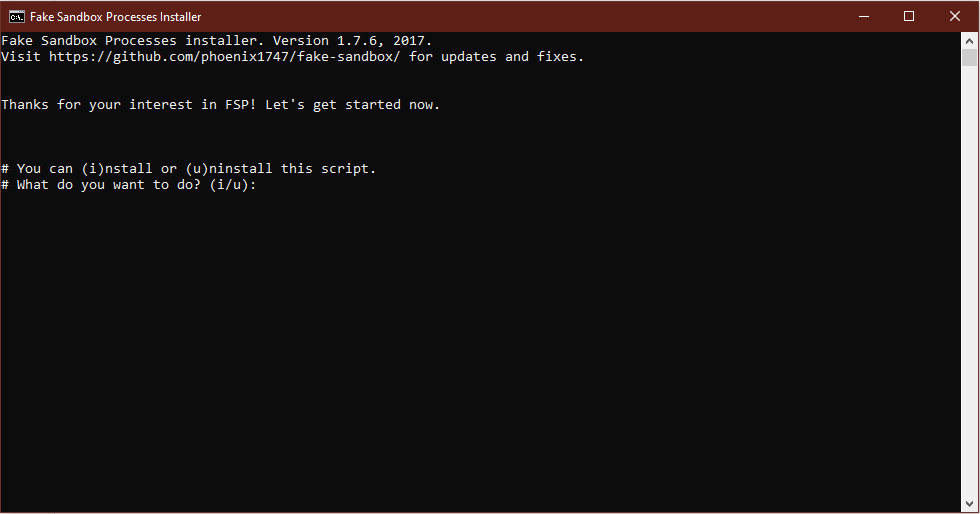
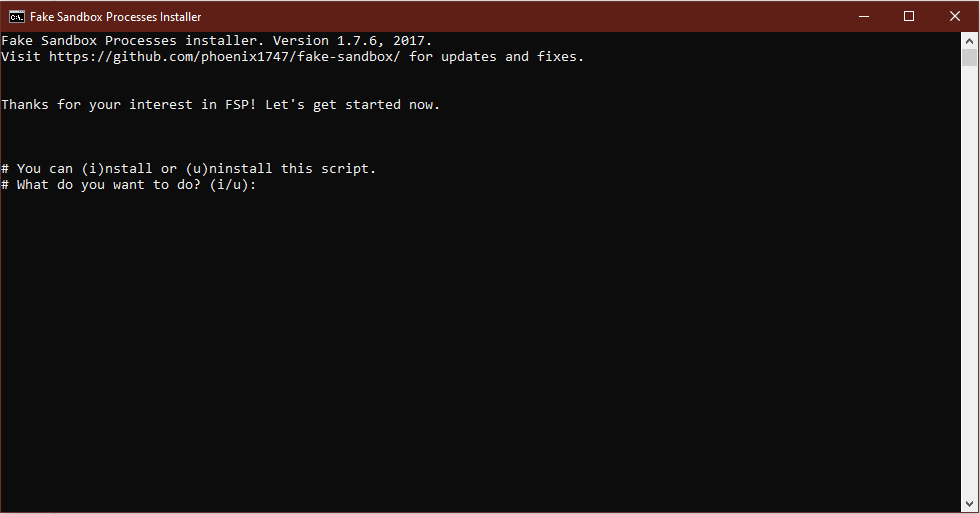
  3. Now you will see this command prompt window:

install1

  1. Choose "i" to start the installation.
  2. Now enter "y" to start installing or "n" to abort.
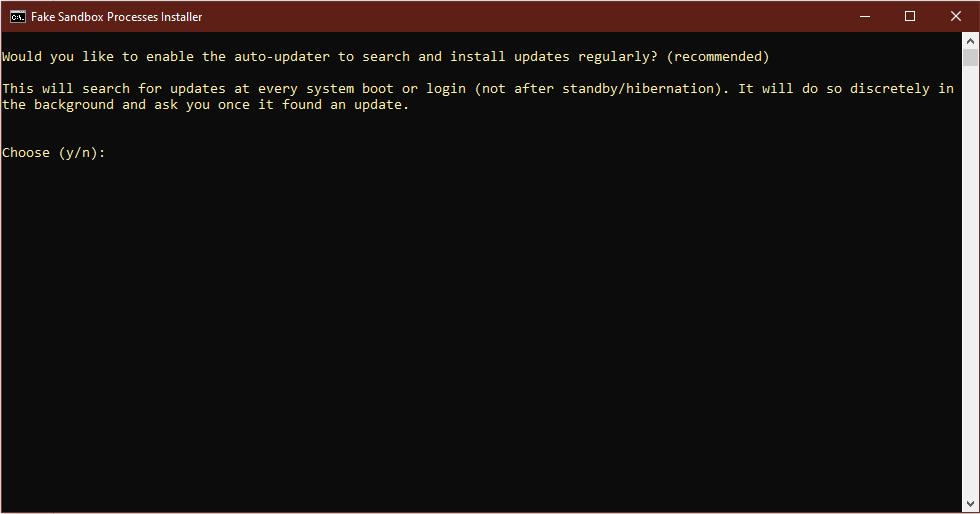
  3. If you entered "y" this image will now pop up:

install2

  1. Enter "y" to install the auto-updater or "n" to not install it (it'll work anyways, but the updater is recommended).

---> You can now close the window or press any key to close it. The installation is complete.

Uninstall

If you no longer want this program on your computer, you'll need the fsp-installer.bat file again. Run it and chose "u" to start the removal process. Then enter "y" if you are ready to purge all created files.
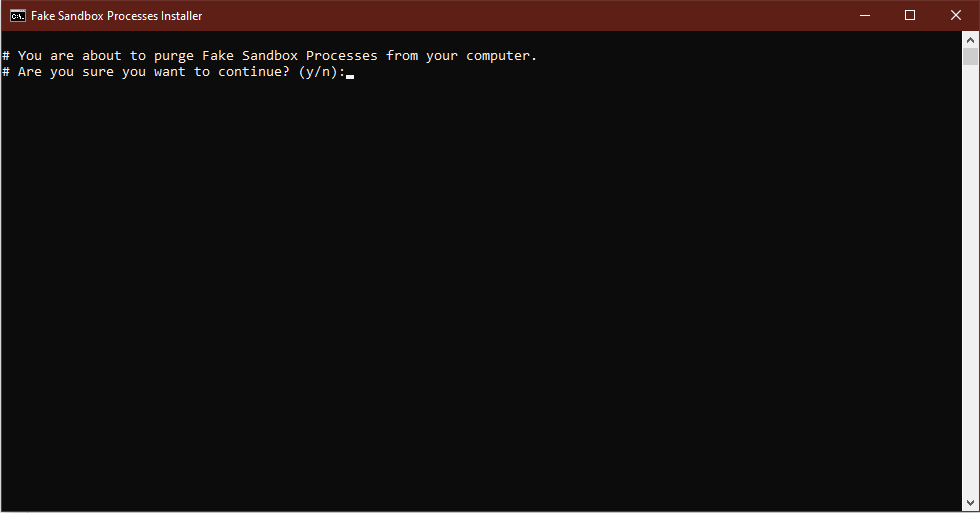
uninstall

If the process was successful, you'll see a confirmation screen - done. No files will remain on your system. You need to delete the installer, though.


Successfully tested on the following Windows versions:

  • Win 10 Professional
  • Win 8.1 Home
  • Win 7 Professional
Download Tool
