kali-linux-docker
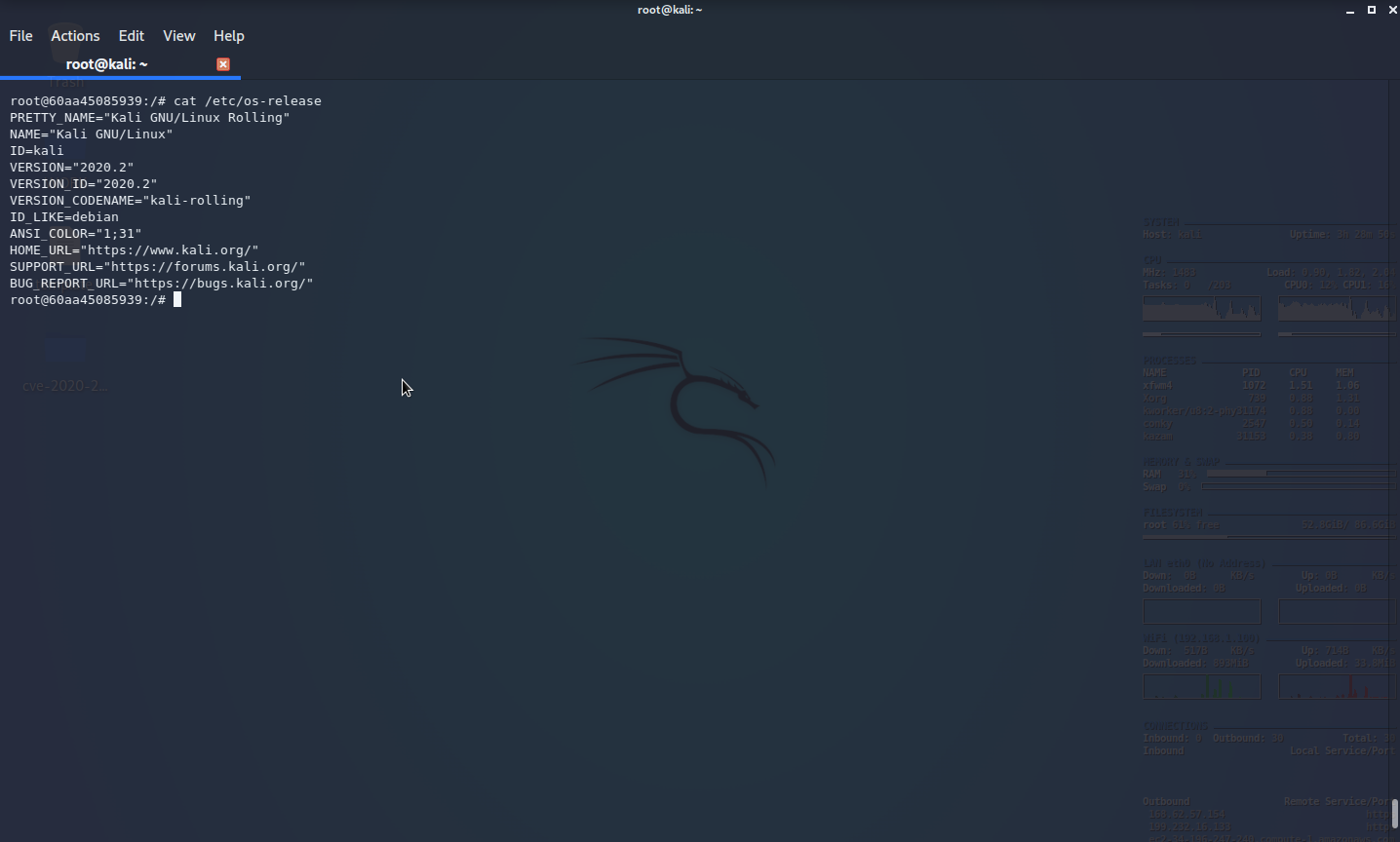
This Kali Linux Docker image provides a minimal base install of the latest version of the Kali Linux Rolling Distribution. There are no tools added to this image, so you will need to install them yourself. For details about Kali Linux metapackages, check https://www.kali.org/news/kali-linux-metapackages/
Docker Hub: https://hub.docker.com/r/nu11secur1ty/kali-linux-docker
Due to --squash being passed to the docker daemon, if experimental features aren't turned on in your daemon, the build.sh script will fail.
On Kali, this is done via /etc/docker/daemon.json having the following contents:
{
    "experimental": true
}
Note: This is only a requirement for us at Offensive Security to reduce the image size when we push a new image to Docker Hub.
If you're building for personal use, you can remove the --squash option in build.sh
Tue May 21 13:59:06 EDT 2019
Obviously, to get this running, you need to install Docker. For Docker on OSX you can use brew, while for most other distributions, you can install it using your local package manager. Once installed and set up, it’s just a matter of pulling our image from the Docker repository:
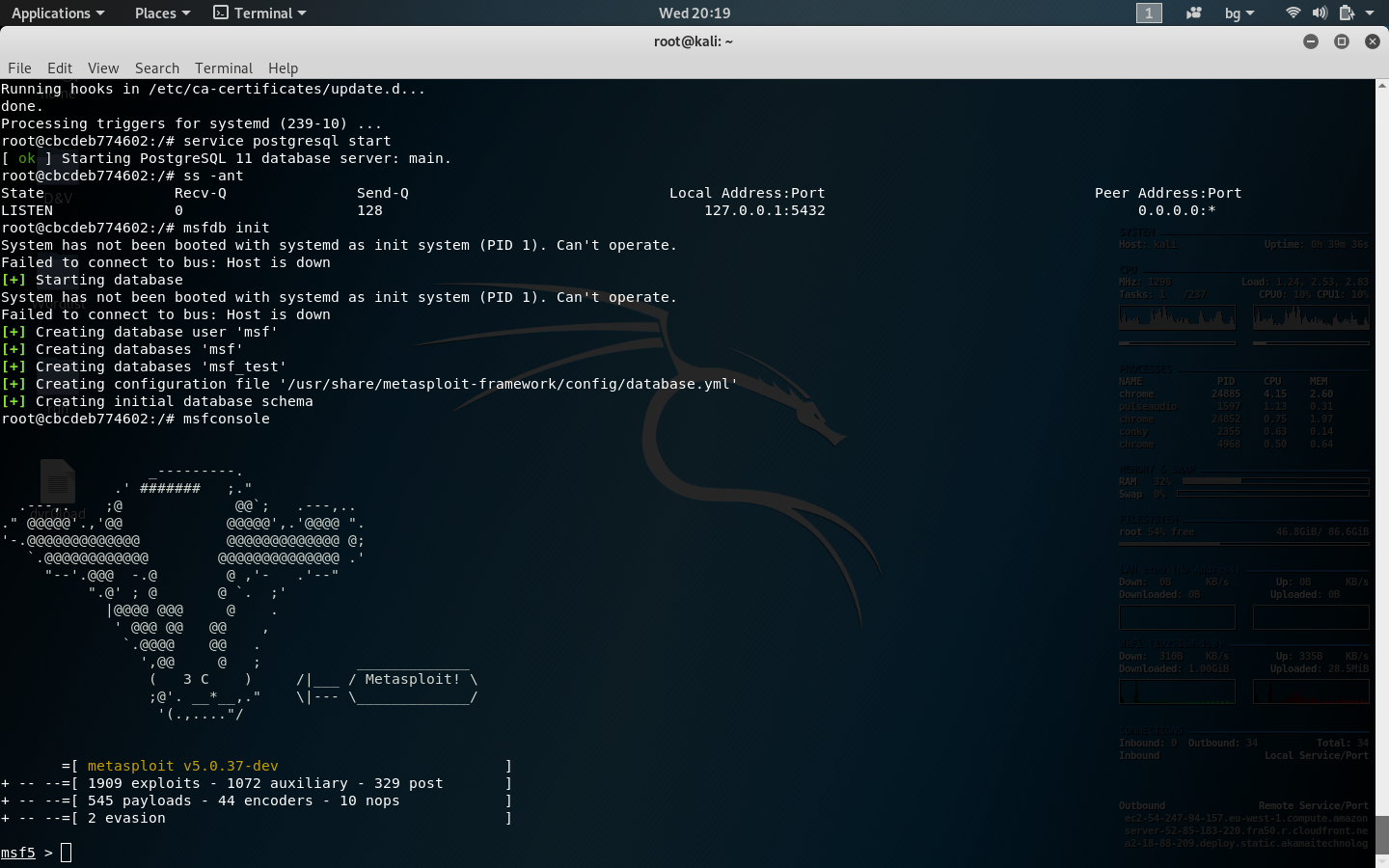
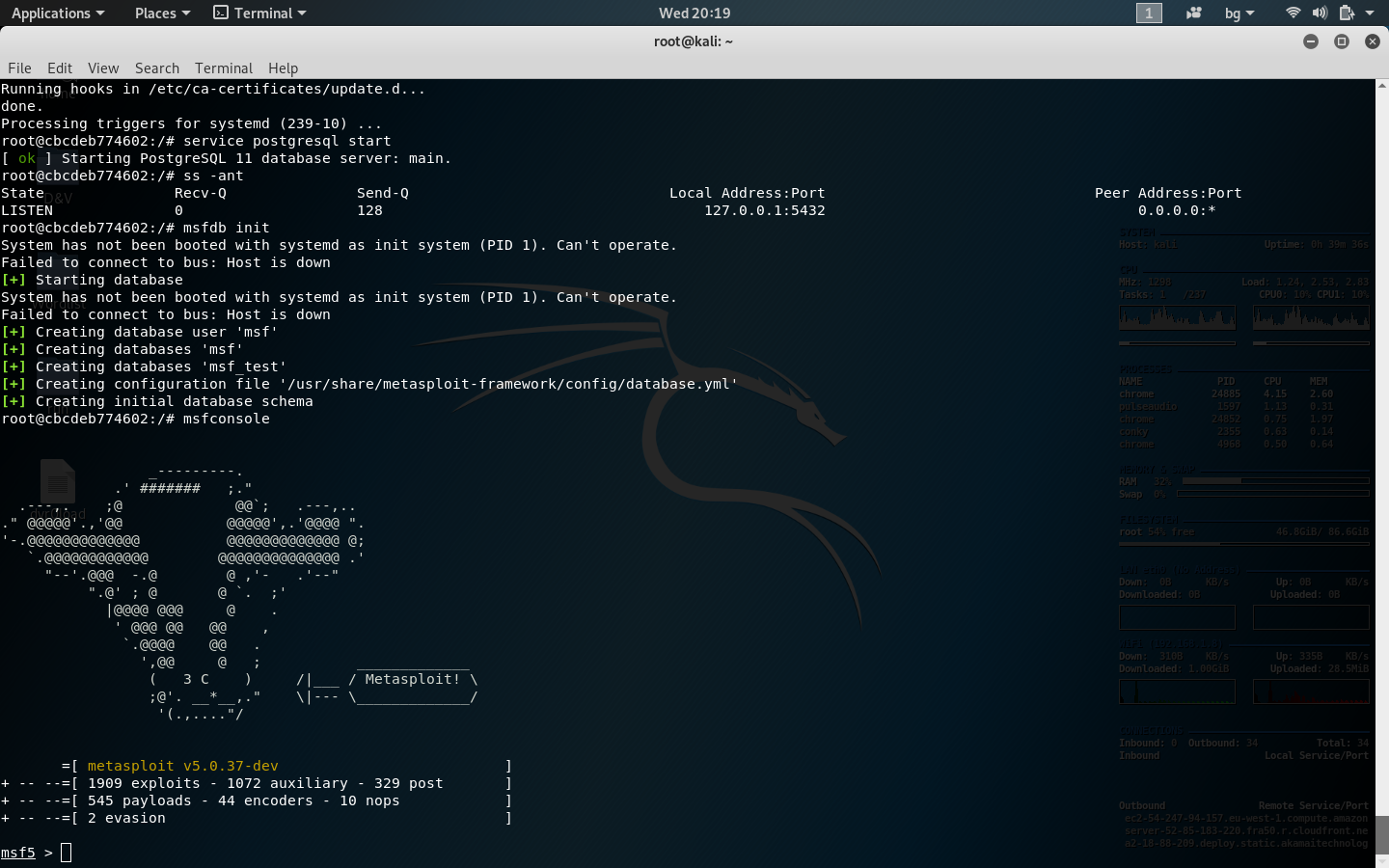
nu11secur1ty:~ # docker pull nu11secur1ty/kali-linux-docker
nu11secur1ty:~ # docker run -t -i nu11secur1ty/kali-linux-docker /bin/bash
root@7e2a35940eff:/# apt update
root@7e2a35940eff:/# apt dist-update
root@7e2a35940eff:/# apt update && apt install metasploit-framework
root@7e2a35940eff:/# apt update && apt install git
root@7e2a35940eff:/# apt update && apt install vim
root@7e2a35940eff:/# service postgresql start
root@7e2a35940eff:/# ss -ant
root@7e2a35940eff:/# msfdb init
root@7e2a35940eff:/# msfconsole
git clone https://github.com/nu11secur1ty/sqliv2.git
cd sqliv2
. usage link:sqliv2
. Get:
git clone https://github.com/nu11secur1ty/nu11secur1ty.git
link:nu11secur1ty
If you want to build your own Kali images rather than use our pre-made ones, we’ve made it easy with the following script hosted on Kali Linux Docker on Github. These images are best built on a Linux system or any other OS that can debootstrap.
#!/bin/bash
# Install dependencies (debootstrap)
sudo apt-get install debootstrap
# Fetch the latest Kali debootstrap script from git
curl "https://gitlab.com/kalilinux/packages/debootstrap.git;a=blob_plain;f=scripts/kali;hb=HEAD" > kali-debootstrap &&\
sudo debootstrap kali ./kali-root http://http.kali.org/kali ./kali-debootstrap &&\
# Import the Kali image into Docker
sudo tar -C kali-root -c . | sudo docker import - kalilinux/kali &&\
sudo rm -rf ./kali-root &&\
# Test the Kali Docker Image
docker run -t -i kalilinux/kali cat /etc/debian_version &&\
echo "Build OK" || echo "Build failed!"
There is a docker exec command that can be used to connect to a container that is already running.
docker exec -it <container name> /bin/bash to get a bash shell in the containerdocker exec -it <container name> <command> to execute whatever command you specify in the container.The proper way to run a command in a container is: docker-compose run <container name> <command>. For example, to get a shell into your web container you might run docker-compose run web /bin/bash
To run a series of commands, you must wrap them in a single command using a shell. For example: docker-compose run <name in yml> sh -c '<command 1> && <command 2> && <command 3>'
In some cases you may want to run a container that is not defined by a docker-compose.yml file, for example to test a new container configuration. Use docker run to start a new container with a given image: docker run -it <image name> <command>
The docker run command accepts command line options to specify volume mounts, environment variables, the working directory, and more.
Getting a shell into a build container to execute any operations is the simplest approach. You simply want to get access to the cli container we defined in the compose file. The command docker-compose -f build.yml run cli will start an instance of the phase2/devtools-build image and run a bash shell for you. From there you are free to use drush, grunt or whatever your little heart desires.
Another concept in the Docker world is starting a container to run a single command and allowing the container stop when the command is completed. This is great if you run commands infrequently, or don't want to have another container constantly running. Running your commands on containers in this fashion is also well suited for commands that don't generate any files on the filesystem or if they do, they write those files on to volumes mounted into the container.
The drush container defined in the example build.yml file is a container designed specifically to run drush in a single working directory taking only the commands as arguments. This approach allows us to provide a quick and easy mechanism for running any drush command, such as sqlc, cache-rebuild, and others, in your Drupal site quick and easily.
There are also other examples of a grunt command container similar to drush and an even more specific command container around running a single command, drush make to build the site from a make/dependency file.
The webapp folder on the host will be mounted into the container's apache root
docker system prune
docker system prune -a
Use the docker images command with the -a flag to locate the ID of the images you want to remove. This will show you every image, including intermediate image layers. When you've located the images you want to delete, you can pass their ID or tag to docker rmi:
docker images -a
docker rmi Image Image