 misp/misp-dashboard
A live dashboard for a real-time overview of threat intelligence from MISP instances

A dashboard showing live data and statistics from the ZMQ feeds of one or more MISP instances. The dashboard can be used as a real-time situational awareness tool to gather threat intelligence information. The misp-dashboard includes a gamification tool to show the contributions of each organisation and how they are ranked over time. The dashboard can be used for SOCs (Security Operation Centers), security teams or during cyber exercises to keep track of what is being processed on your various MISP instances.
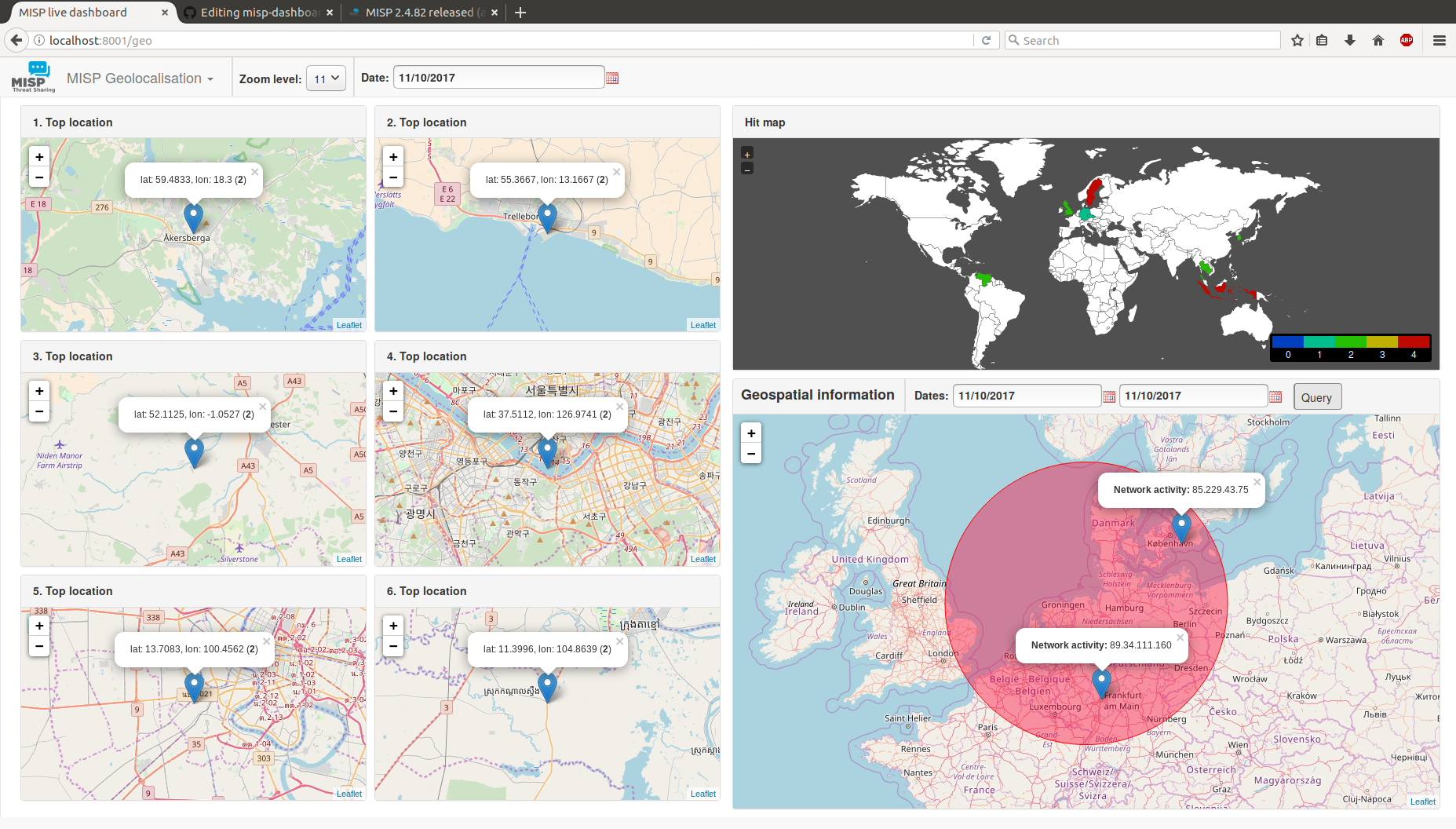
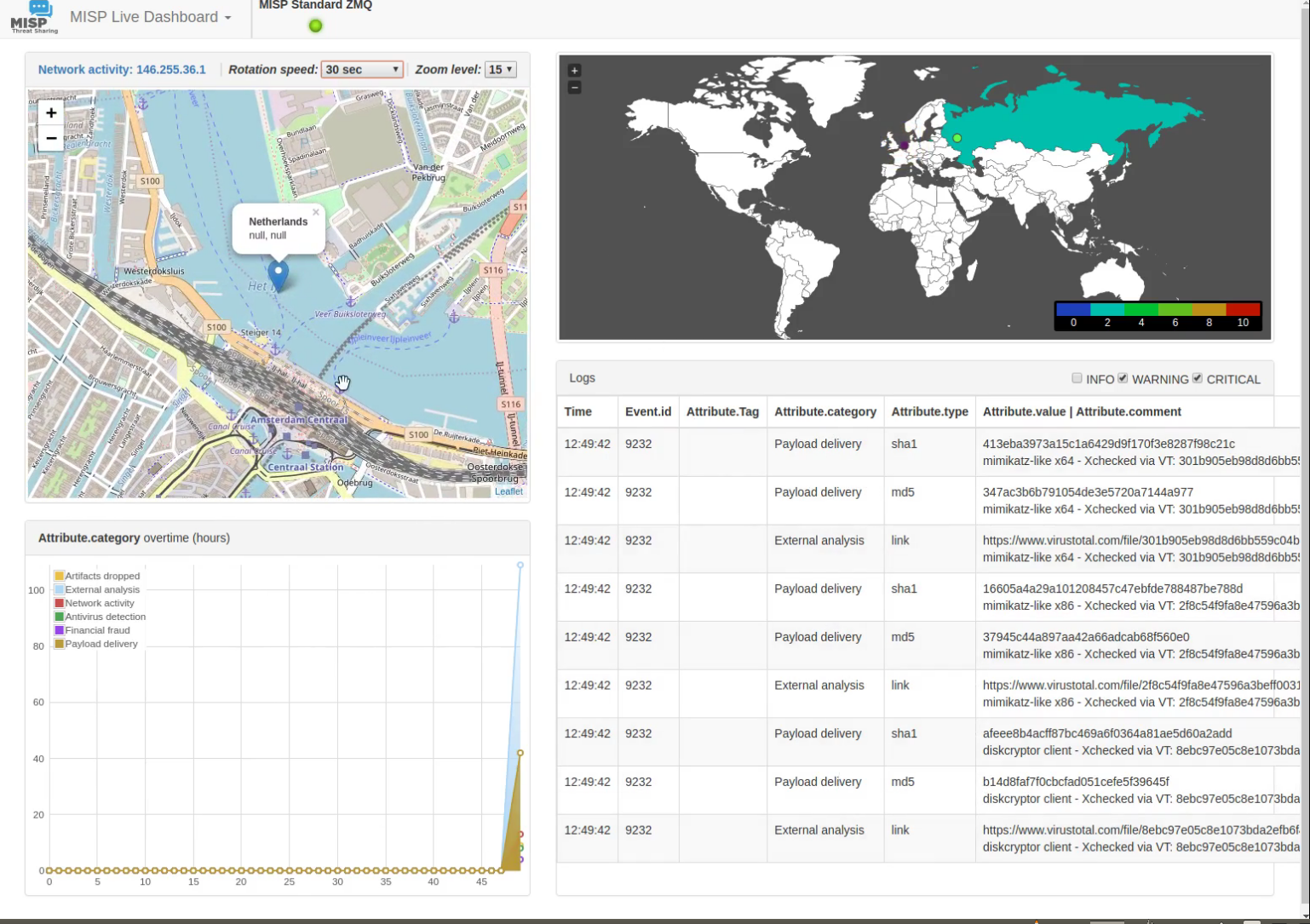
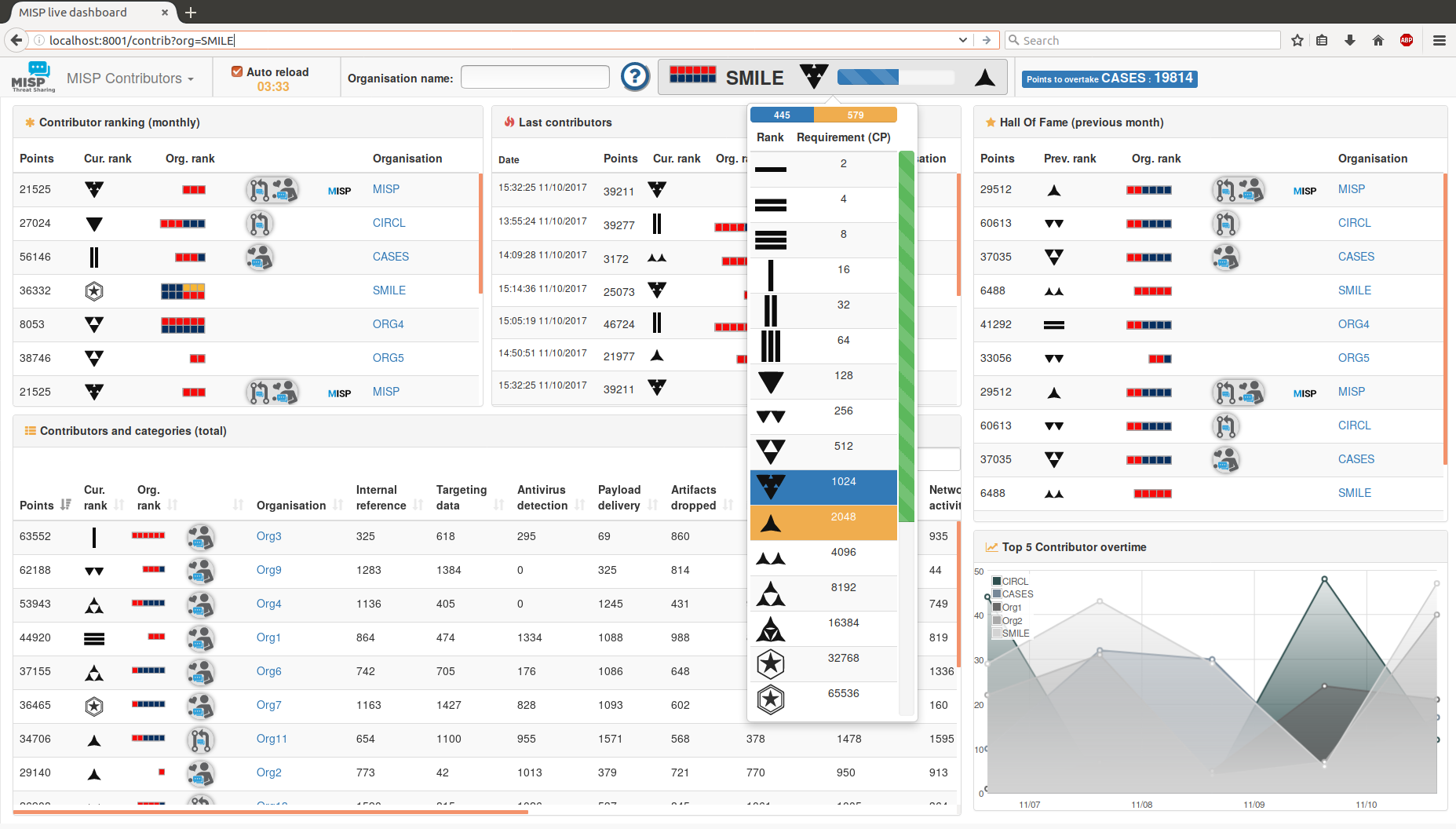
Shows:
Includes:
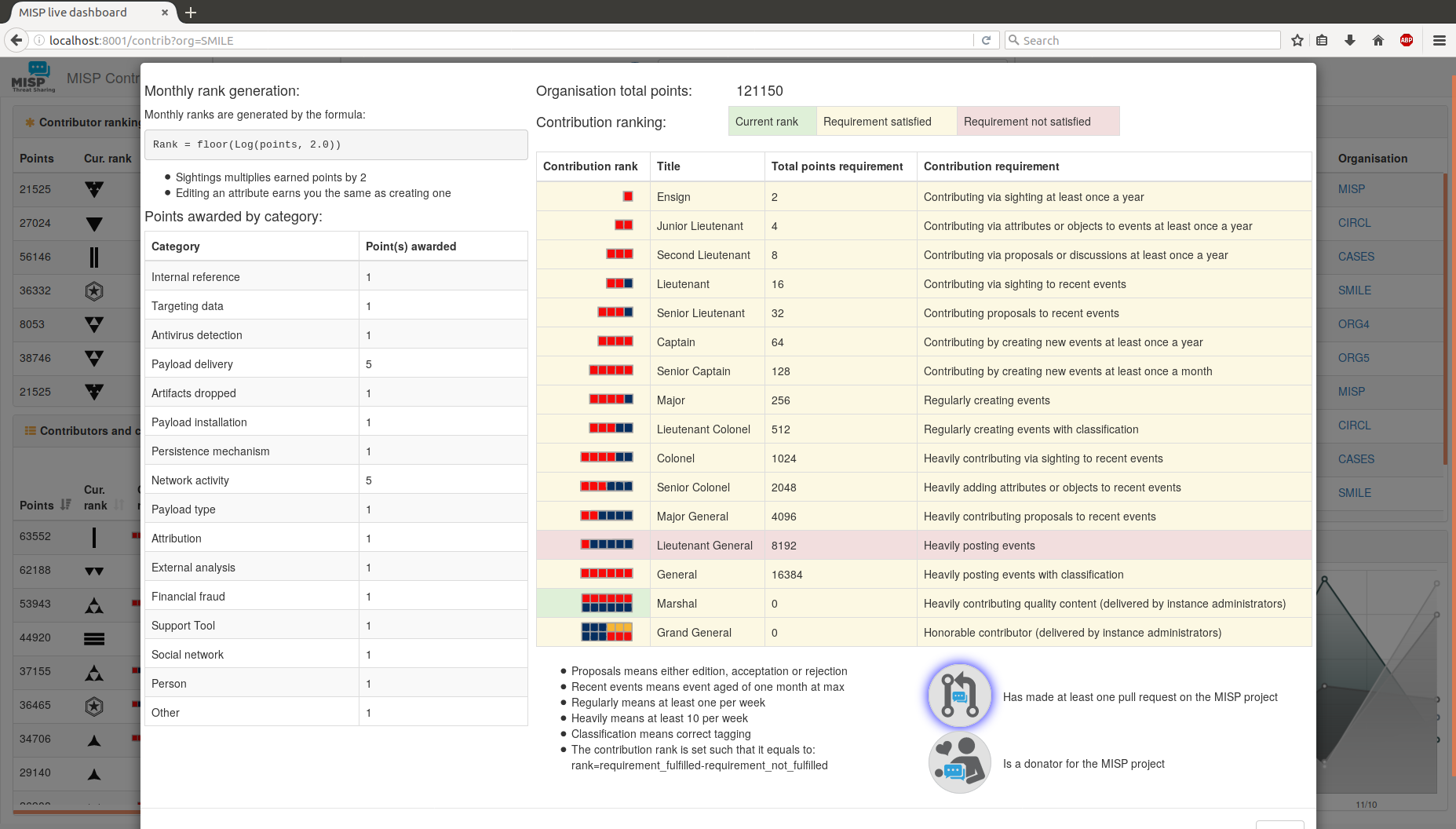
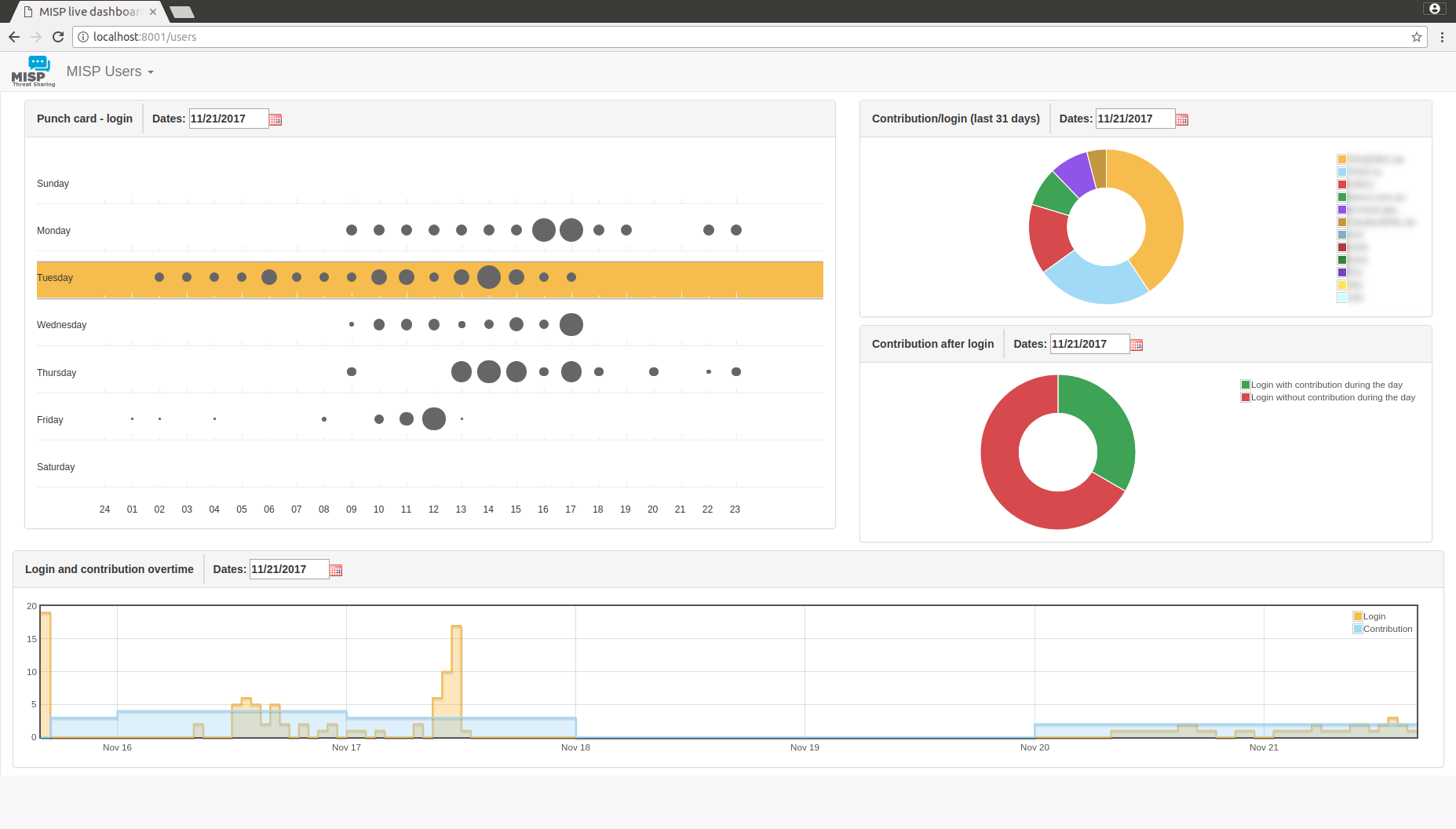
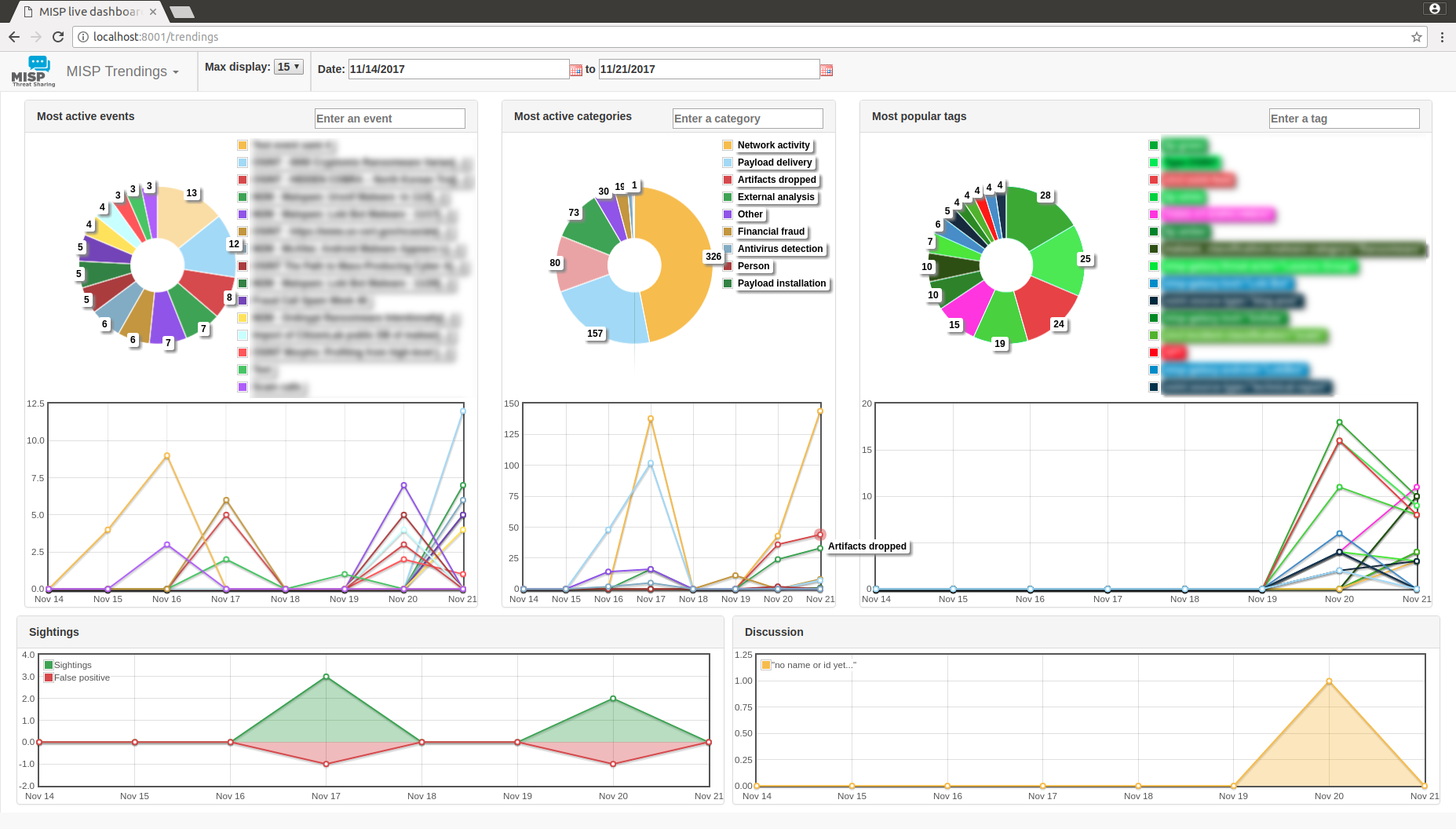
Before installing, consider that the only supported system are open source Unix-like operating system such as Linux and others.
./install_dependencies.sh from the MISP-Dashboard directory (idempotent-ish)config.cfg so that it matches your system
./install_dependencies.sh to fetch new required dependenciesconfig.cfg by comparing eventual changes in config.cfg.default⚠️ Make sure no zmq python3 scripts are running. They block the update.
+ virtualenv -p python3 DASHENV
Already using interpreter /usr/bin/python3
Using base prefix '/usr'
New python executable in /home/steve/code/misp-dashboard/DASHENV/bin/python3
Traceback (most recent call last):
  File "/usr/bin/virtualenv", line 9, in <module>
    load_entry_point('virtualenv==15.0.1', 'console_scripts', 'virtualenv')()
  File "/usr/lib/python3/dist-packages/virtualenv.py", line 719, in main
    symlink=options.symlink)
  File "/usr/lib/python3/dist-packages/virtualenv.py", line 942, in create_environment
    site_packages=site_packages, clear=clear, symlink=symlink))
  File "/usr/lib/python3/dist-packages/virtualenv.py", line 1261, in install_python
    shutil.copyfile(executable, py_executable)
  File "/usr/lib/python3.5/shutil.py", line 115, in copyfile
    with open(dst, 'wb') as fdst:
OSError: [Errno 26] Text file busy: '/home/steve/code/misp-dashboard/DASHENV/bin/python3'
./start_all.sh OR ./start_zmq.sh and ./server.py &⚠️ You should not run it as root. Normal privileges are fine.
redis-server --port 6250. ./DASHENV/bin/activate./zmq_subscriber.py &./zmq_dispatcher.py &./server.py &http://localhost:8001/Alternatively, you can run the start_all.sh script to run the commands described above.
Authentication can be enable in config/config.cfg by setting auth_enabled = True.
Users will be required to login to MISP and will be allowed to proceed if they have the User Setting's dashboard_access sets to 1 for the MISP user account.
Debug is fun and gives you more details on what is going on when things fail. Bare in mind running Flask in debug is NOT suitable for production, it will drop you to a Python shell if enabled, to do further digging.
Just before running ./server.py do:
export FLASK_DEBUG=1
export FLASK_APP=server.py
flask run --host=0.0.0.0 --port=8001 # <- Be careful here, this exposes it on ALL ip addresses. Ideally if run locally --host=127.0.0.1
OR, just toggle the debug flag in start_all.sh or config.cfg.
Happy hacking ;)
To restart from scratch and empty all data from your dashboard you can use the dedicated cleaning script clean.py
Clean data stored in the redis server specified in the configuration file

optional arguments:
  -h, --help    show this help message and exit
  -b, --brutal  Perfom a FLUSHALL on the redis database. If not set, will use
                a soft method to delete only keys used by MISP-Dashboard.
The misp-dashboard being stateless in regards to MISP, it can only process data that it received. Meaning that if your MISP is not publishing all notifications to its ZMQ, the misp-dashboard will not have them.
The most revelant example could be the user login punchcard. If your MISP doesn't have the option Plugin.ZeroMQ_audit_notifications_enable set to true, the punchcard will be empty.
When the misp-dashboard does not show results then first check if the zmq module within MISP is properly installed.
In Administration, Plugin Settings, ZeroMQ check that Plugin.ZeroMQ_enable is set to True.
Publish a test event from MISP to ZMQ via Event Actions, Publish event to ZMQ.
Verify the logfiles
${PATH_TO_MISP}/app/tmp/log/mispzmq.error.log
${PATH_TO_MISP}/app/tmp/log/mispzmq.log
If there's an error ModuleNotFoundError: No module named 'zmq' then install pyzmq.
$SUDO_WWW ${PATH_TO_MISP}/venv/bin/pip install pyzmq
