 martyx00/collare
Multi-tool reverse engineering collaboration solution.


CollaRE is a tool for collaborative reverse engineering that aims to allow teams that do need to use more then one tool during a project to collaborate without the need to share the files on a separate location. It also contains a very simple user management and as such can be used for a multi-project server where different teams work on different projects.
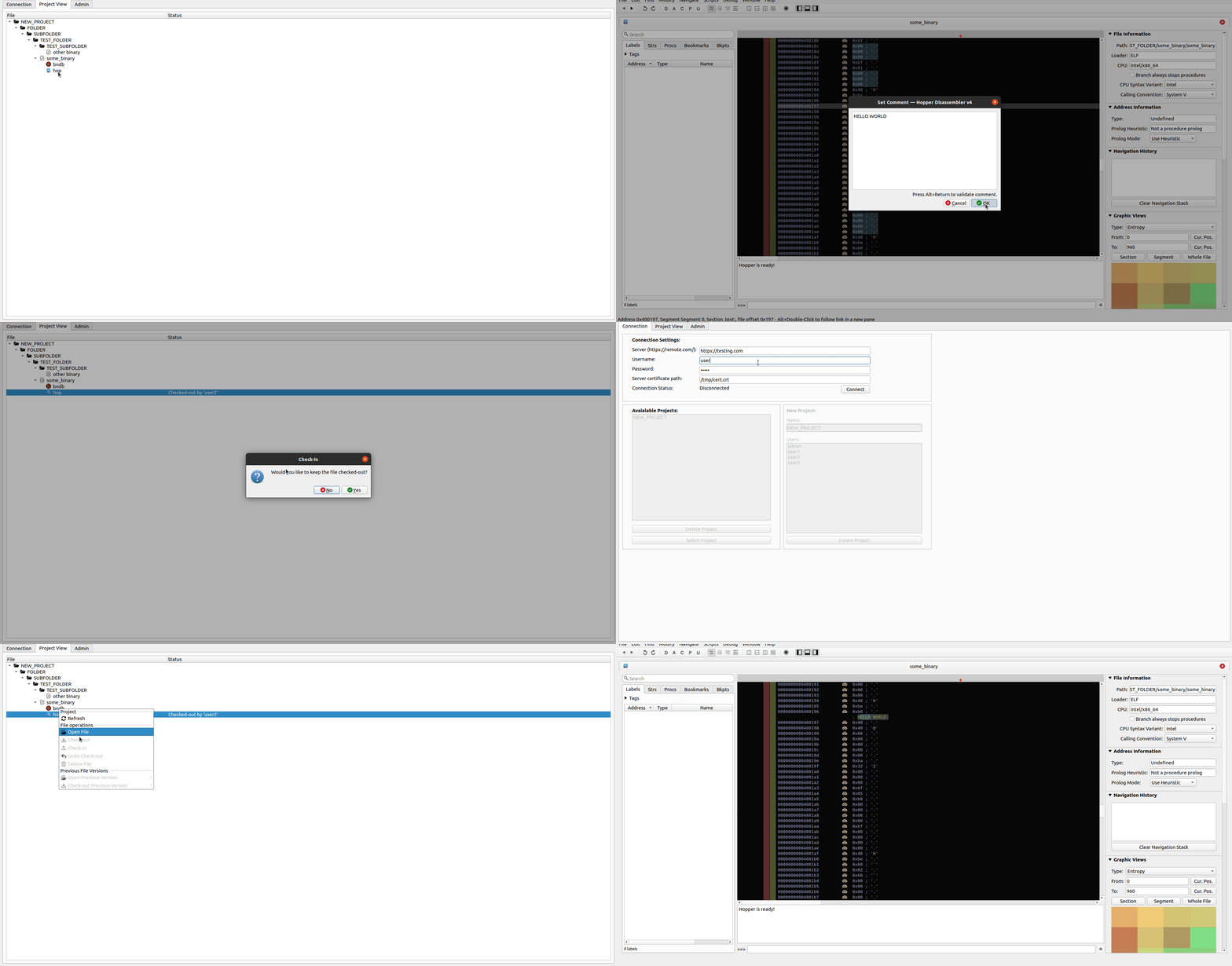
The back-end of the tool is a simple Flask app with nginx in front of it running in Docker that works with files and JSON based manifests that hold the relevant data. The front-end is a PyQT based GUI tool with a simple interface that allows managing the projects and working with the binary files and their corresponding reverse engineering databases. As of now the tool supports Binary Ninja, Cutter (Rizin), Ghidra, Hopper Dissassembler, IDA, JEB and Android Studio (Decompiled by JADX). The implementation is abstracted from the inner workings of these tools as much as possible to avoid issues with any API changes and thus does not integrate directly into those tools in form of a plugin (except for data migration plugins described below). The work is based purely on managing the files produced by these tools (literally just based on the well known file extensions) and simple SVN-style check-out and check-in operations.
Grab the latest binary release from this repository or clone the repo and run sudo python3 setup.py install on Linux or use command line on Windows and run python3 setup.py install. On Linux this will install the tool to the PATH and you will be able to run it simply with collare command. On Windows this will put the file into the C:\Users\<USERNAME>\AppData\Local\Programs\Python\<PYTHON_VERSION>\Scripts\collare.exe (depending on how you installed Python).
For Gnome based desktop UIs you can use following desktop file (paths to files may vary based on version of CollaRE and Python):
[Desktop Entry]
Type=Application
Encoding=UTF-8
Name=CollaRE
Exec=/usr/local/bin/collare
Icon=/usr/local/lib/python3.8/dist-packages/collare-1.2-py3.8.egg/collare/icons/collare.png
Terminal=false
To enable support for Cutter add a file Cutter to your path (when you open cmd/terminal writing Cutter should start the application).
When saving Cutter (rizin) projects you have to manually append .rzdb. Do not remove the extension that the file already has (exe or so for example).
To enable support for Binary Ninja add a file binaryninja to your path (when you open cmd/terminal writing binaryninja should start the application).
Binary Ninja is removing file extensions by default, however the tool accounts for this so there is no need to put the original file extension back manually. Saving the projects as is in a default path is enough to be able to successfully push local bndb database.
To enable support for Hopper Disassembler add a file Hopper to your path (when you open cmd/terminal writing Hopper should start the application).
Hopper is removing file extensions by default, however the tool accounts for this so there is no need to put the original file extension back manually. Saving the projects simply with Ctrl+S is enough to be able to successfully push local hop database.
To enable support for JEB add a file jeb to your path (when you open cmd/terminal writing jeb should start the application). This can be done by renaming the default runner script file for your OS to jeb (for Windows this would actually be jeb.bat).
To enable support for IDA tool add a files ida64 and ida to your path (when you open cmd/terminal writing ida64/ida should start the application).
To enable support for this tool add a file ghidraRun and analyzeHeadless (.bat for Windows) to your path (when you open cmd/terminal writing ghidraRun should start the application). Note that analyzeHeadless is in support folder in the Ghidra root directory so make sure to adjust PATH to accommodate both files.
The process of initializing the database with Ghidra is a bit more complicated as there is no way that Ghidra will process file without creating a project. So to be able to push the Ghidra database (referred to as ghdb) you will be prompted to create a project manually whenever automatic processing fails (basically whenever the file you process is not ELF/PE) and then specify the path to the gpr file (sorry for that).
As APK and JAR files are often encountered during the reverse engineering efforts the CollaRE tool also supports working with these types of files. To enable support for these tools it is necessary to make sure that files android-studio and jadx are both in the path (when you open cmd/terminal writing android-studio/jadx should start the application). The JADX tool is used to perform the decompilation of the JAR/APK file and the Android Studio is used to open the resulting files. Note that use of Android Studio is optional as you can alias any other tool that handles Gradle projects under android-studio command (such as IntelliJ IDEA).
After deploying the server side as mentioned in its own readme file, it is necessary to distribute the used certificate file to all users of the application as well as use the default admin account with admin password to create other user accounts (don't forget to change password of admin user) via the Admin tab. When the users are configured anyone can create their own projects and start working with the tool itself.
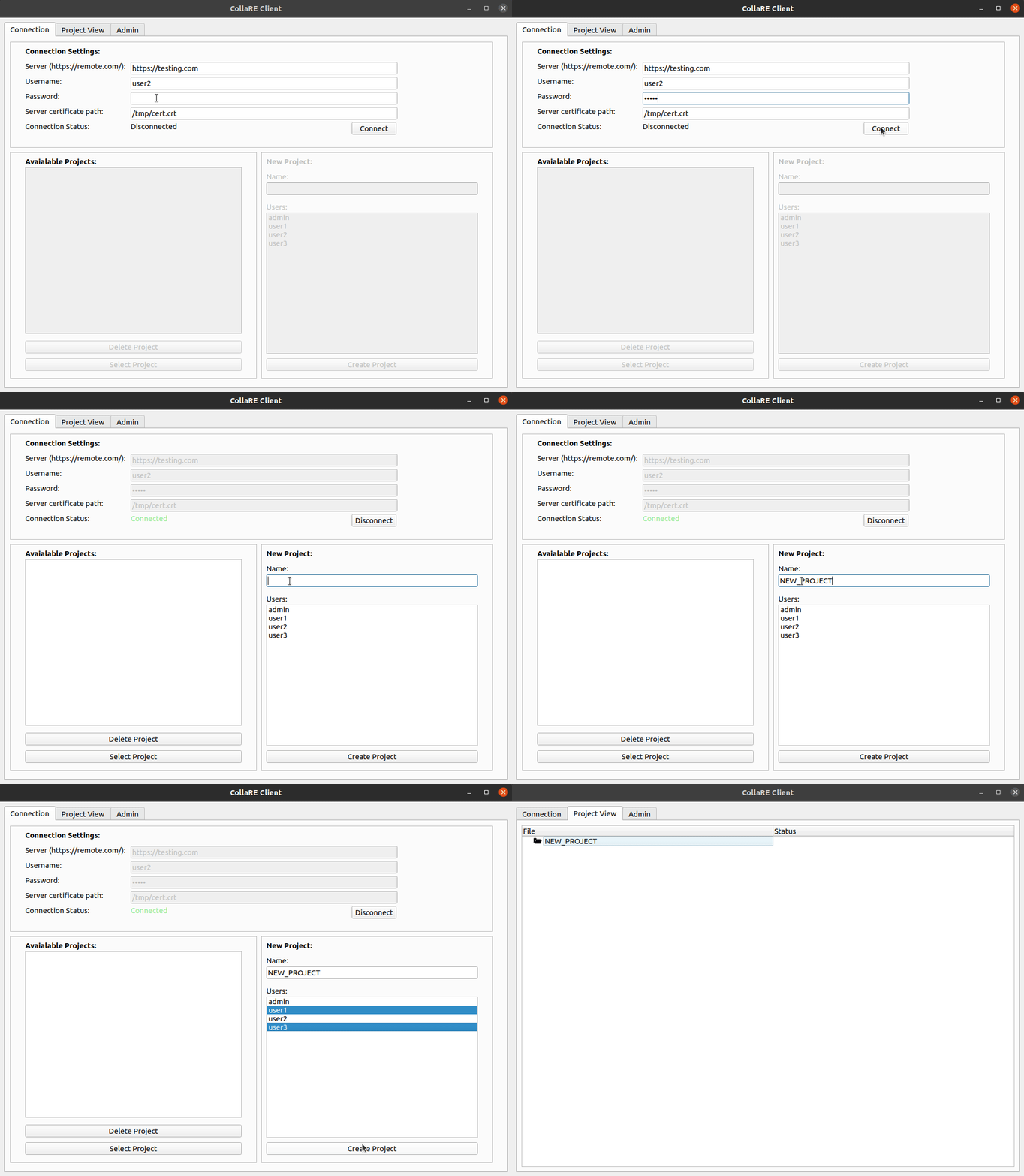
To create a project user has to first authenticate to the remote server by entering the URL, credentials and provide a certificate to validate the server identity. After that, the status will change to Connected and it is possible to select or delete existing projects or create a new project by simply entering the name (alphanumeric characters and _ only) and selecting users that will be participating on the project (can be changed later in the Admin tab). Note that the user that is creating the project is automatically added to the user list so you do not have to select yourself.
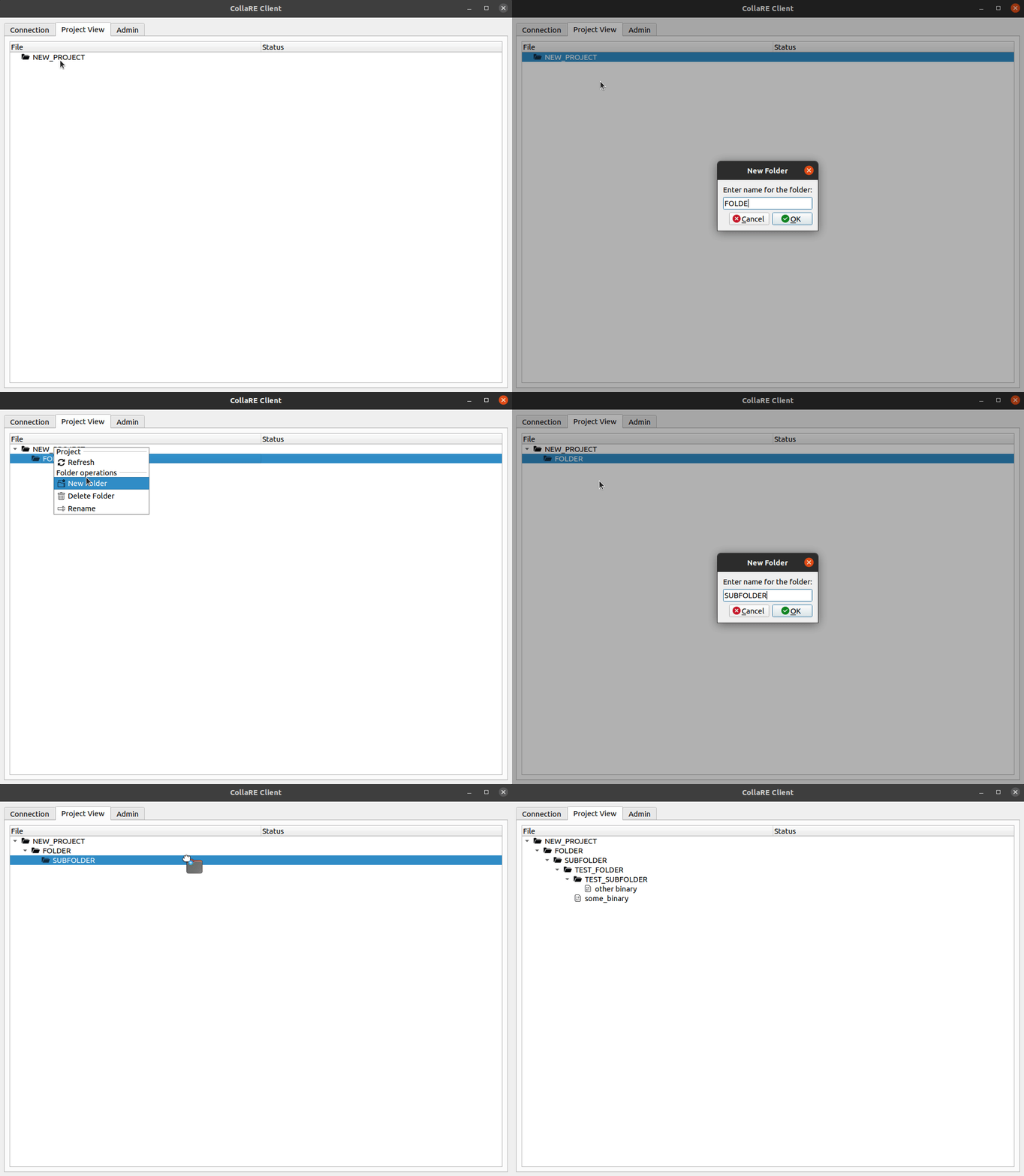
Once you are on the Project View tab you can create new folders (alphanumeric characters and _ only, sorry) and use drag and drop to upload files (or folders).