 martin-ger/esp_wifi_repeater
A full functional WiFi NAT Router (and now also a WiFi Repeater)

A full functional WiFi NAT router (and now also a WiFi repeater aka. L2 bridge)
NEW 2026: 10 years after the first release it has finally become, what it ever pretendend to be: a true WiFi Repeater. In order not to break any existing docs and links, the standard edition still remains the well-known NAT router version with all the advanced features. But if you are interested in a stripped down true L2 bridge, look below in the section ESP8266 WiFi Repeater - L2 bridge.
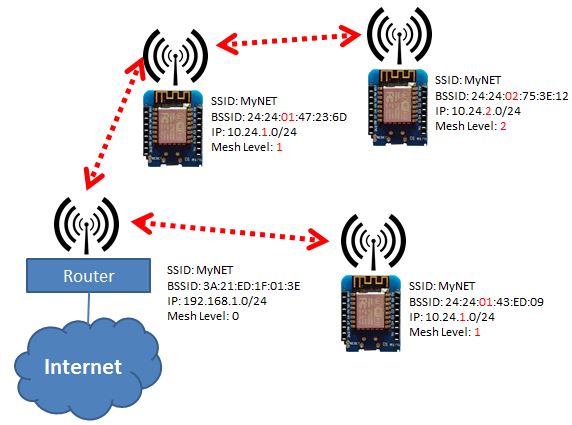
This is an implementation of a WiFi NAT router on the esp8266 and esp8285. It also includes support for a packet filtering firewall with ACLs, port mapping, traffic shaping, hooks for remote monitoring (or packet sniffing), an MQTT management interface, simple GPIO interaction, and power management. For a setup with multiple routers in a mesh to cover a larger area a new mode "Automesh" has been included.
If you are looking for a way to integrate the NAT feature into your Arduino project - see here .
EPS32 NAT Router is the advanced project for the ESP32.
Typical usage scenarios include:
By default, the ESP acts as STA and as soft-AP and transparently forwards any IP traffic through it. As it uses NAT no routing entries are required neither on the network side nor on the connected stations. Stations are configured via DHCP by default in the 192.168.4.0/24 net and receive their DNS responder address from the existing WiFi network.
Measurements show, that it can achieve about 5 Mbps in both directions, so even streaming is possible.
Some details are explained in this video.
For direct flashing onto the device use the Web-Installer.
The esp_wifi_repeater starts with the following default configuration:
After first boot (or factory reset) it will offer a WiFi network with an open AP and the ssid "MyAP". It does not yet try to automatically re-connect to an uplink AP (as it does not know a valid ssid or password).
Connect to this WiFi network and do the basic configuration either via a simple web interface or the full config with all options via the console.
The web interface allows for the configuration of all parameters required for the basic forwarding functionality. Thanks to rubfi for the major work on that: https://github.com/rubfi/esp_wifi_repeater/ . Point your browser to "http://192.168.4.1". This page should appear:
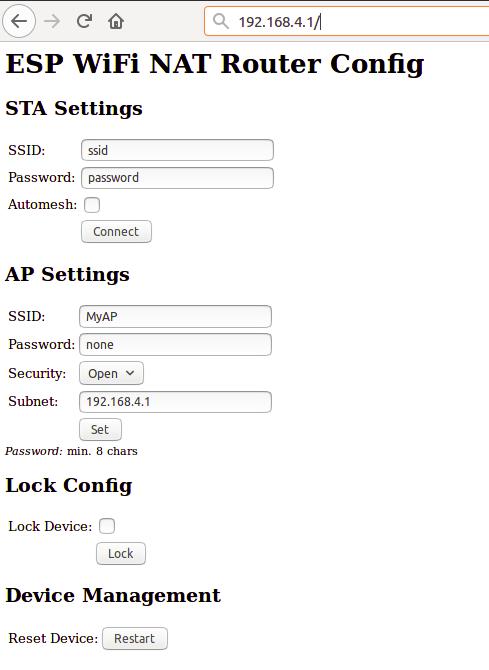
First enter the appropriate values for the uplink WiFi network, the "STA Settings". Use password "none" for open networks. Check the "Automesh" box if and only if you really want to use the automesh mode. Click "Connect". The ESP reboots and will connect to your WiFi router. The status LED should be blinking after some seconds.
If you have selected automesh, you are done with config. Configuring the "Soft AP Settings" is not required as in automesh mode these settings are identical to the "STA Settings". The same ssid will be offered by all connected ESP repeaters.
If you are not using automesh, you can now reload the page and change the "Soft AP Settings". Click "Set" and again the ESP reboots. Now it is ready for forwarding traffic over the newly configured Soft AP. Be aware that these changes also affect the config interface, i.e. to do further configuration, connect to the ESP through one of the newly configured WiFi networks. For access through the Soft AP remember the address of the Soft APs network if you have changed that (the ESP has always the address x.x.x.1 in this network).
If you like, you can mark the "lock" checkbox and click "Lock". Now the config cannot be changed anymore without first unlocking it with the uplink WiFi network's password (define one even if the network is open).
If you want to enter non-ASCII or special characters in the web interface you have to use HTTP-style hex encoding like "My%20AccessPoint". This will result in a string "My AccessPoint". With this hex encoding you can enter any byte value you like, except for 0 (for C-internal reasons).
If you made a mistake and have lost all contact with the ESP you can still use the serial console to recover it ("reset factory", see below).
Advanced configuration has to be done via the command line on the console interface. This console is available either via the serial port at 115200 baud or via tcp port 7777 (e.g. "telnet 192.168.4.1 7777" from a connected STA).
Use the following commands for an initial setup:
Again, if you want to enter non-ASCII or special characters you can use HTTP-style hex encoding (e.g. "My%20AccessPoint") or, only on the CLI, as shortcut C-style quotes with backslash (e.g. "My\ AccessPoint"). Both methods will result in a string "My AccessPoint".
The command line understands a lot more commands:
Enough to get it working in nearly all environments.
Most of the set-commands are effective only after save and reset.
Any part of a command line input after a single "#" until the end of the line will be treated as a comment and will be ignored.
