Thank you🙏 for your Star support;
Thank you🙏 for your usage and recognition;
Program Overview
This is a GUI tool for detecting and exploiting the CVE-2026-24061 vulnerability. This vulnerability is a GNU Inetutils telnetd authentication bypass flaw that allows attackers to obtain root privileges without a username and password.
Features
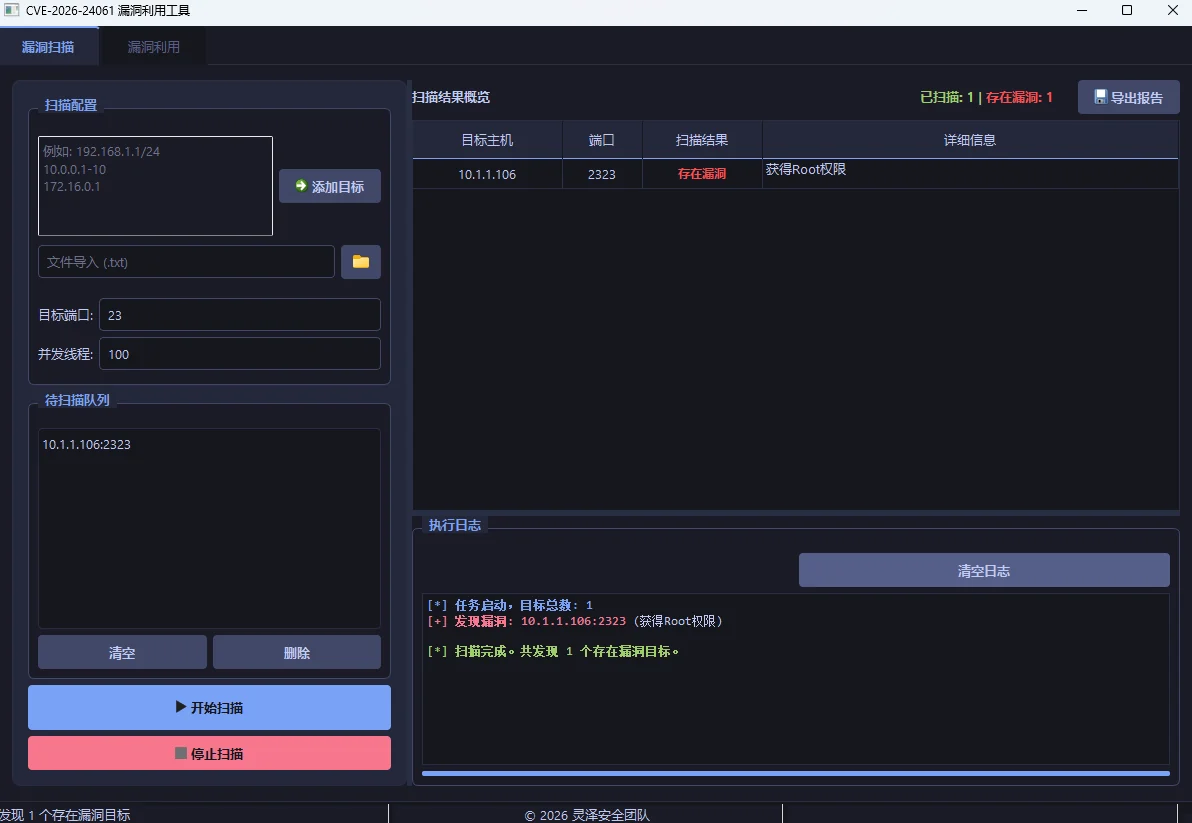
Vulnerability Scanning
- Supports single target, IP range, and CIDR subnet scanning
- Supports importing target lists from files
- Multi-threaded concurrent scanning for improved efficiency
- Real-time display of scan results, including vulnerability status and detailed information
- Supports exporting scan results (CSV/text format)
- Provides detailed scan logs
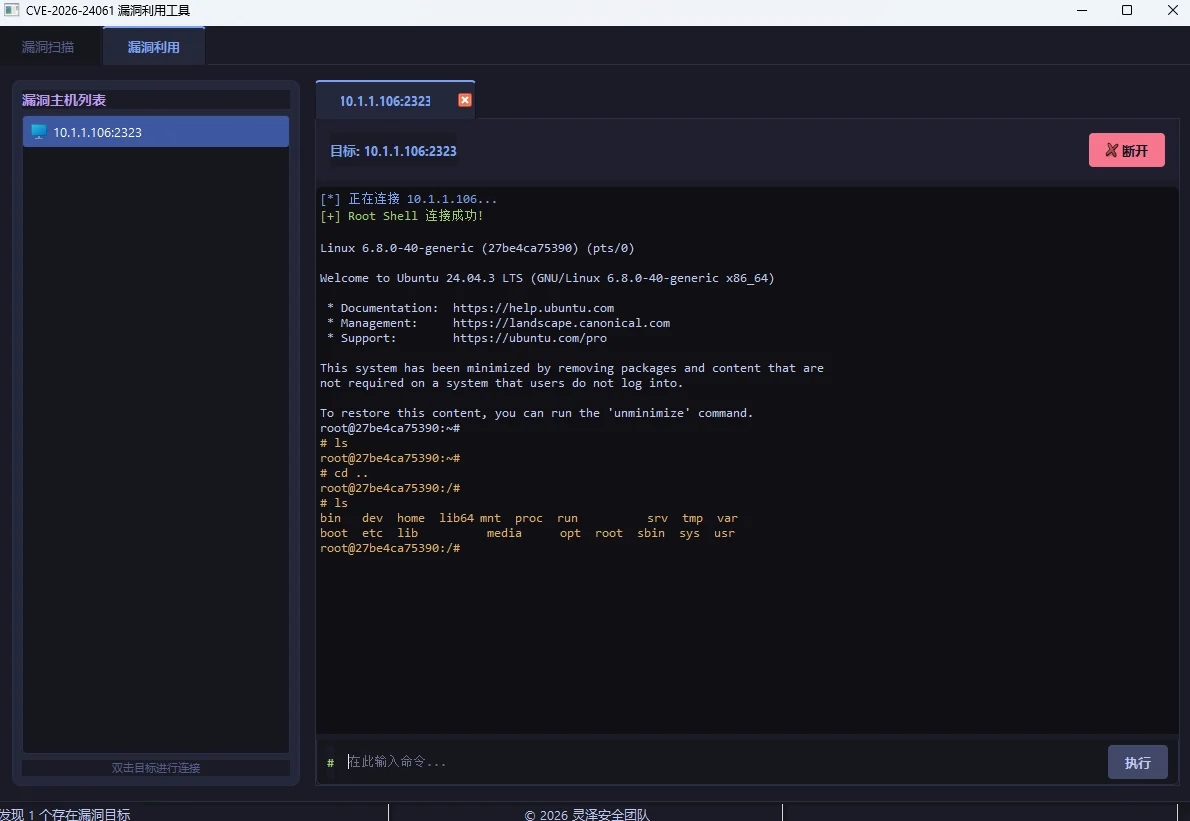
Vulnerability Exploitation
- Batch management of discovered vulnerable targets
- Supports multiple simultaneously connected terminal sessions
- Provides an interactive Root Shell
- Real-time display of command execution results
Modern UI
- Dark theme design for a comfortable visual experience
- Tabular data display, intuitive and clear
- Tab switching support for convenient operation
- Provides detailed status prompts and log information
Installation Steps
1. Install Python
Ensure that Python 3.8 or above is installed on your system.
2. Install Dependencies
Use pip to install the required dependencies:
pip install -r requirements.txt
3. Run the Program
Run the Python script directly:
python cve_2026_24061_gui.py
Usage Instructions
1. Vulnerability Scanning
-
Add Targets
- Enter targets in the text box (supports single IP, IP range, CIDR subnet)
- Click the "Add Target" button to add targets to the scan queue
- Or click the "Browse" button to import a target list from a file
-
Configure Scan Parameters
- Set the target port (default: 23)
- Set the number of concurrent threads (1-1000, default: 100)
-
Start Scanning
- Click the "Start Scan" button to begin scanning
- View scan progress and results in real time
- Scan results will be displayed in the table, including target host, port, vulnerability status, and detailed information
-
Manage Scan Results
- Scan results can be sorted and filtered
- Click the "Export Report" button to export scan results
- Click the "Clear Log" button to clear log content
2. Vulnerability Exploitation
-
View Vulnerable Targets
- Switch to the "Exploitation" tab
- The left list displays all discovered vulnerable targets
-
Establish Connections
- Double-click a target in the list to establish a terminal connection
- After a successful connection, an interactive terminal will be displayed on the right
-
Execute Commands
- Enter commands in the terminal input box
- Click the "Execute" button or press Enter to run commands
- Command execution results will be displayed in the terminal in real time
-
Manage Terminal Sessions
- Supports multiple simultaneously connected terminal sessions
- Different terminals can be switched between using tabs
- Click the tab close button or the "Disconnect" button to close a connection
Technical Parameters
-
Scan Configuration
- Connection timeout: 3 seconds
- Read timeout: 3 seconds
- ID command timeout: 3 seconds
- Default user value: -f root
-
Performance Parameters
- Maximum concurrent threads: 1000
- Maximum targets per scan task: Unlimited
- Supported terminal sessions: Unlimited (subject to system resource limits)
Important Notes
-
Legal Compliance
- This tool is intended solely for legitimate security testing and research purposes
- Before using this tool, ensure you have authorization for the target system
- Unauthorized use may violate laws and regulations
-
Security Risks
- The exploitation feature will directly obtain Root privileges on the target system; use with caution
- It is recommended to test in an isolated environment to avoid impacting production systems
-
System Requirements
- Windows 10/11 operating system recommended
- At least 4GB of memory is recommended to support high-concurrency scanning
- Ensure a stable network connection to avoid scan interruptions
-
Updates and Maintenance
- Regularly check for tool updates to obtain the latest vulnerability detection and exploitation methods
- If you encounter issues or have improvement suggestions, please provide feedback promptly
Frequently Asked Questions
Q: What causes the "Connection Timeout" result in scanning?
A: The target system may not have the Telnet port open, or the network connection may be unstable. It is recommended to check the target system's network settings and Telnet service status.
Q: Why is the scan speed slow?
A: Scan speed is affected by multiple factors, including network bandwidth, target system response time, and the number of concurrent threads. You can try adjusting the number of concurrent threads to optimize scan speed.
Q: What causes the "Connection Refused" prompt when connecting to a terminal?
A: The target system's Telnet service may be disabled, or a firewall may be blocking the connection. It is recommended to check the target system's Telnet service status and firewall settings.
Q: How can I improve scan accuracy?
A: It is recommended to scan in a stable network environment, adjust timeout settings appropriately, and avoid false positives. For important targets, you can perform multiple scans to confirm results.
Disclaimer
This tool is provided for learning and legitimate security testing purposes only. Do not use it for illegal purposes. The user assumes full responsibility for any consequences arising from the use of this tool. The author assumes no legal liability.
© 2026 Lingze Security Team
All rights reserved.
 lingzesec/cve-2026-24061-gui
