 leaningtech/webvm
Client-side Linux virtual machine running in the browser via WebAssembly, with Tailscale networking, Dockerfile-based custom images, and CTF challenge support for security education and development.


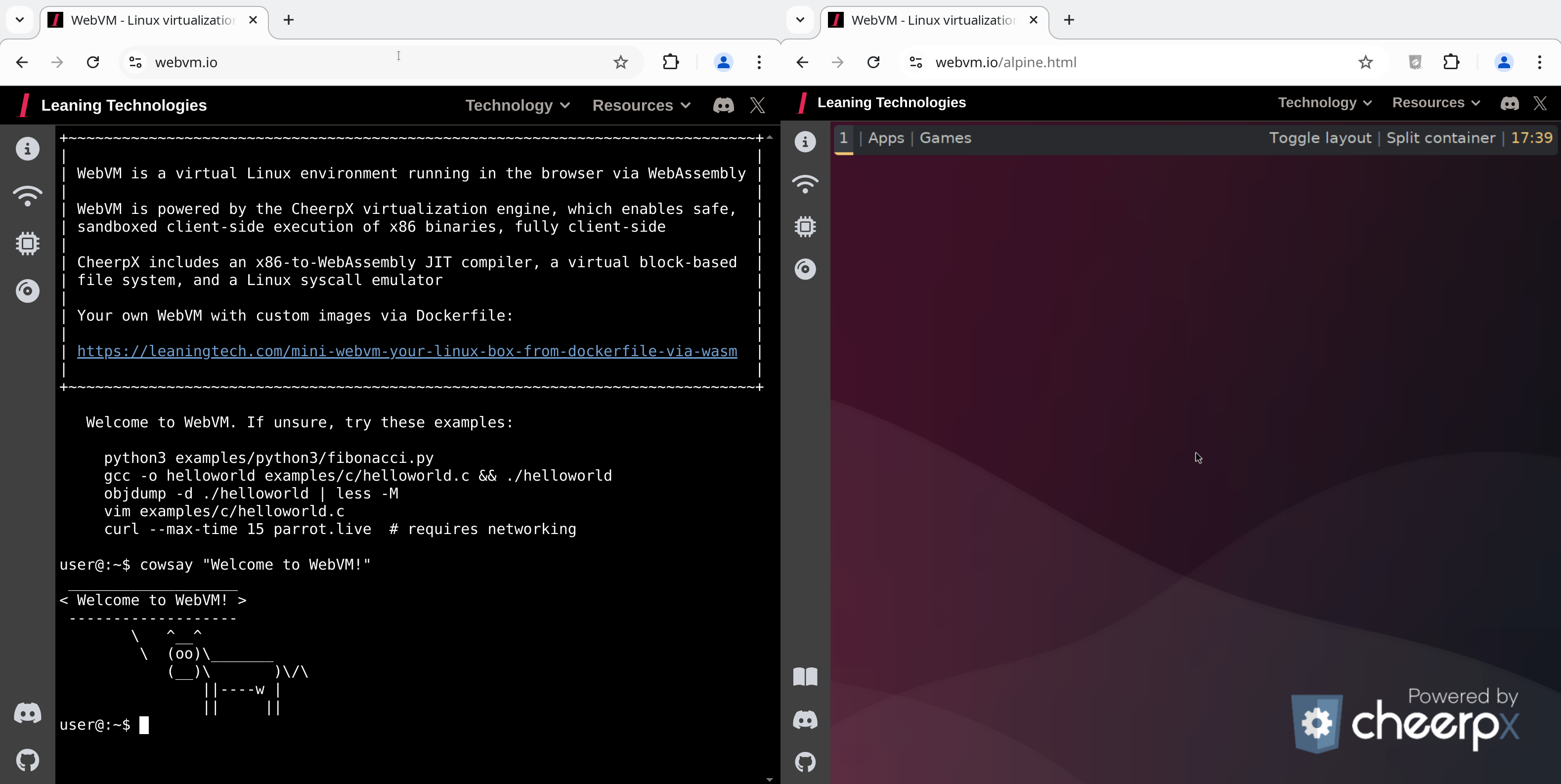
This repository hosts the source code for https://webvm.io, a Linux virtual machine that runs in your browser.
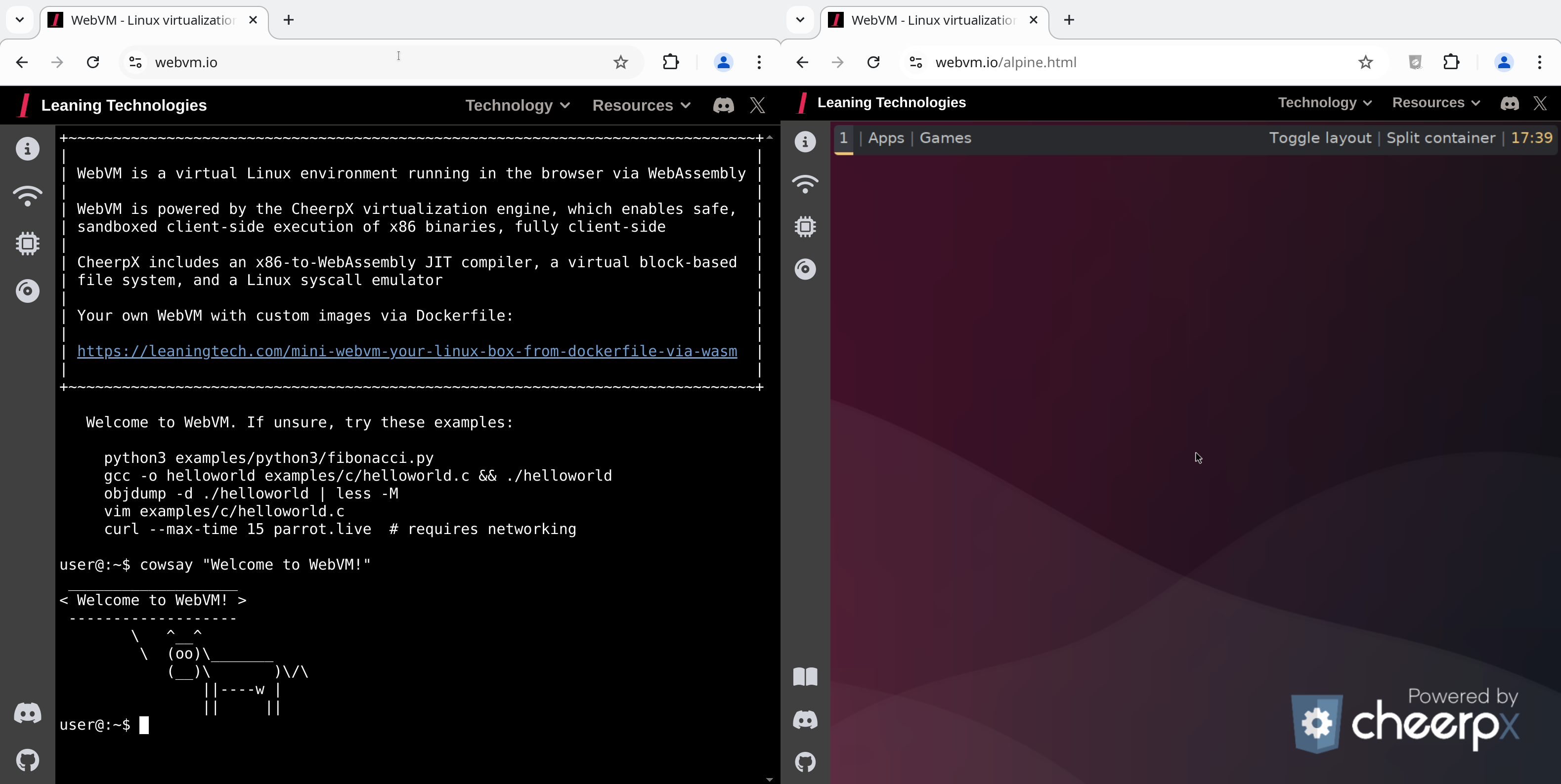
Try out the new Alpine / Xorg / i3 graphical environment: https://webvm.io/alpine.html
WebVM is a server-less virtual environment running fully client-side in HTML5/WebAssembly. It's designed to be Linux ABI-compatible and runs an unmodified Debian distribution including many native development toolchains.
WebVM is powered by the CheerpX virtualization engine, which provides:
[!NOTE] Visit https://webvm.io to get started immediately in your browser. No setup required.
For local setup, custom image builds, and fork/deploy guidance, see Development & Customization.
WebVM supports Tailscale integration. So your browser VM can reach your private network and, with an exit node, the public internet too.
[!NOTE] Some low-level networking operations (especially ICMP used by
ping) are not currently available in this environment. For connectivity checks, usecurlorwget.
WebVM now has access to all machines in your Tailscale network!
[!TIP] On slower connections there may be a short delay before initialisation. Connection status is shown as a colored dot on the button: orange = local network, green = global/internet. The button text shows your Tailscale IP address once connected.
To access the public internet from WebVM, set up an Exit Node on another device in your Tailscale network:
As an alternative to interactive login, add your Tailscale auth key to the URL fragment:
https://webvm.io/#authKey=<your-ephemeral-key>
This is equivalent to Tailscale's --login-server option.
[!TIP] If you also need a custom control server, add
controlUrlin the same URL fragment and separate values with&, for example:#authKey=...&controlUrl=....
We also support headscale, a selfhosted open source implementation of the Tailscale control server. Because Headscale does not add CORS headers by default, you will need a proxy in front of it. See the Headscale reverse proxy setup docs for an example.
Once ready, add the following line to your location / block in your nginx config file.
if ($http_origin = "https://yourdomain.com") {
    add_header 'Access-Control-Allow-Origin' "$http_origin";
    add_header 'Access-Control-Allow-Credentials' 'true' always;
}
Then access WebVM with:
https://yourdomain.com/#controlUrl=<your-headscale-url>
[!NOTE] Users have root privileges by default.
sudois not installed though this can easily be added to the Dockerfile if needed.
This is a simple, beginner-friendly workflow. For local hosting and customization, see below Local Serving & Image Configuration.
Fork the WebVM repository to deploy your own version to GitHub Pages:

Deploy workflow from Actionsdeploy_to_github_pages job
The same Deploy workflow also builds custom .ext2 disk images from a Dockerfile. You can point it at dockerfiles/debian_mini or another Dockerfile, then either publish the result as a GitHub Release asset or deploy the Pages build from your fork.
[!NOTE]
dockerfiles/debian_largeis too large of an image for GitHub pages.
git clone https://github.com/leaningtech/webvm.git
cd webvm
custom-disk-images/This repository includes a persistent custom-disk-images/ directory for local .ext2 files.
To use the official Debian mini image, download it from Releases:
debian_mini_20230519_5022088024.ext2
You can also copy in an image you built yourself.
Edit config_public_terminal.js:
export const diskImageUrl =
  "/custom-disk-images/debian_mini_20230519_5022088024.ext2";
export const diskImageType = "bytes";
npm install
npm run build
nginx -p . -c nginx.conf
Then open http://127.0.0.1:8081 and enjoy your local WebVM!
For the full Alpine desktop environment, see leaningtech/alpine-image.
For more details, see CheerpX Custom Images documentation.
[!TIP] For Python3 REPL, the
Deployworkflow takes into account theCMDspecified in the Dockerfile.To build a REPL you can simply change
CMD [ "/bin/bash" ]toCMD [ "/usr/bin/python3" ]and deploy.
To access Claude AI, you need an API key. Follow these steps to get started:
"Solve the CTF challenge at /home/user/chall1.bin. Note that the binary reads from stdin."

