 l0ss/grouper
A PowerShell script for helping to find vulnerable settings in AD Group Policy. (deprecated, use Grouper2 instead!)

DONT USE GROUPER ANY MORE. USE GROUPER2! https://github.com/l0ss/Grouper2
A PowerShell script for helping to find vulnerable settings in AD Group Policy.

Grouper is a PowerShell module designed for pentesters and redteamers (although probably also useful for sysadmins) which sifts through the (usually very noisy) XML output from the Get-GPOReport cmdlet (part of Microsoft's Group Policy module) and identifies all the settings defined in Group Policy Objects (GPOs) that might prove useful to someone trying to do something fun/evil.
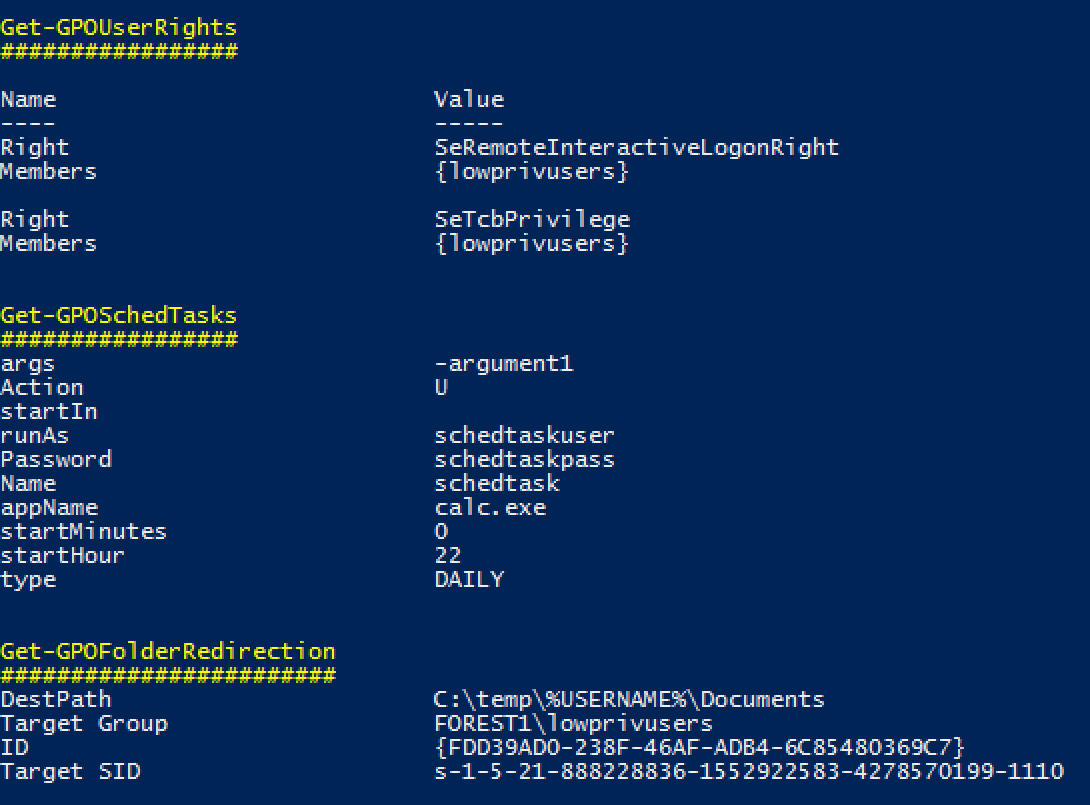
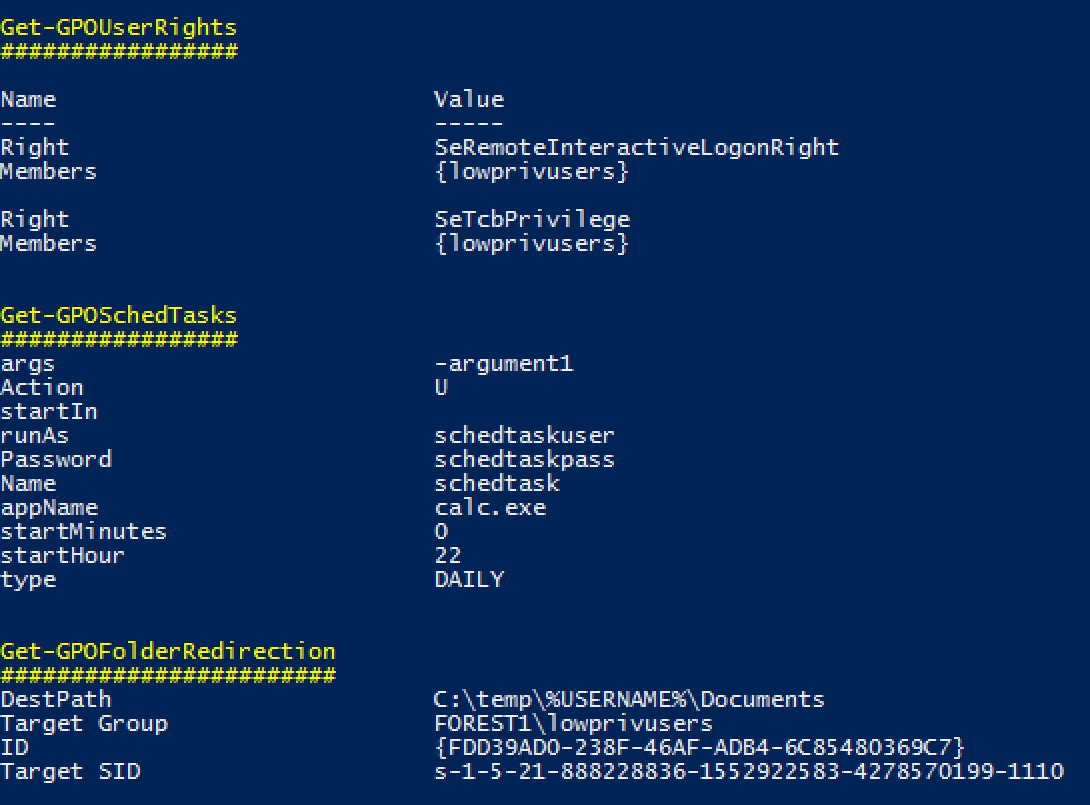
Examples of the kinds of stuff it finds in GPOs:
Yes it's pretty rough, but it saves me an enormous amount of time reading through those awful 150MB HTML GPO reports, and if it works for me it might work for you.
Note: While some function names might include the word audit, Groper is explicitly NOT meant to be an exhaustive audit for best practice configurations etc. If you want that, you should be using Microsoft SCT and LGPO.exe or something.
Generate a GPO Report on a Windows machine with the Group Policy cmdlets installed. These are installed on Domain Controllers by default, can be installed on Windows clients using RSAT, or can be enabled through the "Add Feature" wizard on Windows servers.
Get-GPOReport -All -ReportType xml -Path C:\temp\gporeport.xml
Import the Grouper module.
Import-Module .\grouper.psm1
Run Grouper.
Invoke-AuditGPOReport -Path C:\temp\gporeport.xml
There's also a couple of parameters you can mess with that alter which policy settings Grouper will show you:
-showDisabled
By default, Grouper will only show you GPOs that are currently enabled and linked to an OU in AD. This toggles that behaviour.
-Online
By default Grouper only works with the actual XML output from Get-GPOReport, and does no network comms at all, making it quite "opsec safe", though I do hate that term.
If you invoke it with -Online, Grouper will turn on checks that require talking to (at least) the AD domain from which the report was generated, but will also likely involve talking to e.g. file servers. This will allow Grouper to do handy things like report the ACLs on files targeted by GPOs, and check if e.g. the current user can write to the file in question.
-Level
Grouper has 3 levels of filtering you can apply to its output.
Usage is straightforward. -Level 3, -Level 2, etc.
Get-GPOReport works just fine on non-domain-joined machines via runas /netonly. You'll need some low-priv creds but that's to be expected.
Do like this:
runas /netonly /user:domain\user powershell.exe
on a non-domain-joined machine that can communicate with a domain controller.
Then in the resulting PowerShell session do like this:
Get-GpoReport -Domain example.com -All -ReportType xml -Path C:\temp\gporeport.xml
Easy.
All Grouper needs to work is PowerShell 2.0 and the xml file output from Get-GPOReport. You can run it on a VM with no network card if you're worried and it'll still work fine.
That said, it's pretty basic code so it shouldn't be hard to see that it's not doing anything remotely sketchy.
Short answer: Yep.
Long answer: Yep, doing one of those things would be better, but there are a couple of things that prevented me from doing them YET.
Ideally I'd like to parse the policy files straight off SYSVOL, but they are stored in a bunch of different file formats, some are proprietary, they're a real pain to read, and I have neither the time nor the inclination to write a bunch of parsers for them from scratch when Microsoft already provide cmdlets that do the job very nicely.
In the not-too-distant future I'd like to bake Microsoft's Get-GPOReport into Grouper, so you wouldn't need RSAT at all, but I need to figure out if that's going to be some kind of copyright violation. I also need to figure out how to actually do that thing I just said.
Grouper is not a vulnerability scanner. Grouper merely filters the enormous amount of fluff and noise in Group Policy reports to show you only the policy settings that COULD be configured in exploitable ways.
To the extent possible I am working through each of the categories of checks to add in some extra filtering to remove obviously non-vulnerable configurations and reduce the noise levels even further, but Group Policy is extremely flexible and it's pretty difficult to anticipate every possible mistake an admin might make.
Cool, you just found a way to make Grouper better! Scroll down and you'll see where I've provided a little guide to adding new checks to Grouper.
I got your back, kid. There's a test_report.xml in the repo that you can try it out with. It's got a bunch of bad settings in it so you can see what that looks like.
You'll need to run it with the -showDisabled flag because it's so full of really awful configurations I didn't even want to enable the GPO in a lab environment.
OK.
Short Answer: PowerView will do a decent job of this.
