 koutto/pi-pwnbox-rogueap
Homemade Pwnbox 🚀 / Rogue AP 📡 based on Raspberry Pi — WiFi Hacking Cheatsheets + MindMap 💡

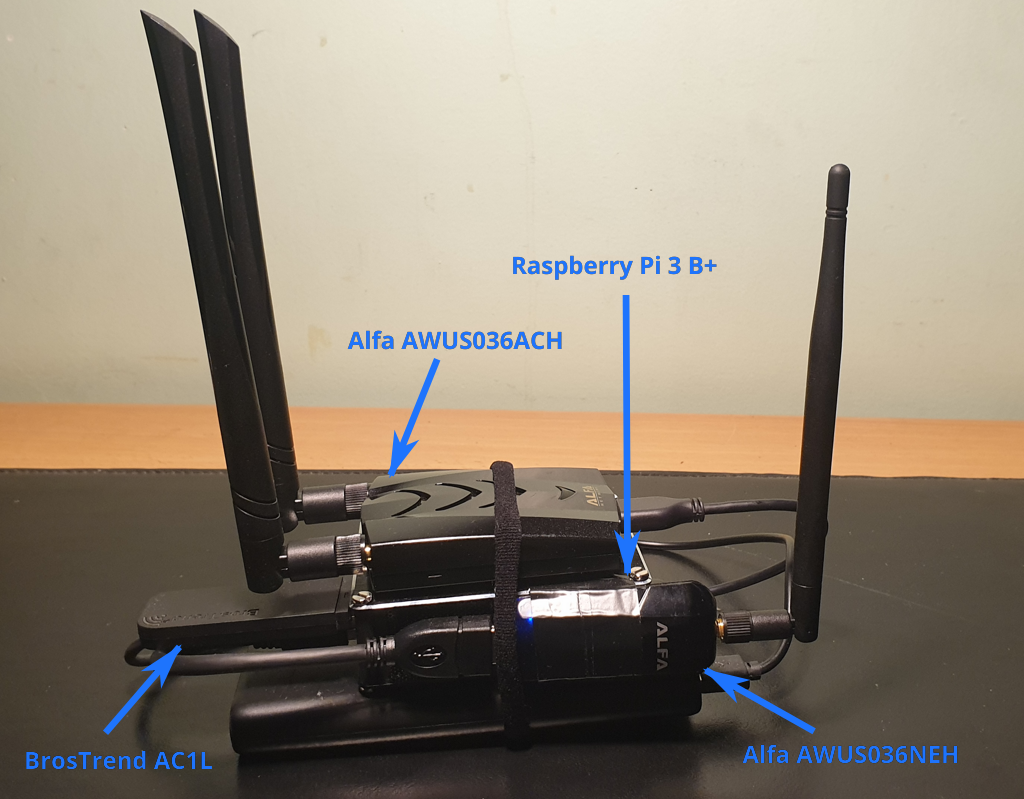
Homemade (headless) PwnBox / RogueAP based on Raspberry Pi & Alfa WiFi USB Adapters.
WiFi Hacking Cheatsheets & Mind Map 💡
Designed to be used for:
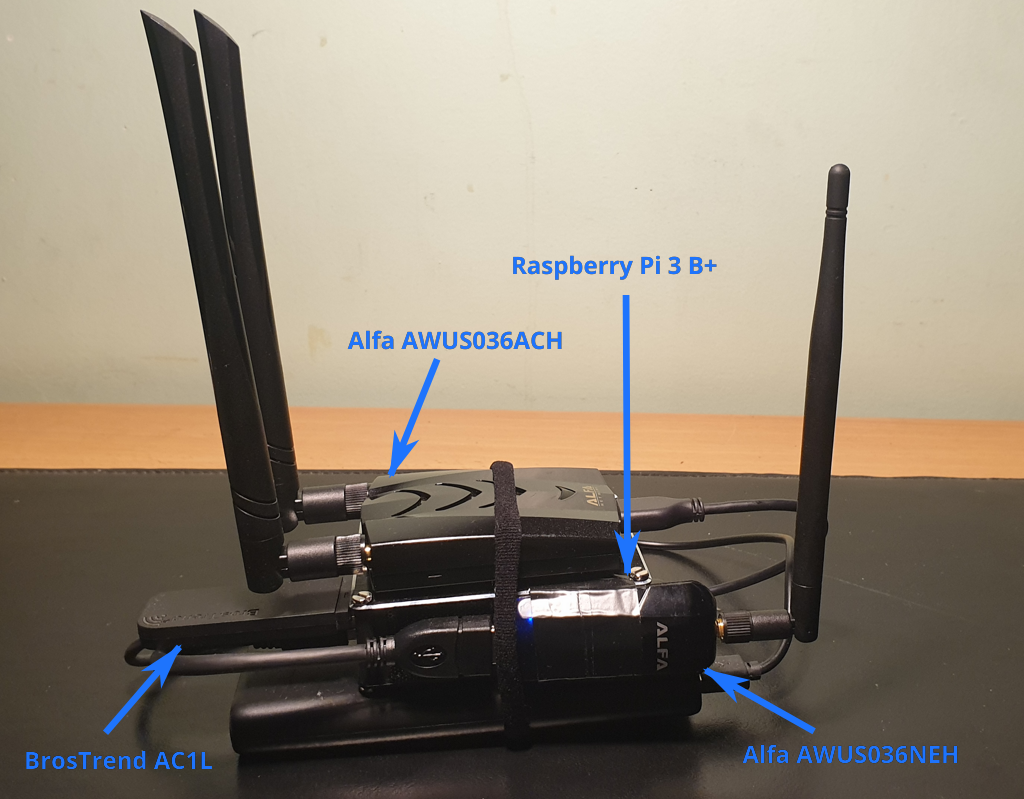
| Device | Chipset | Usage | 802.11 | 2.4 Ghz | 5 Ghz | Kali out-of-box | Mon. Mode | Injec-tion | AP |
|---|---|---|---|---|---|---|---|---|---|
| Built-in Raspberry Pi 3 B+ WiFi chip | Broadcom 43430 | Connection to Internet (auto-start at boot if WiFi key added in config) | 802.11 b/g/n/ac | Y | Y | Y | N* | N* | Y |
| BrosTrend AC1L AC1200 | Realtek RTL8812AU | Acces Point for Remote Access (auto-start at boot) | 802.11 a/b/g/n/ac | Y | Y | N | Y | N | Y |
| Alfa AWUS036NEH | Ralink RT2870/3070 | WiFi Attacks | 802.11 b/g/n | Y | N | Y | Y | Y | Y |
| Alfa AWUS036ACH | Realtek RTL8812AU | WiFi Attacks | 802.11 a/b/g/n/ac | Y | Y | Y | Y | Y | Y |
* would require nexmon patch to enable monitor mode and injection support on built-in Broadcom chip (but we do not need it for its usage here).
root.arm64, but some older precompiled binaries may require box64 or manual compilation.Download Kali Linux ARM Image for Raspberry Pi: https://www.kali.org/get-kali/#kali-arm
Flash Kali Linux ARM Image for Raspberry Pi onto Micro SD Card (use Raspberry Pi Imager or dd).
Boot Raspberry Pi, log in (default kali/kali) and make sure it has Internet connection.
Download install scripts/configurations on the PwnBox:
git clone https://github.com/koutto/pi-pwnbox-rogueap.git
Important: Edit install script configuration at the top of scripts/install-system.sh file:
GUACAMOLE_PASSWORD, GUACAMOLE_MYSQL_PASSWORD).wlxaabbccddeeff for a device with MAC address aa:bb:cc:dd:ee:ff.eth0 & wlan0 (built-in interfaces).WIFI_SSID, WIFI_PASSPHRASE).Run install script (will pause at the end of each step in order to allow for manual inspection of command outputs)
cd pi-pwnbox-rogueap/scripts
./install-system.sh
Reboot & check correct configuration of network interfaces:
ip a
iwconfig
eth0 and wlan0 respectively.wlx*).PWNBOX_ADMIN) should be started on appropriate wlx* interface.Configure VNC-over-HTTP on Guacamole:
pwnbox-vncROOTVNC33127.0.0.14822127.0.0.15901(password chosen at install when running install-system.sh)True color (32-bit)Change default credentials:
passwd kali)http://<ip_pwnbox>:8080/guacamole/#/manage/mysql/users/guacadmin)When booting, PwnBox automatically spawns an AP on one interface to allow for easy remote access:
PWNBOX_ADMIN (Hidden SSID)Koutto!PwnB0x!When booting, PwnBox automatically connects to:
Wired network if Ethernet port is connected.
WiFi network (using built-in Raspberry Pi chip) if there is available wireless network with saved connection settings (in /etc/wpa_supplicant.conf). If you want to connect to a new WiFi network (not saved into PwnBox), it is necessary to add WPA passphrase of the network before:
Access the PwnBox using another way, e.g.:
Add WPA passphrase to PwnBox local configuration:
wpa_passphrase <SSID> <passphrase> >> /etc/wpa_supplicant.conf
Test connection:
wpa_supplicant -B -i wlan0 -c /etc/wpa_supplicant.conf
dhclient -v wlan0
ping 8.8.8.8
PwnBox can be controlled through:
SSH Service (22/tcp):
ssh kali@<ip_pwnbox>
VNC-over-HTTP with Guacamole (8080/tcp):
http://<ip_pwnbox>:8080/guacamole
PwnBox's IP depends on the network you want to access it from:
PWNBOX_ADMIN): IP is always 10.0.0.1.netdiscover for example.Note: Guacamole service might take a lot of resources (RAM) when running. If not used, it can be stopped using stop-guacamole.sh script.
