 kalix127/secret-stripper
A small Rust CLI that strips secrets from your clipboard on demand.


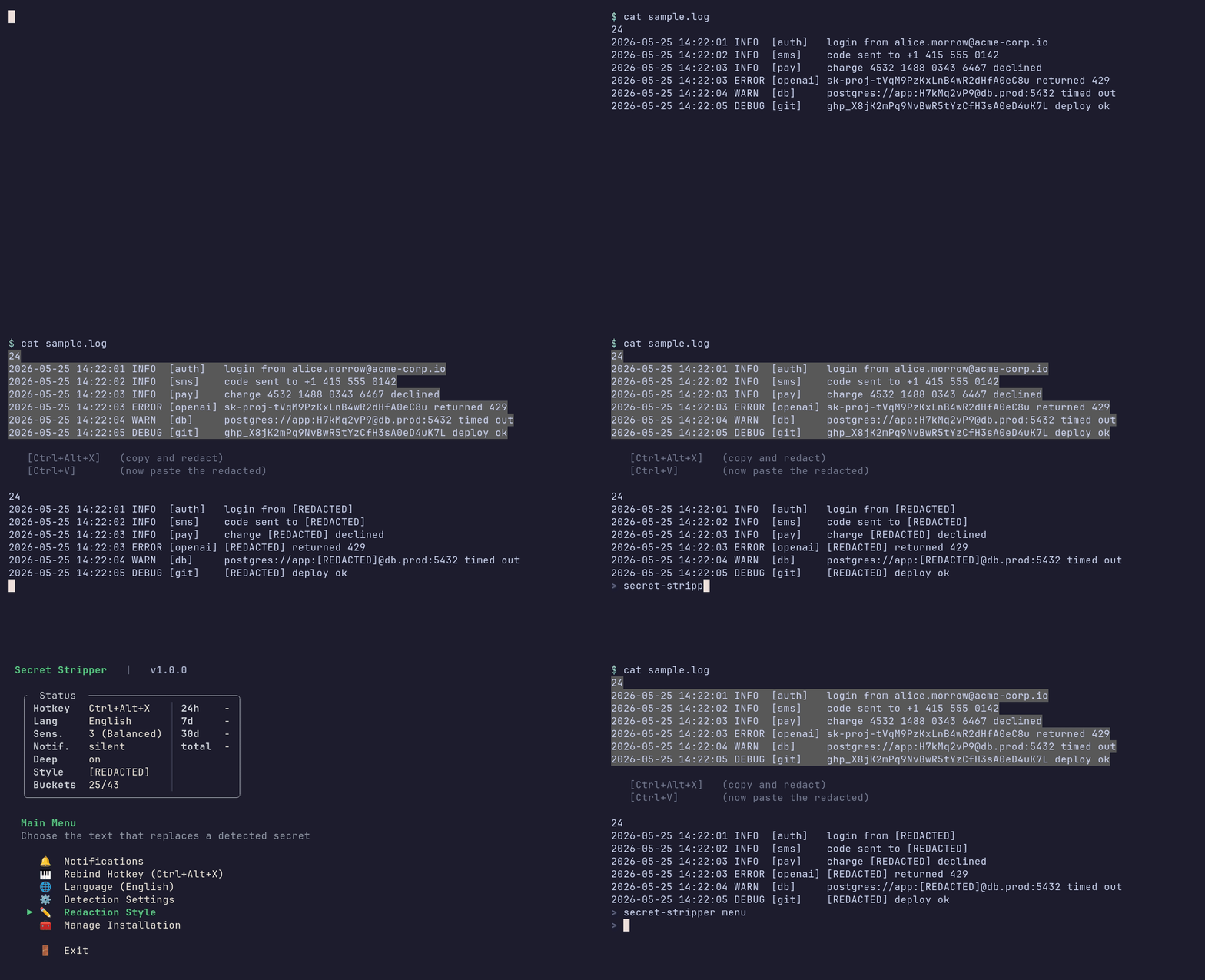
A small Rust CLI that strips secrets from your clipboard on demand. Bind a hotkey, highlight text, press the chord - the clipboard holds a redacted version. Normal Ctrl+C / Ctrl+V is never intercepted.
Linux - one command, no extra setup:
curl -sSf https://secretstripper.download/install.sh | bash
Default chord: Ctrl+Alt+X.
macOS - needs a one-time global-hotkey helper (skhd or Hammerspoon). See macOS setup for permissions and troubleshooting.
brew install koekeishiya/formulae/skhd
curl -sSf https://secretstripper.download/install.sh | bash
# Grant skhd Accessibility: System Settings -> Privacy & Security -> Accessibility
skhd --restart-service
Default chord: Cmd+Shift+C.
Windows (PowerShell) - needs AutoHotkey v2. See Windows setup for the full flow.
winget install AutoHotkey.AutoHotkey
iwr -useb https://secretstripper.download/install.ps1 | iex
Default chord: Ctrl+Alt+C.
From crates.io (Rust) - same per-OS prerequisites apply (skhd on macOS, AutoHotkey on Windows):
cargo install secret-stripper && secret-stripper init
From source (git):
cargo install --git https://github.com/kalix127/secret-stripper.git --locked && secret-stripper init
After install, highlight text and press your chord. On Linux the PRIMARY selection is read directly, so you can skip the Ctrl+C. Paste with Ctrl+V (Cmd+V on macOS).
Run secret-stripper menu to tune settings, or secret-stripper --help for all commands.
| OS | Status | Hotkey backend |
|---|---|---|
| Linux | ✅ Supported | gsettings (GNOME / Cinnamon / Unity / Budgie / Pantheon), gsettings (MATE schema), xfconf-query (XFCE), kwriteconfig + qdbus (KDE Plasma 5/6) |
| macOS | ✅ Supported | skhd (~/.skhdrc) or Hammerspoon (~/.hammerspoon/init.lua); manual instructions if neither is installed |
| Windows | ✅ Supported | AutoHotkey v2 (%APPDATA%\secret-stripper\secret-stripper.ahk) - install via winget install AutoHotkey.AutoHotkey |
There is no zero-install way to register a true global hotkey on macOS without a resident process. Secret Stripper itself stays one-shot, so it delegates hotkey capture to one of two well-known helpers: skhd (lightweight, recommended) or Hammerspoon (heavier, scriptable). If neither is installed, init falls back to printing manual binding instructions.
Install skhd via Homebrew:
brew install koekeishiya/formulae/skhd
Run secret-stripper init. It writes ~/.skhdrc, the launchd LaunchAgent for the daily update check, and the config file. Output includes a "DE binding" line: OK if skhd / Hammerspoon was detected, FAILED with install hints if not.
Grant skhd Accessibility permission. skhd needs this to intercept global hotkeys, otherwise it silently captures nothing. Open System Settings -> Privacy & Security -> Accessibility, click +, add /usr/local/bin/skhd, and toggle it on. If skhd was already running, restart it so the new permission takes effect:
skhd --restart-service
Test the chord:
echo "[email protected]" | pbcopy
# Press your chord (default: Cmd+Shift+C)
pbpaste     # expect: [REDACTED]
Hammerspoon alternative: brew install --cask hammerspoon, open it once to grant Accessibility, then run secret-stripper init - it writes the binding into ~/.hammerspoon/init.lua instead of ~/.skhdrc.
Default chord: Cmd+Shift+C. macOS apps often claim Cmd-modifier chords, so if it conflicts with something you use (browser DevTools, Finder "Copy Path", etc.), rebind from secret-stripper menu -> Rebind Hotkey. Two safer options if you want to plan ahead: Cmd+Option+X or Cmd+Ctrl+X.
Windows has no zero-install way to register a true global hotkey. Same constraint as macOS - Secret Stripper delegates hotkey capture to AutoHotkey v2 (the Windows analogue of skhd). AutoHotkey uses the Win32 RegisterHotKey API under the hood and is the only mechanism that delivers the chord reliably across focused windows, full-screen apps, and elevated processes. AutoHotkey is required - init aborts with an install hint if it cannot find it.
Install AutoHotkey via winget:
winget install AutoHotkey.AutoHotkey
The package installs AutoHotkey v2 to C:\Program Files\AutoHotkey\v2\.
Run secret-stripper init. It writes %APPDATA%\secret-stripper\secret-stripper.ahk, drops a startup .lnk so AHK re-launches the script at every login, and starts the AHK process immediately so the chord is live without a logout.
Test the chord:
Set-Clipboard "[email protected]"
# Press your chord (default: Ctrl+Alt+C)
Get-Clipboard    # expect: [REDACTED]
Ctrl+Alt+<key> (optionally with Shift); other chords are rejected.Ctrl+C, then your chord).schtasks daily task at 11:00..ahk file and the startup .lnk. Other AHK scripts you have running are untouched.| Category | Examples |
|---|---|
| 🔴 Cloud Secrets | AWS keys, Google API keys, Azure credentials, OpenAI tokens, Stripe keys, Heroku API keys |
| 🔴 Auth Tokens | GitHub tokens, GitLab tokens, Slack tokens, Discord tokens, JWTs, bearer tokens, NPM tokens |
| 🔴 Cryptographic Keys | RSA/EC/OpenSSH private keys, PGP private keys, SSH public keys |
| 🔴 PII | Credit card numbers, SSNs, phone numbers, email addresses, passport numbers |
| 🟠 Connection Strings | PostgreSQL, MongoDB, Redis, MySQL, JDBC URLs with credentials |
| 🟡 Heuristic | Unusual strings, env files with secrets, JSON with password fields, base64-encoded content |
| 🟢 Safe | Normal text, emails, documents - no false alerts |
For the full list of buckets, severity tiers, and patterns, see DETECTION_COVERAGE.md.
Pick how detected secrets are replaced from secret-stripper menu -> Redaction Style:
