 irsdl/viewstate-security-workshop
This repository is for the Testing ASP.NET ViewState with YSoNet (YSoSerial.NET) workshop.

This repository is for the Testing ASP.NET ViewState with YSoNet (YSoSerial.NET) workshop.
Recommended Reading: Exploiting Deserialisation in ASP.NET via ViewState
Recommended Tools For Solving The Labs (when lab has been setup):
Workshop Slides: EXPLOITING_KNOWN_MACHINE_WORKSHOP_v1.0_NahamCon2025_slides.pdf
This is an intentionally insecure lab environment for security testing and educational purposes only.
This lab is designed to help security professionals improve their testing capabilities for ASP.NET ViewState vulnerabilities. Use responsibly and only in controlled environments.
Run these steps on your isolated Windows Server to prepare the lab environment. Open an elevated PowerShell terminal (Run as Administrator) and execute the following commands:
# Clone the repository (or download and extract the ZIP)
git clone https://github.com/irsdl/viewstate-security-workshop.git
cd viewstate-security-workshop
.\tools\Install-IISAndDotNet.ps1
This installs IIS with ASP.NET support and all required .NET Framework versions.
.\tools\Disable-DefenderProtection.ps1
Why disable Defender? For this lab, we disable Windows Defender so that command execution via ViewState exploits is not blocked. This allows you to clearly observe successful exploitation without interference from endpoint protection.
Important: In a real-world testing lab or production environment, you should keep protections enabled. The goal of this workshop is to understand the vulnerability mechanics—once you've learned the techniques, practice detecting and blocking these attacks with Defender enabled.
.\import-workshopiis.ps1
This interactive script sets up the vulnerable workshop site in IIS. It will prompt for configuration options with the following defaults:
| Setting | Default Value |
|---|---|
| Config file | .\workshop-iis-config.json |
| Site name | workshop |
| Root path | C:\workshop\websites\wwwdata |
| HTTP port | 80 |
The script will:
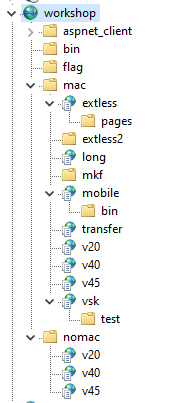
content folder to the site root pathAfter setup, your IIS Manager should look like this:
Only for curious readers:
Prepares a Windows Server for the lab by installing IIS and .NET Framework components.
Location: tools/Install-IISAndDotNet.ps1
Usage:
# Run as Administrator
.\tools\Install-IISAndDotNet.ps1
What it installs:
Note: For .NET Framework 3.5 installation on isolated servers, you may need to mount a Windows Server ISO and uncomment the source-based installation option in the script.
Disables Windows Defender protections to allow exploitation tools to run in the lab environment.
Location: tools/Disable-DefenderProtection.ps1
Usage:
# Run as Administrator
.\tools\Disable-DefenderProtection.ps1
What it disables:
Re-enables Windows Defender protections after lab use.
Location: tools/Enable-DefenderProtection.ps1
Usage:
# Run as Administrator
.\tools\Enable-DefenderProtection.ps1
What it enables:
Interactive script that imports the workshop IIS site configuration and deploys the vulnerable web content.
Location: import-workshopiis.ps1
Usage:
# Run as Administrator
.\import-workshopiis.ps1
What it does:
content folder to the specified root path.NET v2.0 pool for legacy apps)JSON configuration file that defines the IIS site structure exported from a reference lab server.
Location: workshop-iis-config.json
Contains:
/mac/* - Applications with MAC validation enabled/nomac/* - Applications without MAC validationv20, v40, v45) for testing different .NET runtimesThis software has been created purely for the purposes of academic research and for the development of effective defensive techniques, and is not intended to be used to attack systems except where explicitly authorized. Project maintainers are not responsible or liable for misuse of the software. Use responsibly.
This software is a personal project and not related to any companies, including the project owner's and contributors' employers.
