 iknowjason/edge
Whois for the Cloud: Recon tool for cloud provider attribution. Supports AWS, Azure, Google, Cloudflare, and Digital Ocean.

Lookup an IP to find the cloud provider and other details based on the provider's published JSON, CSV, or text data
Cloud edge is a recon tool focused on exploring cloud service providers. It can be used for cloud attribution and forensics, pentesting, bug bounty, red teaming, or general R&D of cloud providers. Edge automatically loads Cloud Service Provider (CSP) published IP address ranges (AWS, Azure, GCP, Cloudflare, Digital Ocean) files and performs a prefix lookup based on the input IP address. Can be used to integrate in with other recon tooling. In a black box network pentest, edge quickly discovers which cloud CSP the customer is hosted with, or just double-verifying the scope for rules of engagement. Each of these CSPs publish a list of all of their IP prefixes and/or netblocks. For Azure and AWS, this adds the region/data center and service name. This is an excellent enrichment for threat intelligence, allowing you to map IP addresses to physical data centers and cloud services. Cloud Edge can be useful for reconnaissance workflows to quickly know "what you're dealing with" - it quickly parses and performs a lookup based on IP prefix.
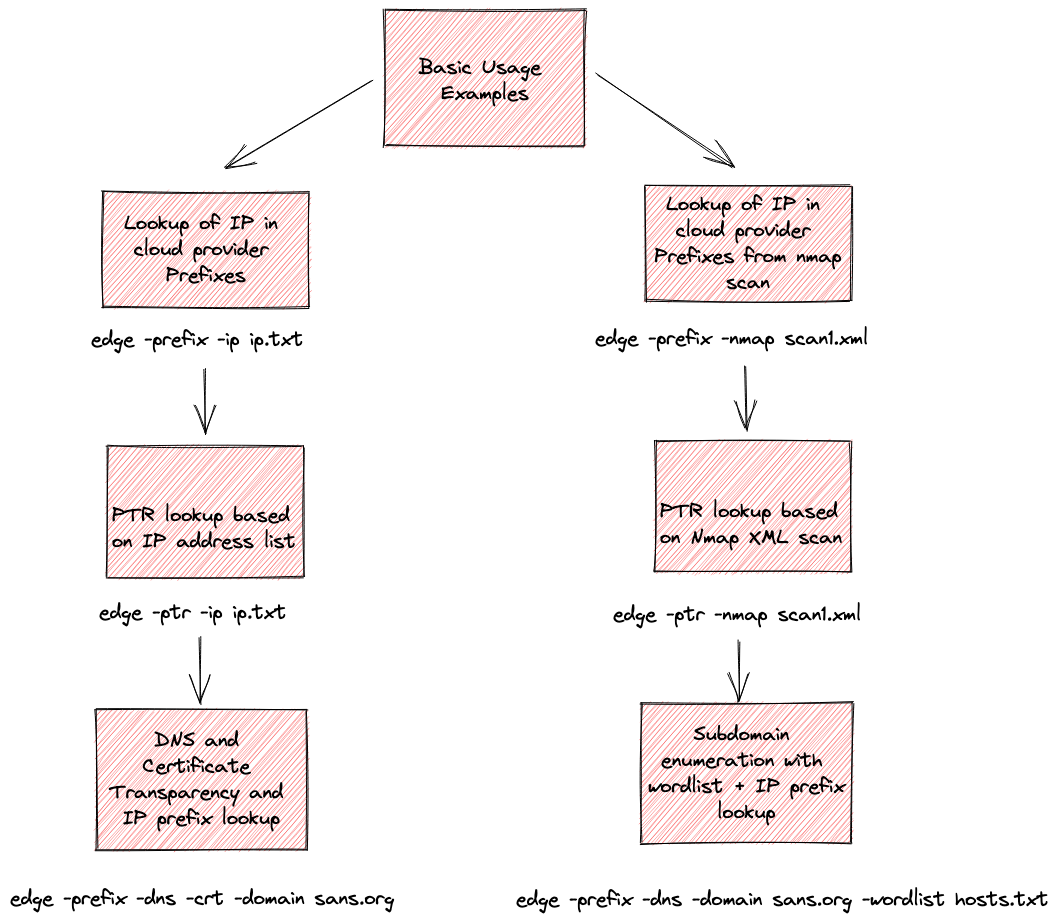
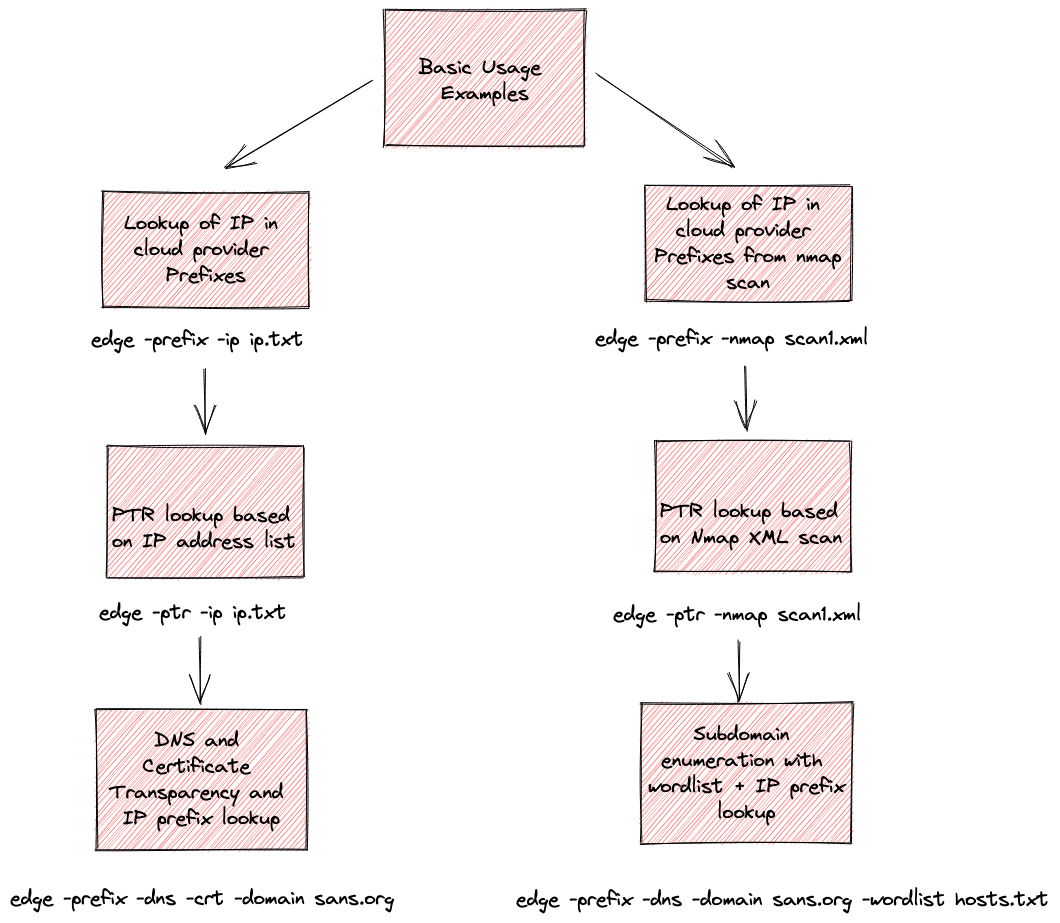
Here are a few notes on how the tool works for inputs and output.
Run Cloud Edge and it will automatically download all cloud provider files supported. If the files don't exist in working directory, they will be downloaded:
% ./edge
[INF] Starting Cloud Edge version 0.2.4
[INF] File cloud.json has been downloaded and created
[INF] File aws.json has been downloaded and created
[INF] File cloudflare-ipv4.txt has been downloaded and created
[INF] File cloudflare-ipv6.txt has been downloaded and created
[INF] File digitalocean.csv has been downloaded and created
[INF] File azure.json has been downloaded and created
If you're offline and they can't be downloaded, check the csp-files directory in this repository. Copy them to working directory.
When the tool runs for the first time, it automatically tries to download and load the six cloud provider IP address ranges JSON, text, and csv files to the working directory. Here is how it works:
By default it will attempt to download the six files from the URLs below unless the files are already in the working directory.
| Provider | Local File | Remote URL |
|---|---|---|
| AWS | aws.json | https://ip-ranges.amazonaws.com/ip-ranges.json |
| Azure | azure.json | https://azservicetags.azurewebsites.net/ |
| GCP | cloud.json | https://www.gstatic.com/ipranges/cloud.json |
| Cloudflare | cloudflare-ipv4.txt | https://www.cloudflare.com/ips-v4/# |
| Cloudflare | cloudflare-ipv6.txt | https://www.cloudflare.com/ips-v6/# |
| Digital Ocean | digitalocean.csv | https://digitalocean.com/geo/google.csv |
Cloud Edge checks for each file before downloading. So if the file already exists, it obviously won't be downloaded again unless you delete it.
These six files are included in this github repository in the csp-files directory. Since the Cloud Providers frequently update their lists, ensure you have the latest files by removing the files in your working directory: aws.json, azure.json, cloud.json, cloudflare-ipv4.txt, cloudflare-ipv6.txt, digitalocean.csv.
If found in working directory, all IP prefixes are loaded into memory. The cloud provider IP ranges files always attempt to load from working directory. Enabling the actual lookup is done with the -prefix flag.
When -dns mode is enabled, DNS lookups for both A and CNAME records are buffered without display until all DNS queries are finished. After the queries are finished, the output is displayed.
By the default the output displays Informational messages starting with [INF]. This can be disabled with -silent flag. The output will look like this:
./edge -single 140.179.144.130
[INF] Single IP prefix lookup of 140.179.144.130
[INF] Matched IP [140.179.144.130] to Cloud Provider via prefix [AWS:140.179.144.128/25]
[INF] Matched IP [140.179.144.130] to Cloud Service [API_GATEWAY] and Region [cn-north-1]
140.179.144.130,Provider:AWS;Prefix:140.179.144.128/25;Region:cn-north-1;Service:API_GATEWAY
Informational messages will tell you if a record is found through a DNS 'A' record, DNS 'CNAME' record, Certificate (crt.sh), or if a prefix match is found. Prefix matches will tell you the cloud provider detected with the matching prefix, as well as the cloud service and region if applicable. Azure regions are not currently detected but AWS ones are.
With -dns or crt mode, the output is is sent by default to the console as comma delimited results. This makes it easy to use other tools to parse these results.
FQDN,IP,SOURCE,CNAME,DESCRIPTION
-prefix is enabled.With -prefix mode and either -ip or -nmap, the output is sent by default to the console as comma delimited results:
IP,DESCRIPTION
The IP is the IP address and the DESCRIPTION is the results from the IP address ranges lookup in the cloud provider IP address ranges JSON files, if applicable.
With -ptr mode and either ip or nmap, the output is sent by default to the console as comma delimited results:
IP,PTR
The IP is the IP address and the PTR is the results from the DNS PTR lookup if found.
The -ip flag signals to iterate through a list of IP addresses and can be used in prefix or ptr mode. When you run the tool with -ip <hosts.txt>, it expects each IP address in a separate line, and will iterate through the list doing lookups. Here is an example of the file contents:
user@host:~/demo$ cat ip.txt
3.133.110.237
18.117.232.92
18.221.247.211
3.137.199.52
The -nmap flag signals to parse an nmap XML file. It will look for any host in the nmap scan file marked as "Up." For example, -nmap scan1.xml will tell the tool to parse the scan1.xml file and look for any hosts marked as Up by nmap. You then run it with either -ptr or -prefix to do a lookup of the IP.
The tool performs classic subdomain enumeration by iterating through a wordlist containing hostnames, one hostname per line. This is used in -dns mode with -wordlist <hosts.txt>. An example of what this looks like for the hosts.txt file:
user@host:~/demo$ more subdomains-5k.txt
www
blog
news
blogs
en
online
