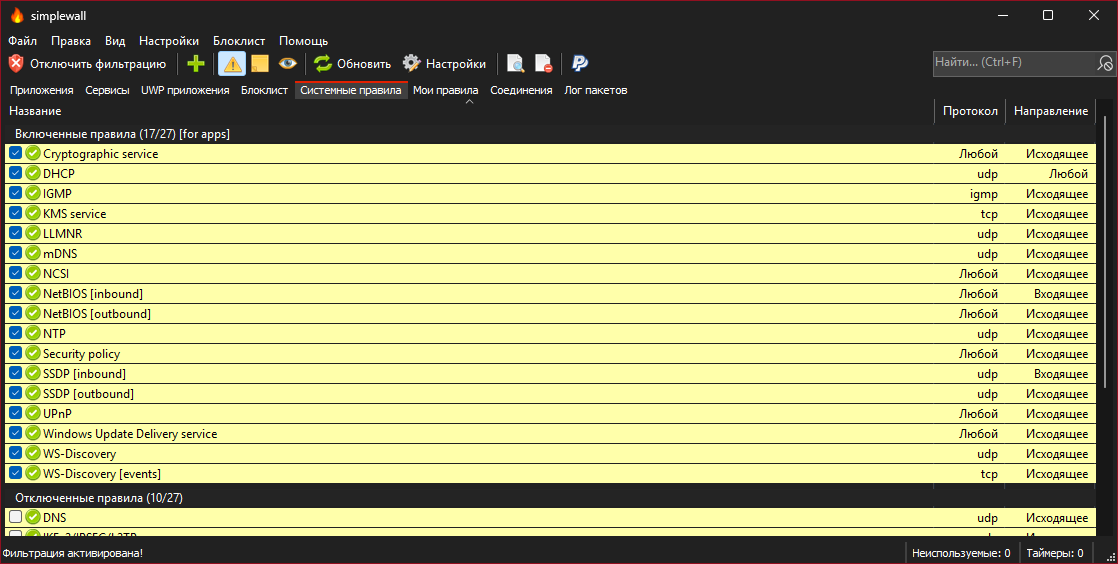
 henrypp/simplewall
Simple tool to configure Windows Filtering Platform (WFP) which can configure network activity on your computer.






Definitely for advanced users.
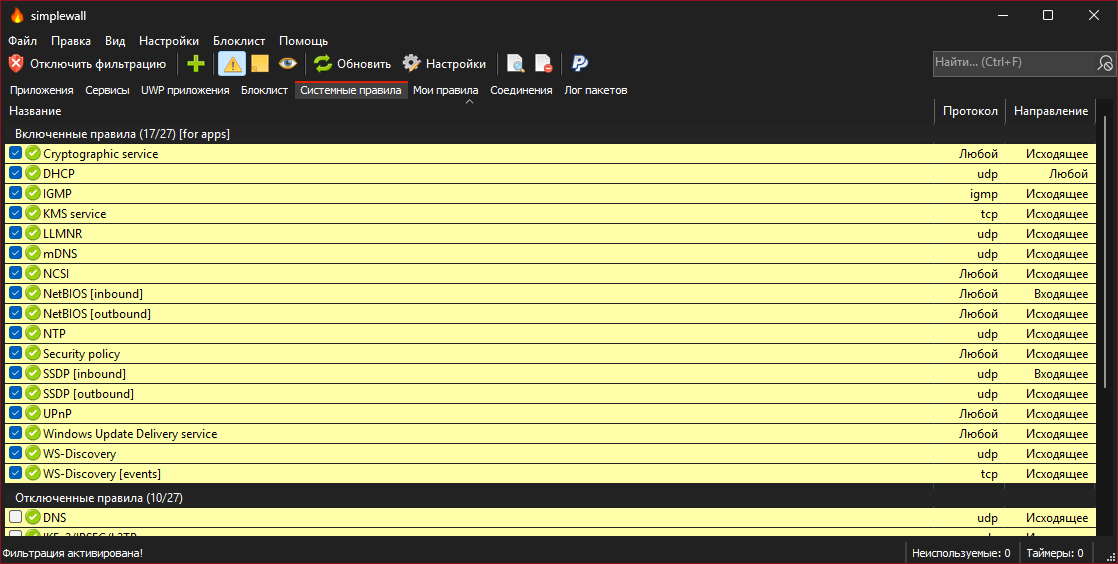
Simple tool to configure Windows Filtering Platform (WFP) which can configure network activity on your computer.
The lightweight application is less than a megabyte, and it is compatible with Windows 7 SP1 and higher operating systems. You can download either the installer or portable version. For correct working you are require administrator rights.
Keep in mind, simplewall is not a control UI over Windows Firewall, and does not interact in any level with Windows Firewall. It works over Windows Filtering Platform (WFP) which is a set of internal API and system services that provide a platform for creating network filtering applications. Windows Filtering Platform is a development technology and not a firewall itself, but simplewall is the tool that uses this technology.
To activate portable mode, create "simplewall.ini" in application folder, or move it from "%APPDATA%\Henry++\simplewall".
Binaries have GPG signature simplewall.exe.sig in application folder.
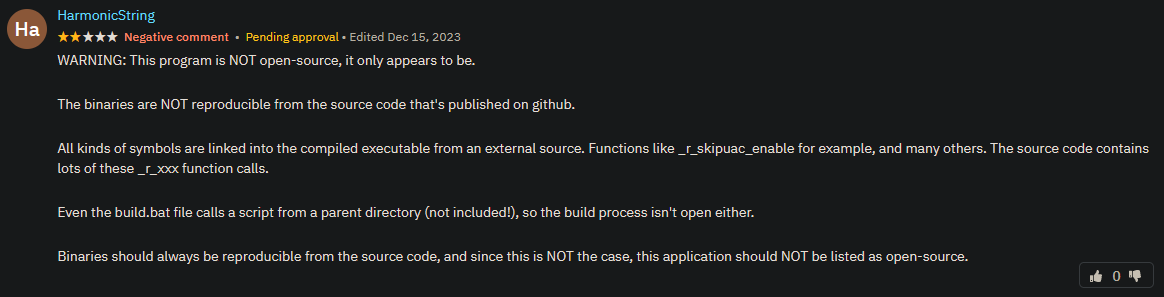
Look at them, he does not know about .gitmodules and how to use, lol.
PS: Without idiots we are not to be fun, yeah!
When install rules, you can choose two modes:
When you uninstall simplewall, all previously configured filters stay alive in system. To remove all filters created by simplewall, start simplewall and press "Disable filters" button.
-install - enable filtering.
-install -temp - enable filtering until next reboot.
-install -silent - enable filtering without prompt.
-uninstall - remove all installed filters.
simplewall have two types of custom user rules rules:
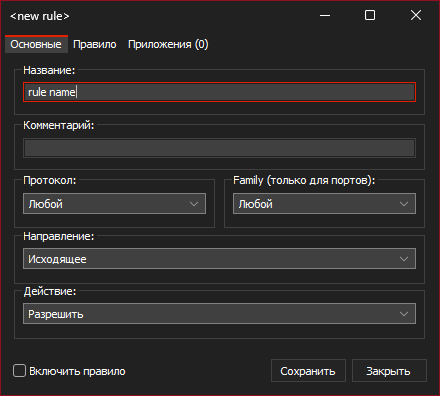
To set rule applications, open rule and then navigate to "Apps" tab.
192.168.0.1; 192.168.0.1; [fc00::]192.168.0.1:80; 192.168.0.1:443; [fc00::]:443;192.168.0.1-192.168.0.255; 192.168.0.1-192.168.0.255;192.168.0.1-192.168.0.255:80; 192.168.0.1-192.168.0.255:443; (v2.0.20+)192.168.0.0/16; 192.168.0.0/24; fe80::/1021; 80; 443;20-21; 49152-65534;| Address format | Mask |
|---|---|
| a.b.c.d/32 | 255.255.255.255 |
| a.b.c.d/31 | 255.255.255.254 |
| a.b.c.d/30 | 255.255.255.252 |
| a.b.c.d/29 | 255.255.255.248 |
| a.b.c.d/28 | 255.255.255.240 |
| a.b.c.d/27 | 255.255.255.224 |
| a.b.c.d/26 | 255.255.255.192 |
| a.b.c.d/25 | 255.255.255.128 |
| a.b.c.0/24 | 255.255.255.0 |
| a.b.c.0/23 | 255.255.254.0 |
| a.b.c.0/22 | 255.255.252.0 |
| a.b.c.0/21 | 255.255.248.0 |
| a.b.c.0/20 | 255.255.240.0 |
| a.b.c.0/19 | 255.255.224.0 |
| a.b.c.0/18 | 255.255.192.0 |
| a.b.c.0/17 | 255.255.128.0 |
| a.b.0.0/16 | 255.255.0.0 |
| a.b.0.0/15 | 255.254.0.0 |
| a.b.0.0/14 | 255.252.0.0 |
| a.b.0.0/13 | 255.248.0.0 |
| a.b.0.0/12 | 255.240.0.0 |
| a.b.0.0/11 | 255.224.0.0 |
| a.b.0.0/10 | 255.192.0.0 |
| a.b.0.0/9 | 255.128.0.0 |
| a.0.0.0/8 | 255.0.0.0 |
| a.0.0.0/7 | 254.0.0.0 |
| a.0.0.0/6 | 252.0.0.0 |
| a.0.0.0/5 | 248.0.0.0 |
| a.0.0.0/4 | 240.0.0.0 |
| a.0.0.0/3 | 224.0.0.0 |
| a.0.0.0/2 | 192.0.0.0 |
| a.0.0.0/1 | 128.0.0.0 |
| 0.0.0.0/0 | 0.0.0.0 |
A: Yes. Installed filters are working even if simplewall is terminated.
A: By default, simplewall blocks all applications. You do not need to create custom rules to block specific applications.
A: Yes. You do not need to disable Windows Firewall. These two firewalls work independently.
A: Open Settings -> Blocklist and then click the radio buttons labeled Disable.
A: Blacklist was removed many days ago for uselessness. But if you need it, you can still configure it.
