 dimcyan/ios-remote
Display and control your iOS device


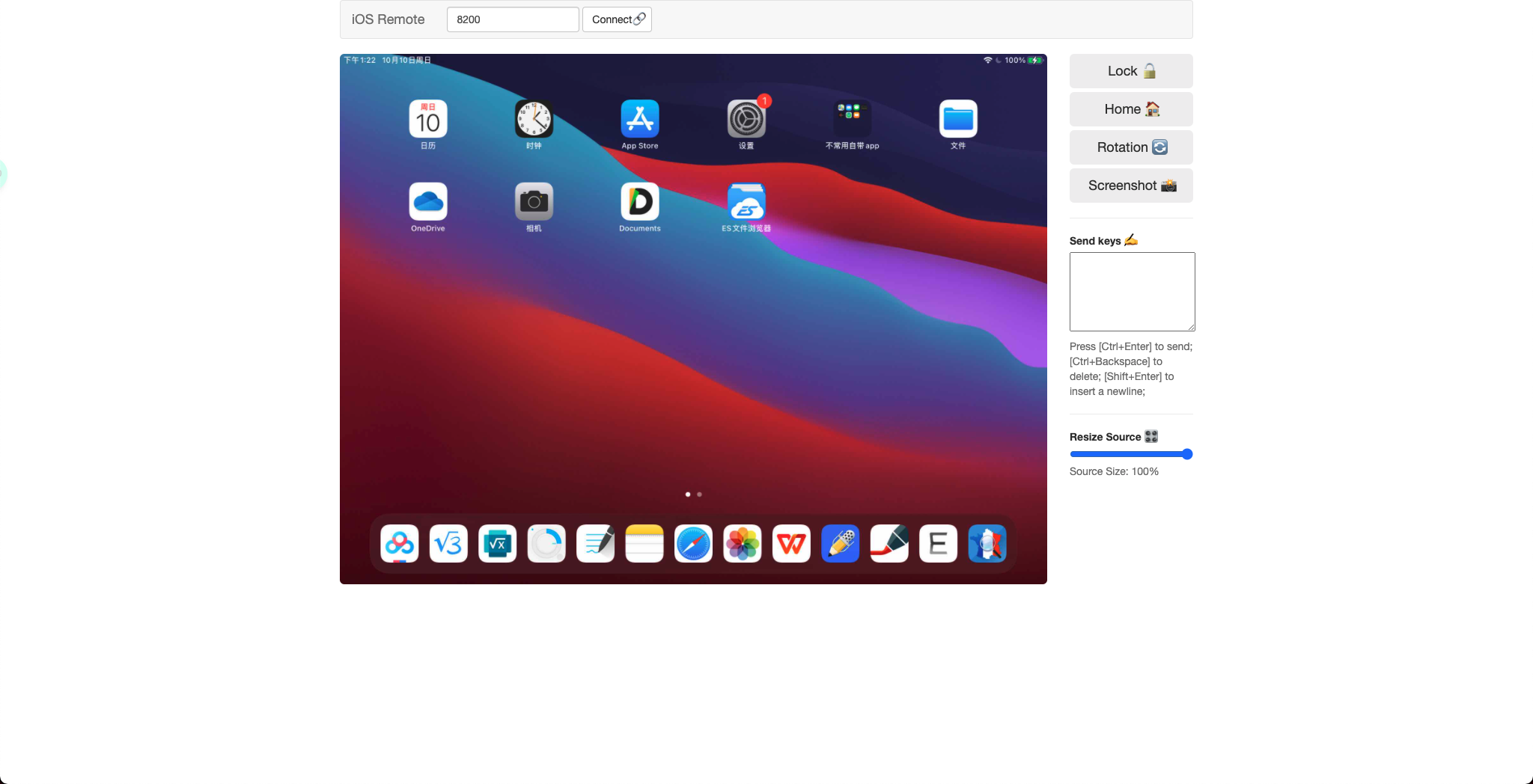
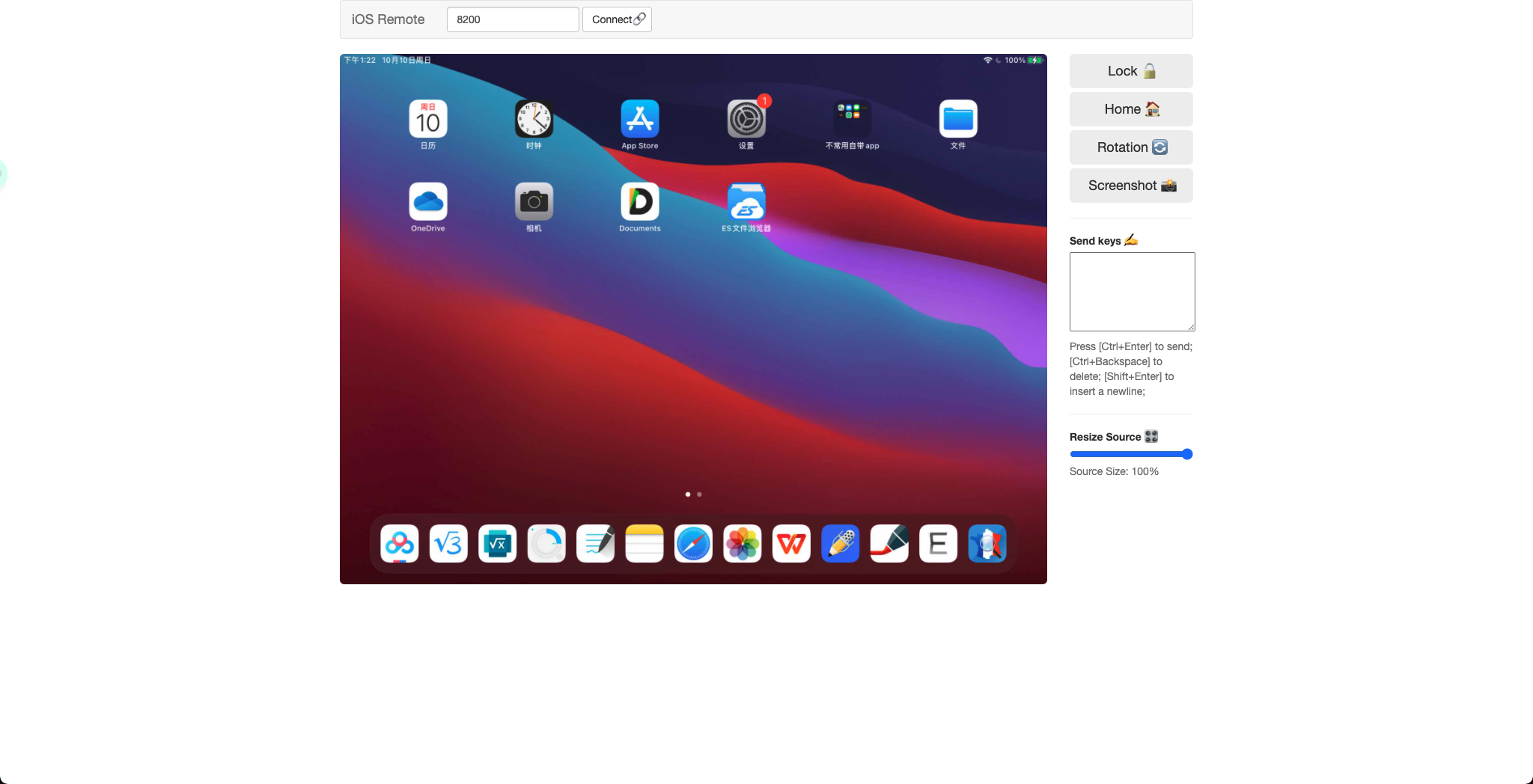
iOS-remote connects to iOS devices via USB for displaying and controlling in web browser. It does NOT require jailbreaking. Because of displaying in web browser, iOS-remote supports Linux, macOS, Windows.
The support of this project depends on the version of WebDriverAgent. After testing, iOS15 is already supported. Please using the latest WebDriverAgent.
There are some necessary libraries and tools for this project:
Python libraries:
pip3 install -r requirements.txt
After installing and preparing the environment, run following command in your terminal:
Bild, Test and Install WebDriverAgent-Runner Into Device
Start WebDriverAgent 👉 Link
Run WebDriverAgent by using Tidevice
tidevice wdaproxy -B com.facebook.wda.WebDriverAgent.Runner --port 8100
When you see WebDriverAgent start successfully in your terminal, you run WebDriverAgent successfully!!!!
Forward the request to the iOS device by using Tidevice
tidevice relay 8200 9100
The default port of this project is
8200, you can change the port you like in the connect input field~
Run Flask Server
python3 app.py
Open Browser With URL http://127.0.0.1:5000/
Display
Switch rotation
Control:
Swipe
Click
Button operation:
Home button
Power button to lock screen
Screenshot
Send text
Volume up and down buttons
Display more devices
Start up automated
Display app list
Install and Uninstall app
