 demonslay335/cryptotester
A utility for playing with cryptography, geared towards ransomware analysis.

A utility for playing with cryptography, geared towards ransomware analysis.
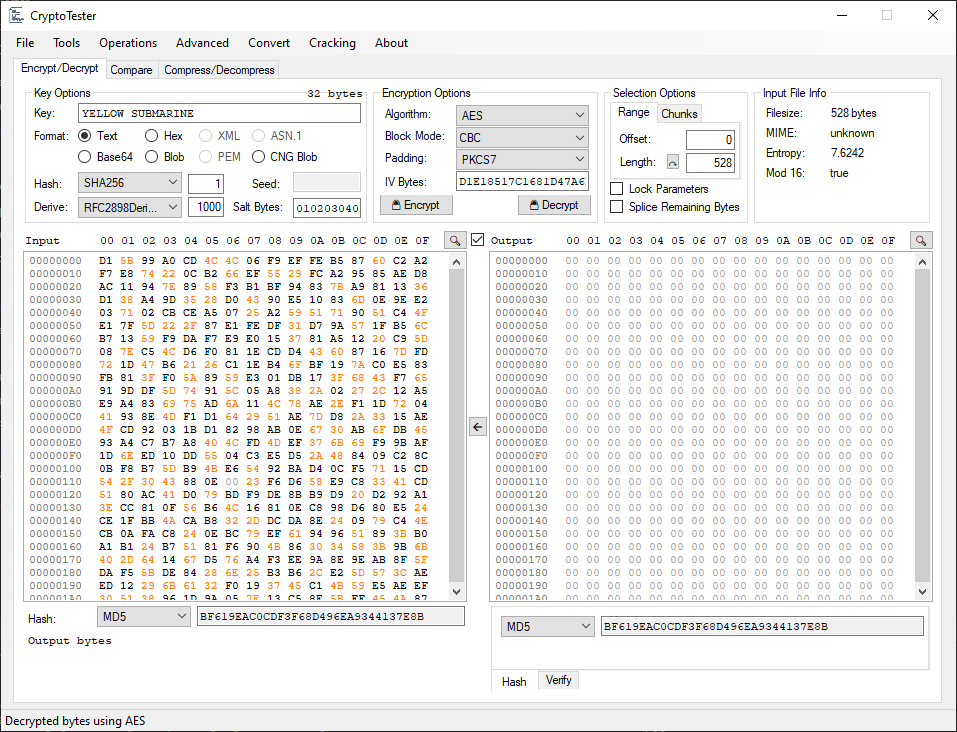
All hex views used in CryptoTester offer a few enhanced capabilities.
0D 0A) are colored purpleOn many views (e.g. Input and Output), clicking on the offset row (the 00 01 02 03... above the respective view) will open a dialog showing the bytes alongside the decoded view.
Most inputs that accept an integer, also accept special values and functions.
Examples:
x10 -> 16len -> 400block -> 16 (blocksize of the selected algorithm)up(60, 16) -> 64down(60, 16) -> 48Simple arithmetic can be used in combination with these functions.
up(len-x100, b) - Subtracts 256 from the input length, then rounds up to the nearest blocksize of the selected algorithm (e.g. 16 for AES)Any negative values are assumed to be len - value, aka relative to the end of the input.
The primary panel contains tools for using cryptographic primitives on an input. The Input hex view accepts direct pasting of bytes, or the File menu can be used to load a file, text, base64-encoded bytes, etc. A file can also be directly drag-and-dropped into the view.
Allows for specifying a key in many formats, and contains options for many hashing and key derivation functions; these fields adapt to the currently selected algorithm and what it can support.
Note: The key is processed in the same order it is shown in the UI; first the key is decoded according to the
Format, then hashed using theHashparameters, and finally derived using theDeriveparameters before handing it to the cryptographic algorithm. As of v1.7.0.0, you can swap the order ofHashandDeriveprocessing.
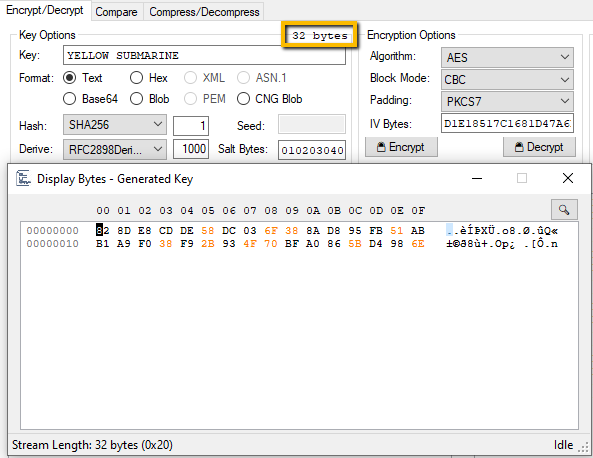
The final output length of the key is displayed above the input box. Clicking this will display the final computed key in a separate dialog.
Allows for selecting a cryptographic algorithm and its parameters, if supported.
Note: The
IV Bytes(orNonce, depending on algorithm) will automatically fill as00bytes of the appropriate length for the algorithm if it is left empty.
The input can be selected using two different modes: "Range" and "Chunks".
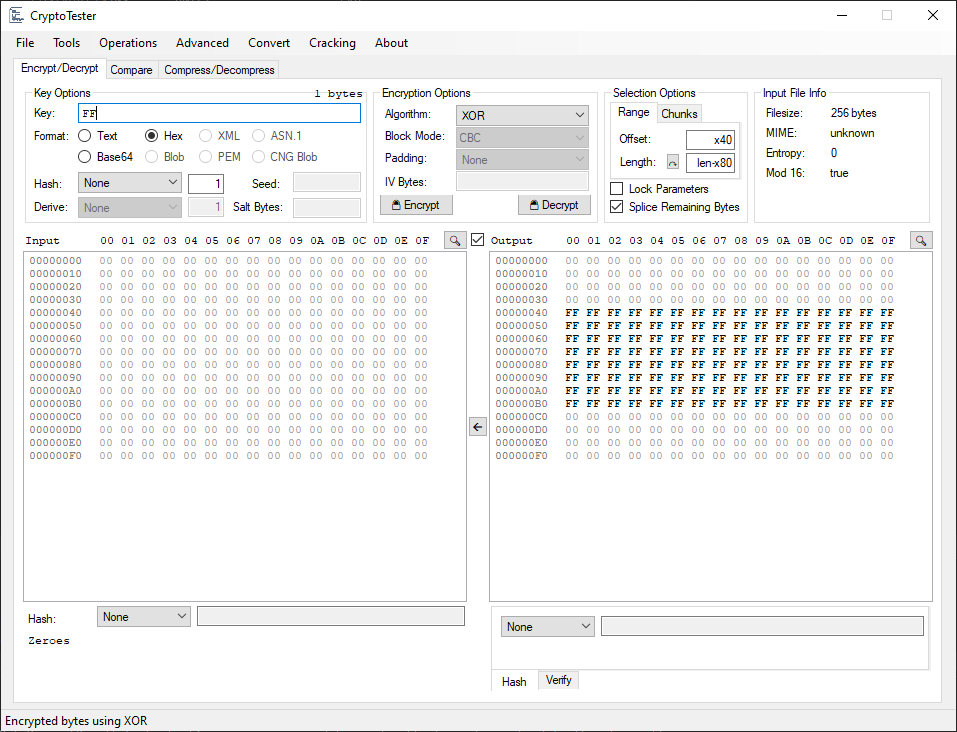
A simple range starting at Offset, and taking Length bytes.
The Length will automatically update whenever Input is changed, unless the Lock Parameters checkbox is ticked.
If you have made some calculations in the Length field, and wish to revert to the actual length of the Input, you can simply press the Reset Length button.
If Splice Remaining Bytes is ticked, then any bytes before Offset are prepended to the Output, and any bytes after Offset+Length are appended.
Takes Take bytes, then skips Skip bytes, takes Take bytes, skips Skip bytes... until the end of Input. This can be used for ciphertext that is actually "interleaved" between chunks of plaintext. The cryptographic algorithm is run on the resulting chunks as one sequential chunk, with no resetting of the key/IV/nonce etc.
If Splice Remaining Bytes is ticked, then any bytes in the Skip section are interleaved back into the Output.
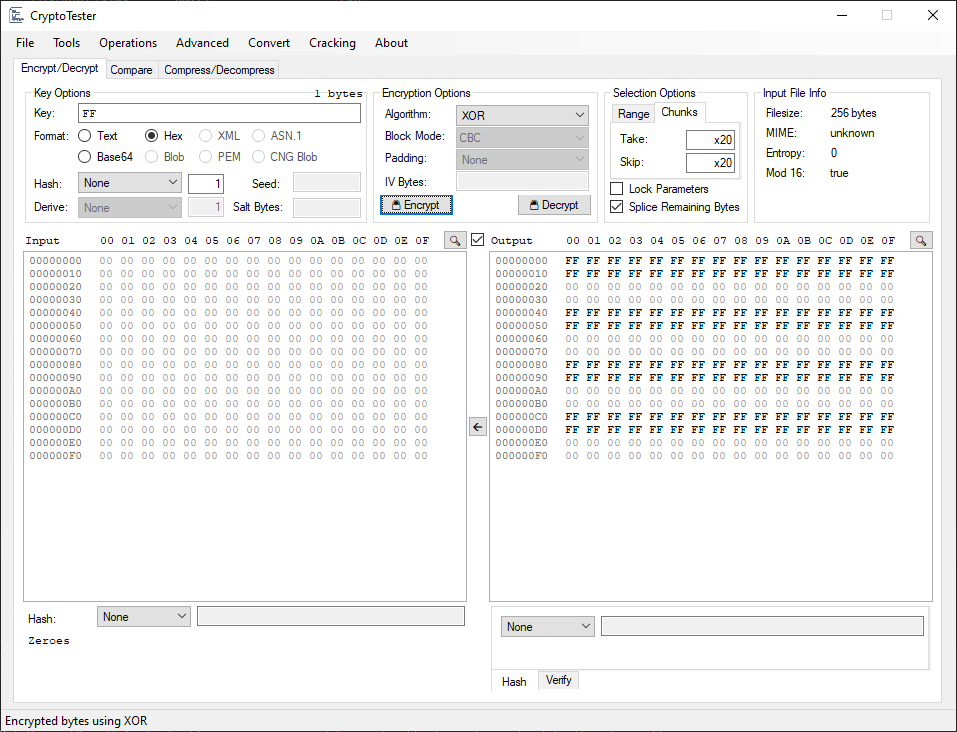
This section displays simple information about the Input such as the filesize, detected MIME (if it is a file), total entropy, and whether it is divisible by 16 (a common block size).
The Input and Output views have synchronized scrolling; to disable this, uncheck the Syncronized scrolling checkbox between them.
The 🡨 button between the Input and Output can be used to move the Output to the Input view.
The Input or Output can be hashed using the respective dropdowns below their views. The Output can also have a verify algorithm ran on it (limited support for ECDSA currently).
This panel allows for comparing an encrypted file with its original. Both views support drag-and-drop, or File -> Open File can be used to open Original and Encrypted sequentially.
The Original view can also be filled using any of the File -> Input options; for example, comparing against a certain length of null bytes or the Windows sample picture Chrysanthemum.jpg.
The Original and Encrypted views have synchronized scrolling; to disable this, uncheck the Syncronized scrolling checkbox between them.
The ⇆ button between the Original and Encrypted views can be used to swap their contents.
Any bytes that differ between the two views will be displayed in dark red.
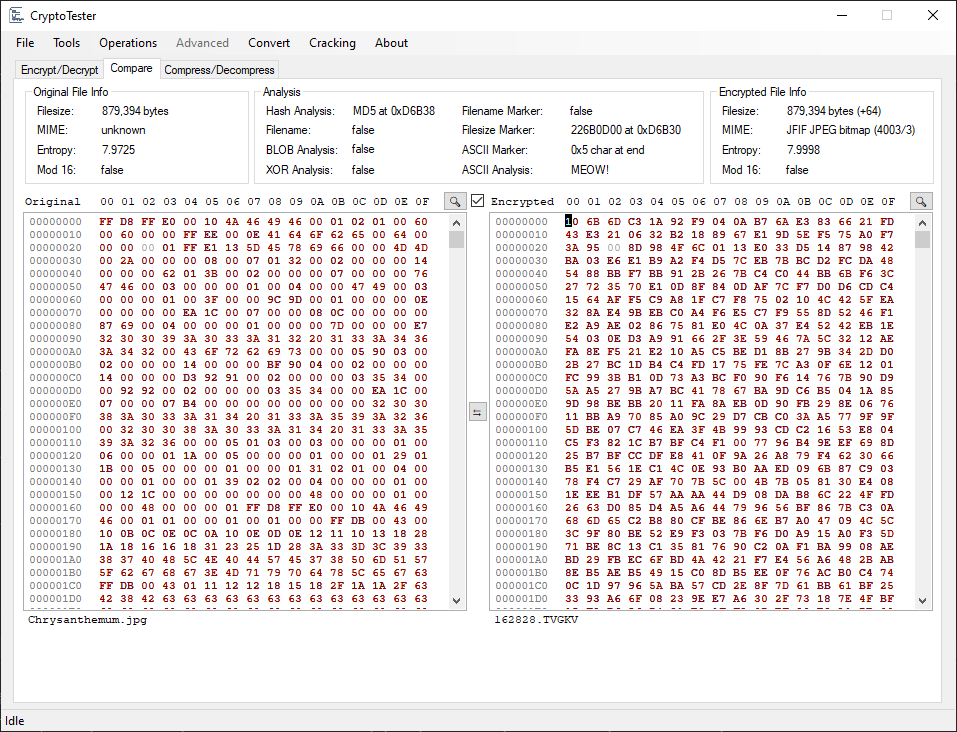
Displays basic information on the Original and Encrypted views respectively.
Once both views have been filled, a quick analysis is run against them.
Original is present in EncryptedEncryptedEncrypted (UTF-8 or UTF-16)Encrypted (in various forms and encodings)EncryptedThis panel allows for primitive use of a handful of compression algorithms, and has similiar functionality to the Encrypt/Decrypt panel.
A tool for analyzing CryptoAPI blobs and CNG blobs.
BLOBs can be imported/exported to/from binary, base64, PEM, XML, and ASN.1 formats, where supported.
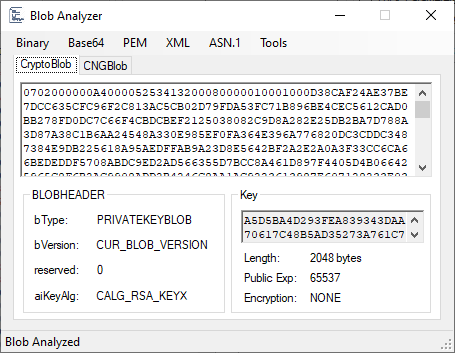
Additional blob-related tools which are activated only for supported blob types as applicable.
Generates a CryptoAPI blob. The Bit Length is automatically updated with supported values for the selected aiKeyAlg. Note that some combinations of bType and aiKeyAlg are not valid, and will throw an error from the CryptoAPI provider.
