 corelight/corelightforsentinelone
Corelight Dashboards and Parsers for Sentinel One Singularity

This guide will help you set up and utilize SentinelOne Dashboards, which offer powerful data insights for monitoring and analyzing your network traffic. Whether you're a security analyst, network administrator, or IT professional, these dashboards will help you easily visualize and track your network's security status.
-- TBD --
Note: Follow these steps if you prefer to use the GitHub repository for installation instead of marketplace. If you have already installed the parsers, please skip these steps.
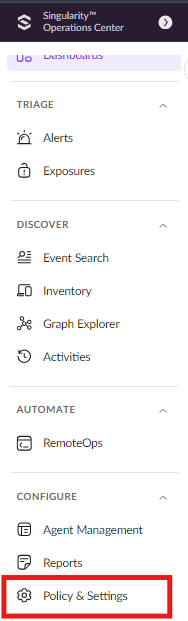
Step 1: In the Singularity Operations Center, go to Policy and Settings Section from the bottom left corner.
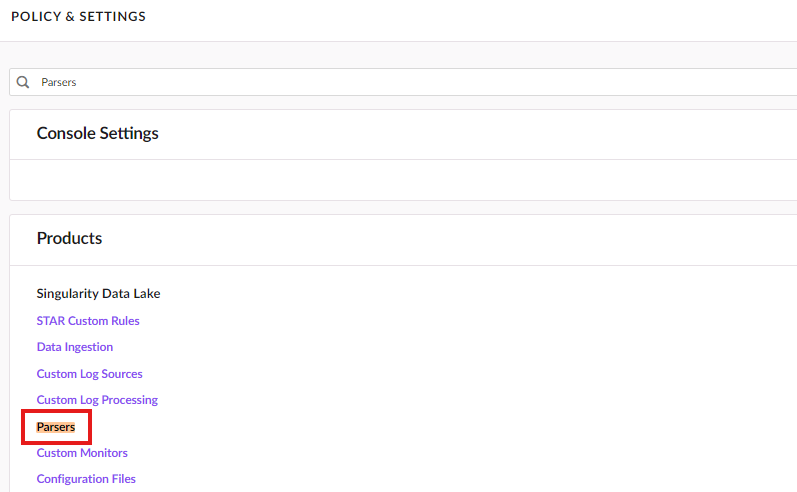
Step 2: From the policy and settings sections, search for Parsers and you’ll see that in the Products Section.
Step 3: Click on the parsers section and you will see the list of inbuilt as well as created parsers.
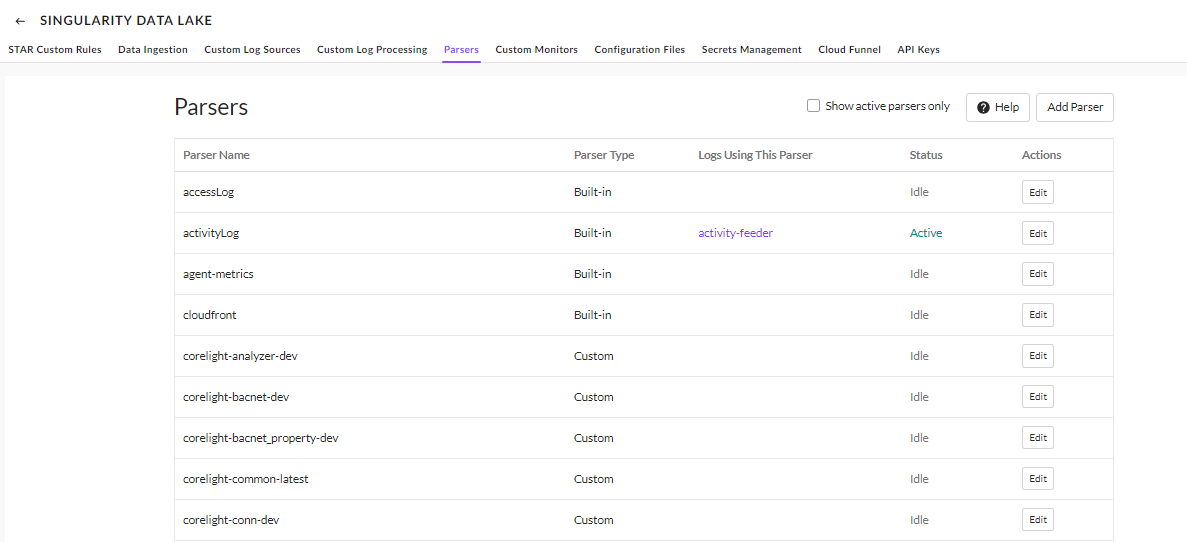
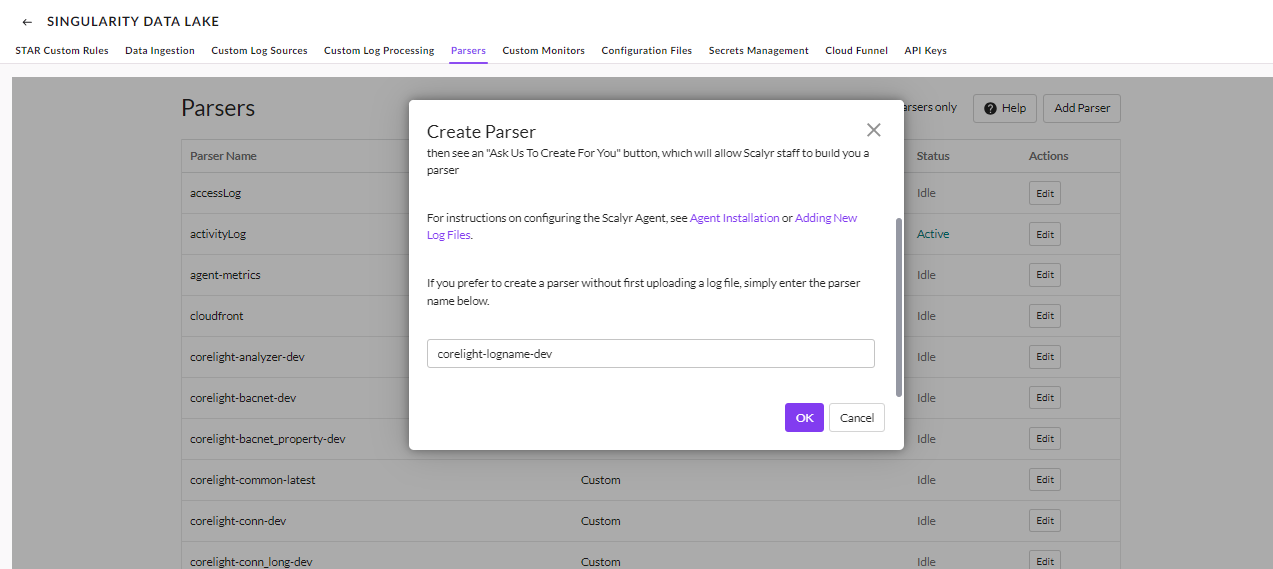
Step 4: Now, for adding new parser click on Add parser button from the top right corner and you will see a prompt for adding the parser name and click on Ok which will create the parser.

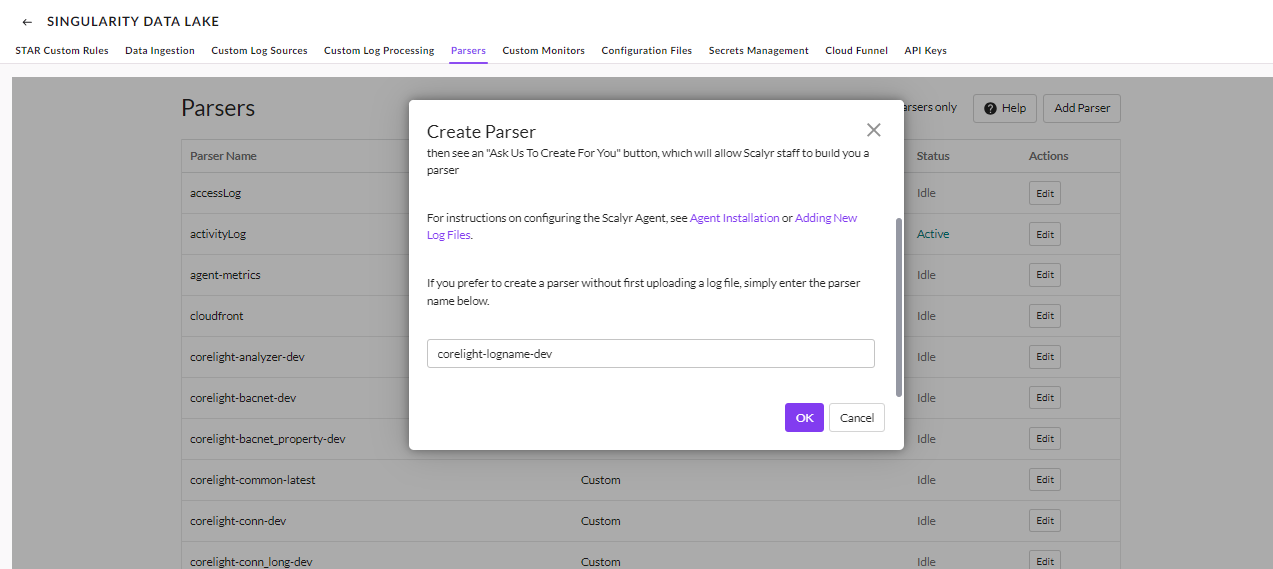
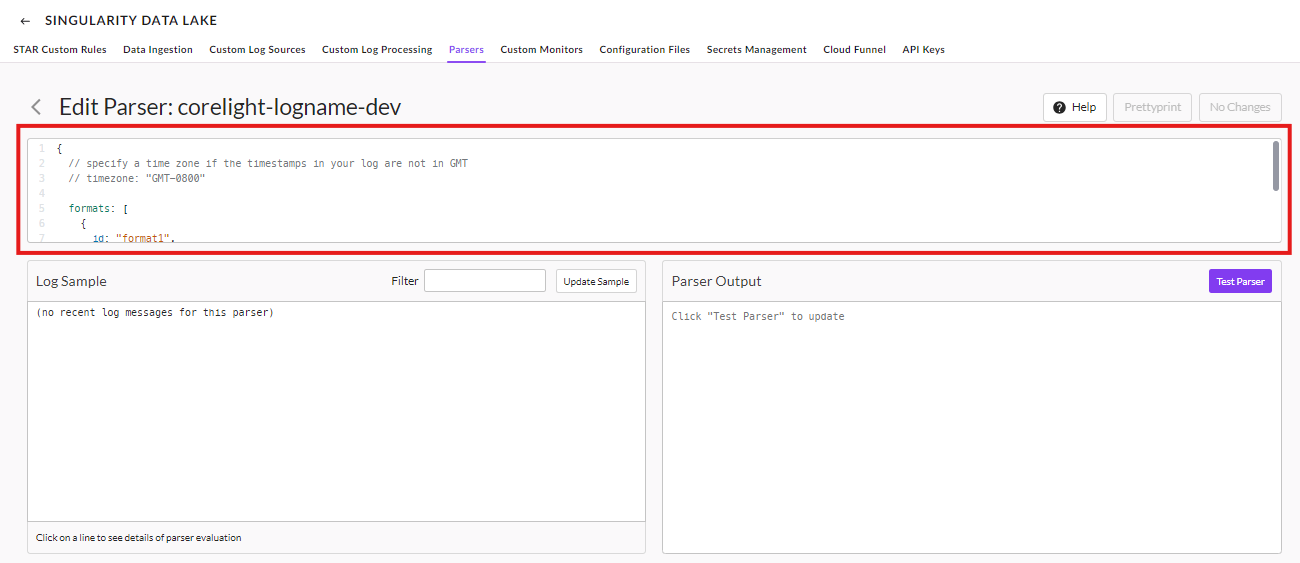
Step 5: After adding a new parser with log name head over to the parsers folder in github repo and search for that specific log file and copy the code from that file and paste it in below highlighted section.
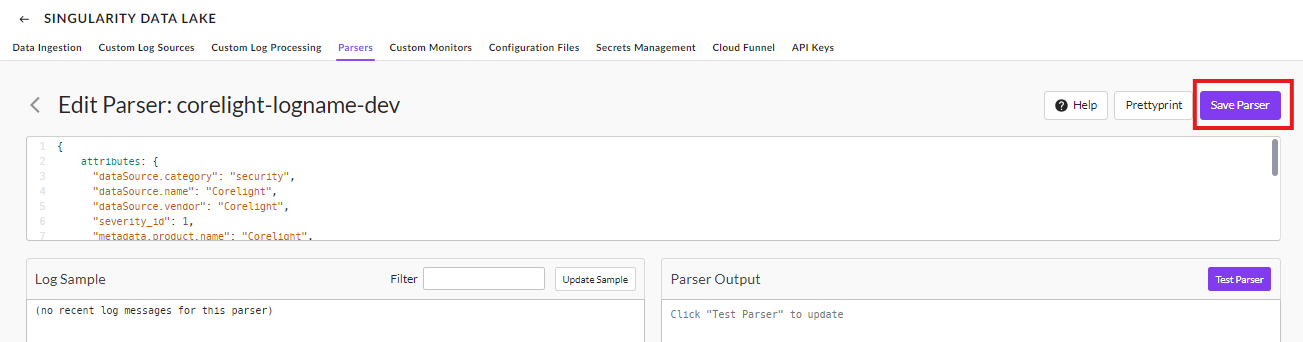
Step 6: After adding the copied code from the github repo, click on Save File and the parser will be added which you can see in Parsers sections.


Note: SentinelOne currently supports 25 different log parsers. If you need to add a parser for a new log type that is not included in the existing list, you can follow the steps outlined below to configure and integrate a parser for that log type.
How to use generic parser?
To use the generic parser, first complete steps 1 to 4 from the Installing Parsers Through GitHub Repository section, and then proceed with the following steps.
After creating the parser, copy the code from the corelight-generic parser and paste it in the parser which you have created and add more details as per your requirement and then save the parser.
To ingest data into SentinelOne Singularity Data Lake, follow the steps provided in the SentinelOne documentation under (Singularity Marketplace → Marketplace Ingestion Integrations → Corelight Zeek Network Security Parser Integration with SentinelOne).
Note: If you are installing the parsers from GitHub repo make sure to update the sourcetype template as "corelight-$LOG-dev"
For populating dashboards, we need some of the configurations files (i.e Lookup files), which we need to add.
Step 1: In the Singularity Operations Center, go to Policy and Settings Section from the bottom left corner.
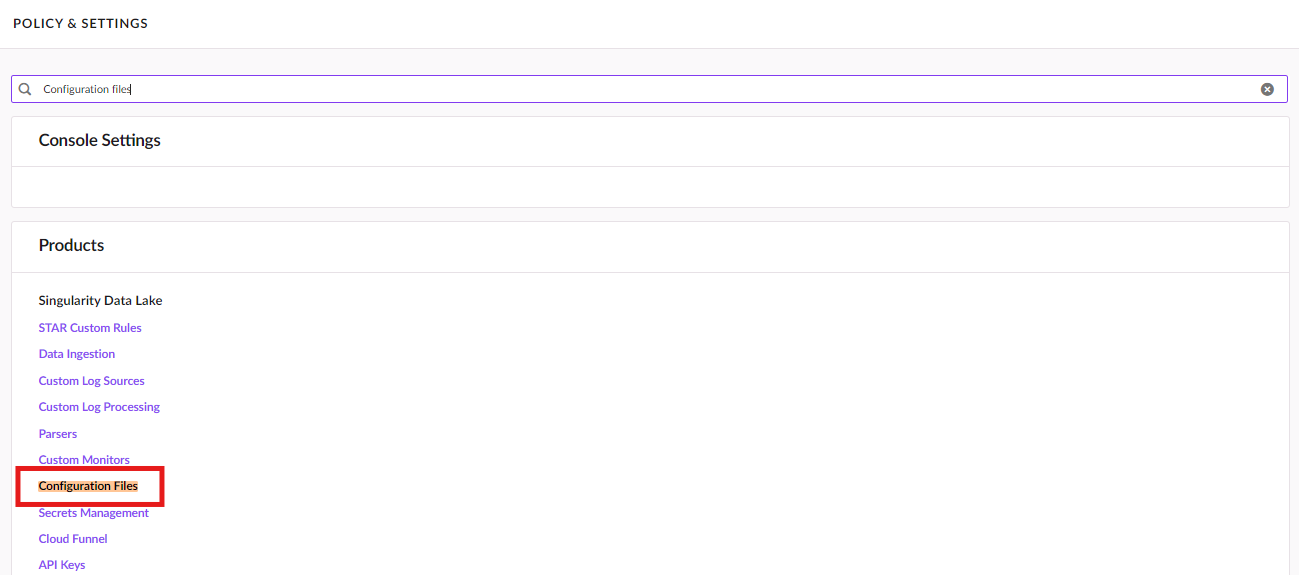
Step 2: From the policy and settings sections, search for Configurations files and you’ll see that in Products Section.
Step 3: Head over to configuration files and you'll see the list of configuration files.
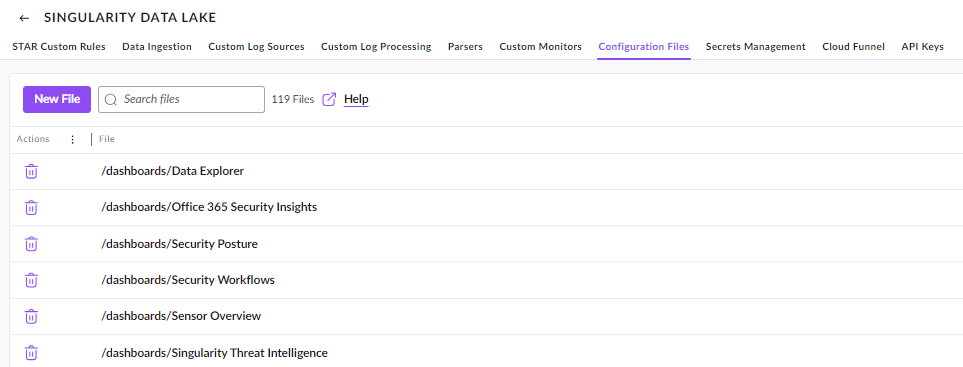
Step 4: In that click on New File and add create all the files with the same names as mentioned in the lookups folder in github repository.
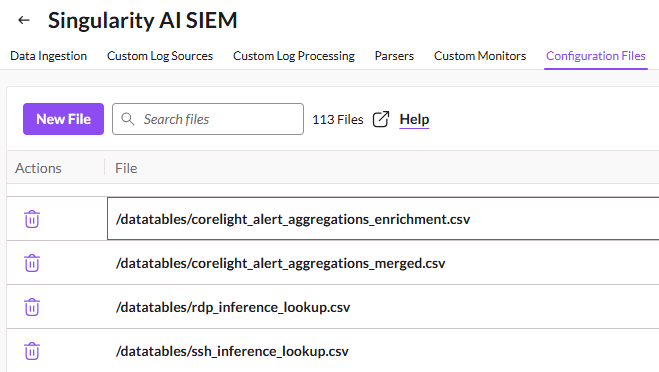
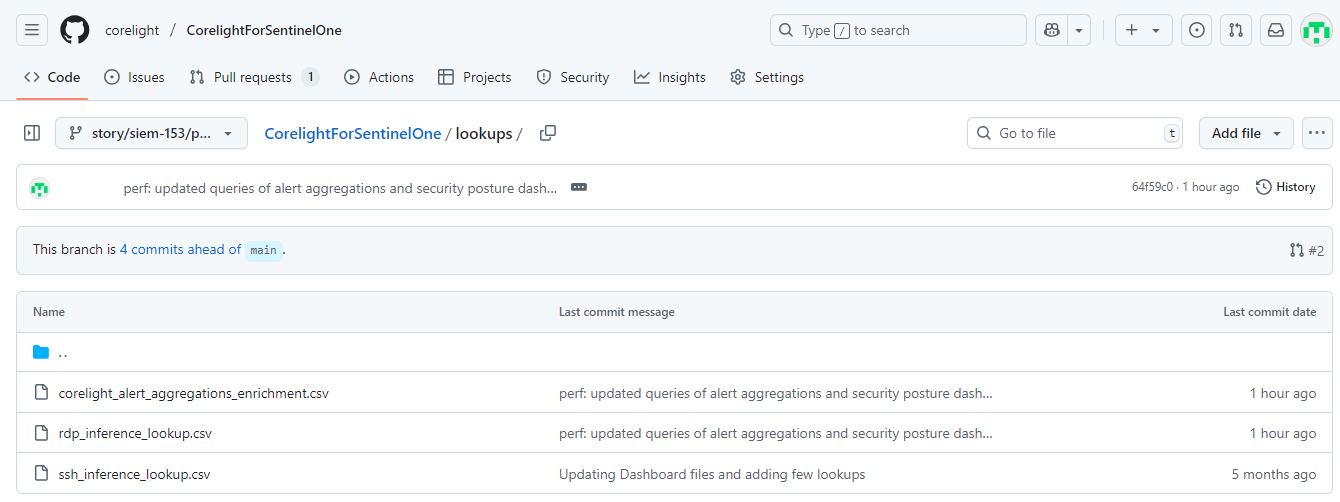
Step 5: After creating files with the same names as mentioned in github repository, also copy the lookup files content and save each file.
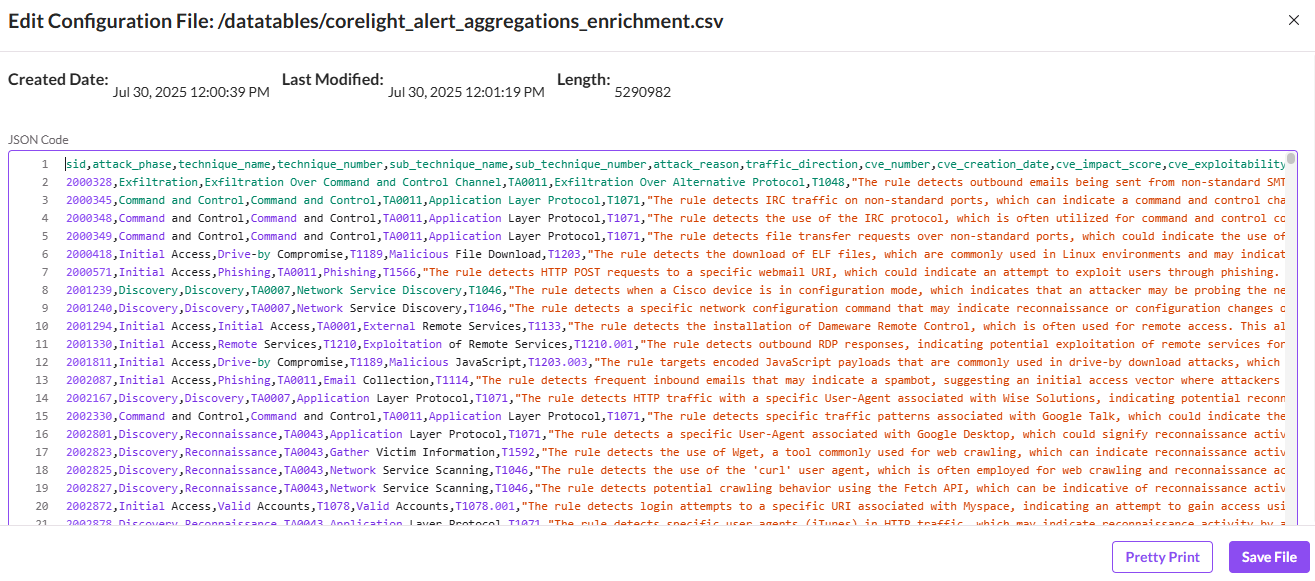
Once this is done, all the lookup files will be created.
Once you're logged in, find the Dashboards section in the navigation menu. This section allows you to manage and view all the available dashboards.
Click on the Dashboards option to proceed.
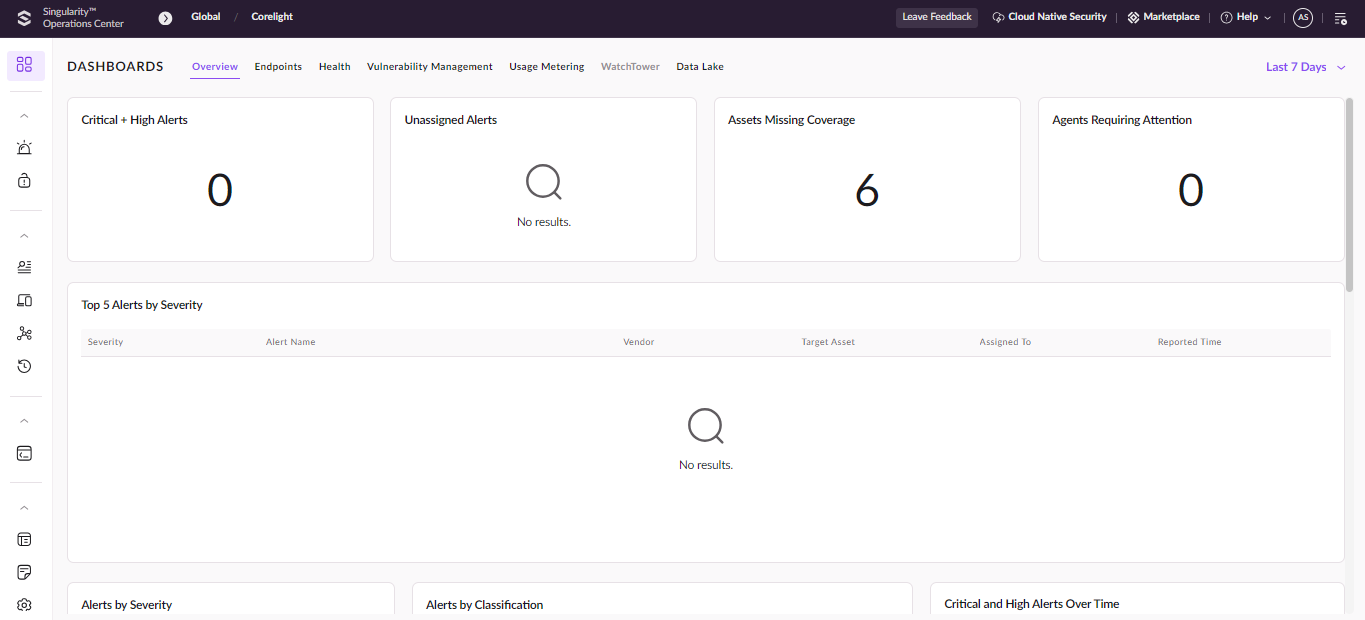
Choose Your Connection: In the top-left corner, you'll find a drop-down menu labeled Select Connection. Here, choose the connection that you want to monitor.
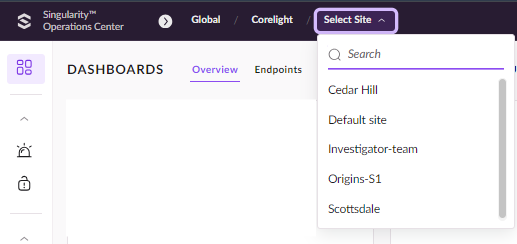
Select Your Site: Once you've selected the connection, you will see a list of sites associated with that connection. Choose the site you want to analyze.