
Skip to content
KitploitKITPLOIT
ToolsExploitsBlog
Log in
Submit
ToolsExploitsBlog
Submit

Hacking, PenTest, and Cybersecurity Tools for Your Security Arsenal!

Kitploit is a directory of hacking, cybersecurity, and pentesting tools. Discover the latest project updates to find vulnerabilities, analyze systems, automate testing, and strengthen your security.

··Feeds·Contact·Privacy·© 2026 Kitploit

Tool Directory

Categories

View all categories
Loading categories
CorelightForSecOps — Chronicle parser for CORELIGHT and related information. | Kitploit
Tools/GitHubGitHub/corelight/corelightforsecops
Defensive ToolsNetwork SecurityCloud SecurityUtilities & FrameworksIntrusion DetectionLog Analysis
GitHubcorelight/corelightforsecops

CorelightForSecOps

Chronicle parser for CORELIGHT and related information.

View Repository
54553 months agoNot yet reviewed

Most Popular

View all →

Discover the most used tools by our community.

Explore all tools

Browse our collection of tools

View all tools →
Share

Collect Corelight Sensor logs

This document describes how you can collect Corelight Sensor logs by configuring the Corelight Sensor and a Chronicle forwarder. This document also lists the supported log types and supported Corelight versions.

For more information, see Data ingestion to Chronicle.

Before you begin

  • Verify the version of Corelight Sensor. The Corelight Google SecOps parser was designed for version 27.13 and earlier. Later versions of the Corelight Sensor might have additional logs that the parser won't recognize, and those logs might receive limited or no field parsing. However, the log content will still be available in the raw log format in Google SecOps.
  • Ensure that all systems in the deployment architecture are configured with the UTC time zone.

Deployment and Log Ingestion Methods

The following deployment architecture diagram illustrates how a Corelight Sensor is set up to send logs to Google Security Operations using two different ingestion architectures. It's important to note that each customer deployment may vary from this representation and could be more complex.

An ingestion label identifies the parser which normalizes raw log data to structured UDM format. The information in this document applies to the parser with the CORELIGHT ingestion label.
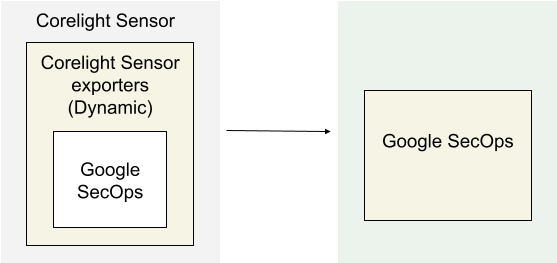
Ingesting Logs into Google SecOps using Corelight Exporters

Deployment architecture

The architecture diagram shows the following components:

  • Corelight Sensor: The system running the Corelight Sensor .

  • Corelight Sensor exporters: The Corelight Sensor exporter collects log data from the Sensor, and forwards it to Google Security Operations.

  • Google Security Operations: Google Security Operations retains and analyzes the logs from Corelight Sensor.

Configure the Google SecOps exporter in Corelight

Use the Sensor or Fleet Manager web interface to configure the Google SecOps exporter. This configuration uses the API credentials from your Google SecOps instance to establish the secure connection.

  1. Log in to the Fleet Manager or Sensor web interface of Corelight Sensor as an administrator.

  2. Navigate to the exporter configuration area:

    • Fleet Manager: Navigate to Policies, select a policy, and click the Export tab.
    • Standalone Sensor: Navigate to Configuration | Export | Export Configuration.
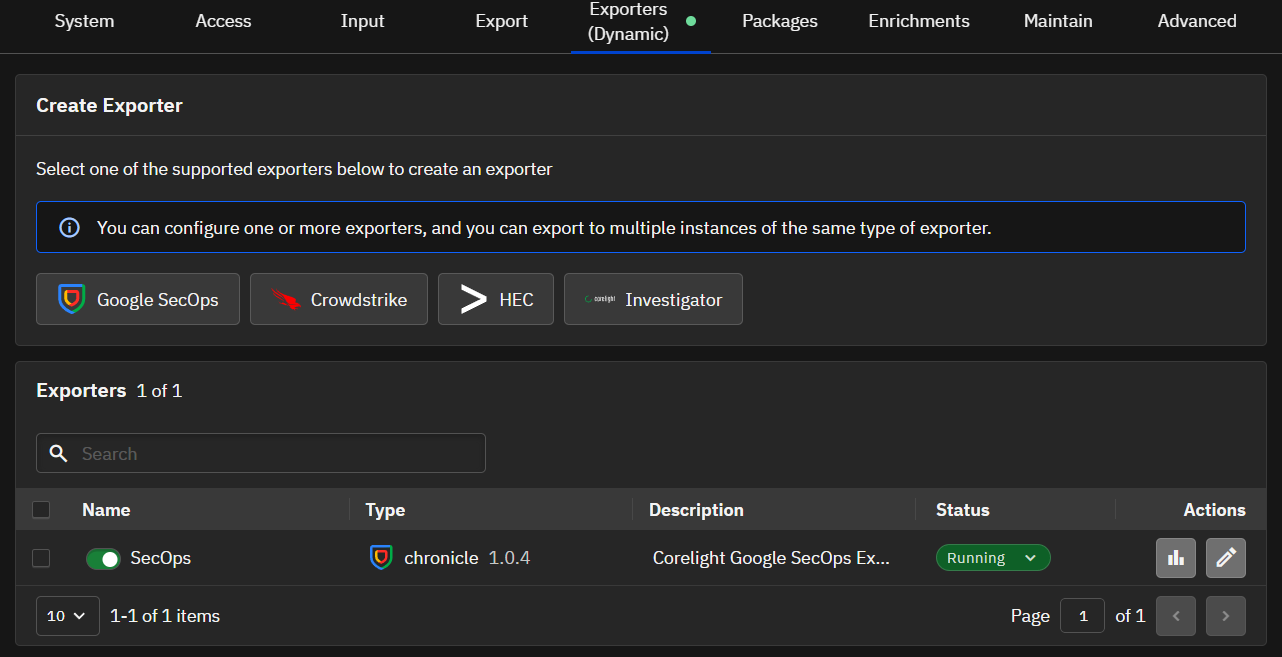
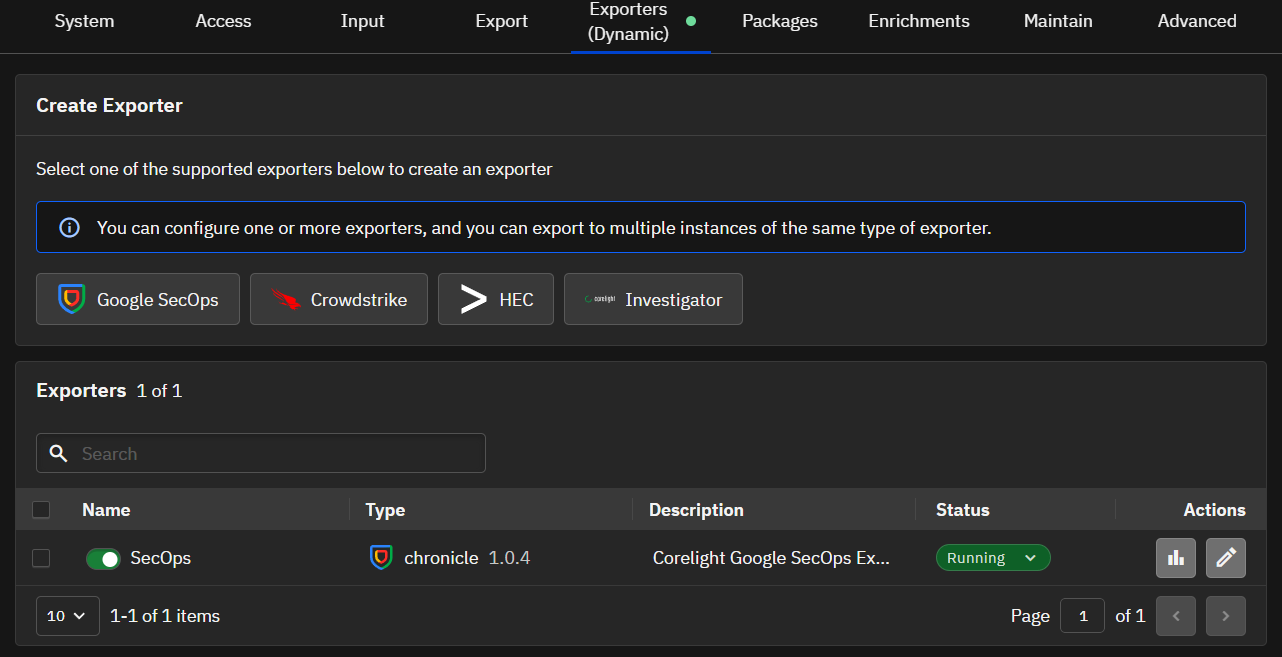
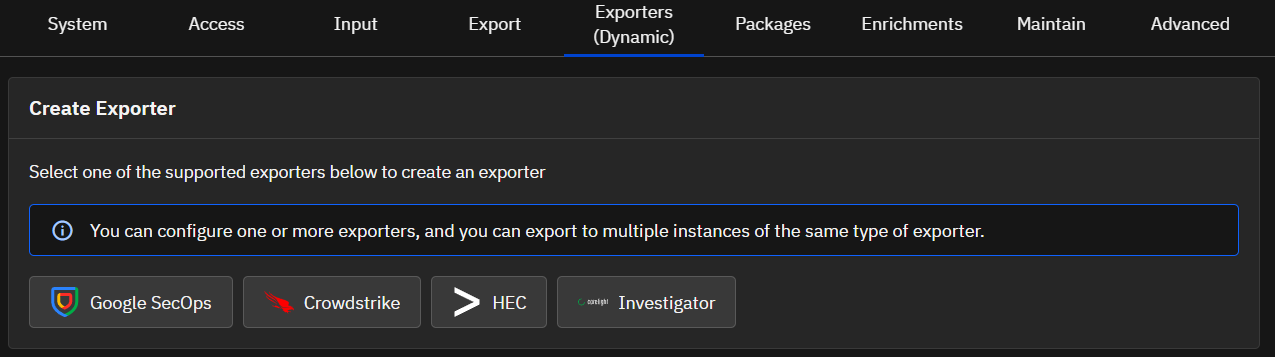
  3. In the Create Exporter section, click Google SecOps.
Deployment architecture

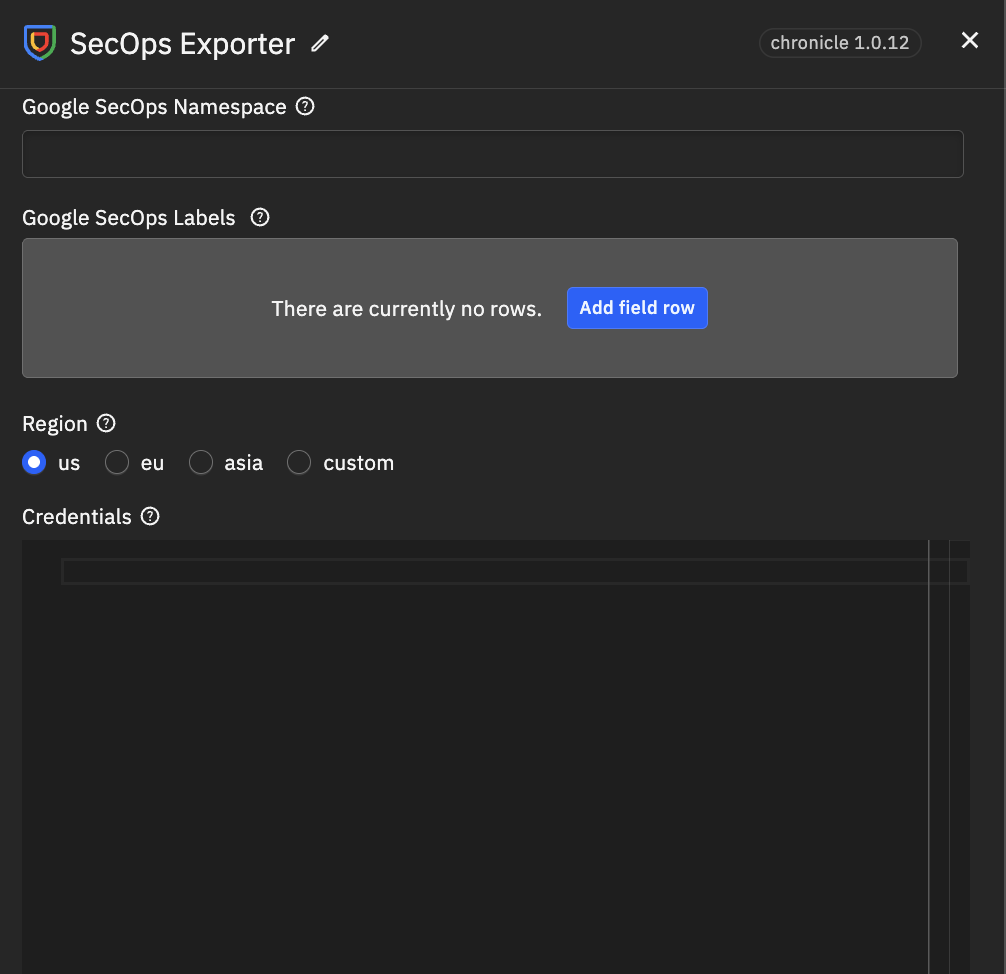
  1. Configure the following input parameters:
  • Name*: A unique name for this exporter instance (for example, SecOps).
  • Google SecOps Customer ID*: Your unique customer identifier provided by Google.
  • Google SecOps Namespace: The logical namespace for your Sensor logs in Google SecOps.
  • Credentials*: The Google SecOps Service Account Credentials (JSON). (Paste the full JSON content).
  • Google SecOps Labels: User-configured labels to identify the data domain.
  • Region*: The GCP region name used by Google SecOps.
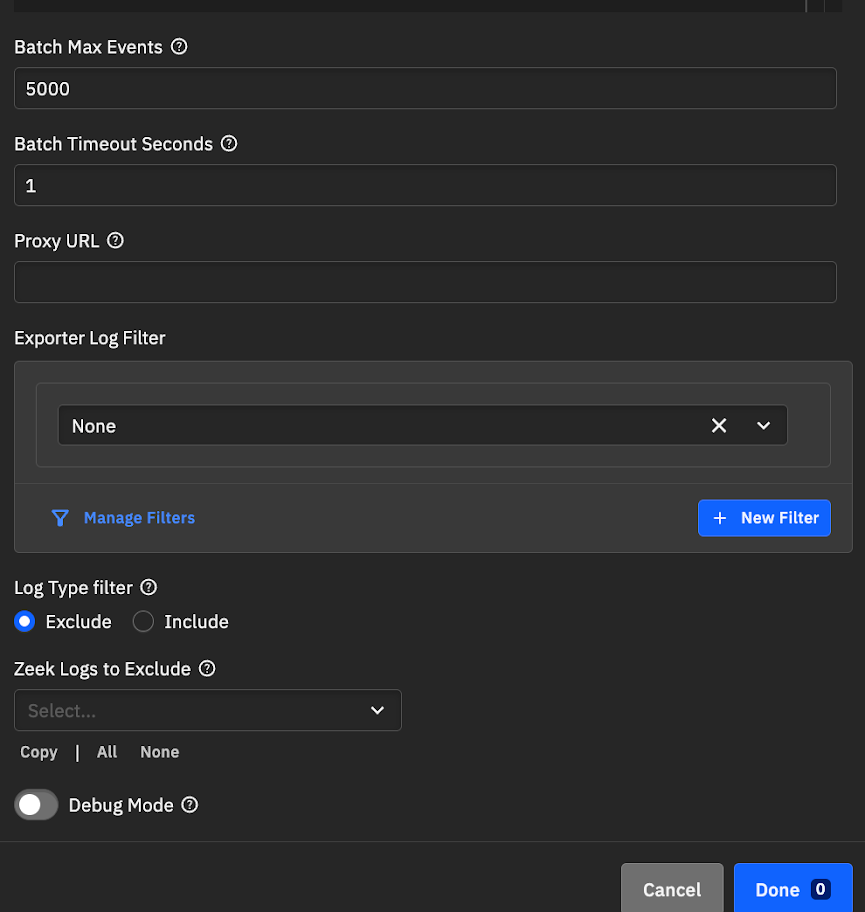
  • Batch Max Events: The maximum batch size.
  • Batch Timeout Seconds: The maximum age of a batch.
  • Proxy URL: The network proxy URL, if required.
  • Exporter Log Filter: Select a filter to apply to this exporter instance.
  • Log Type Filter: Include or exclude specific log files by name.
    • Exclude: Removes specified logs. New log types (for example, from packages) will still be exported.
    • Include: Exports only the specified logs. New log types will NOT be exported unless manually added.

Deployment architecture Deployment architecture

  1. Click Done.

Deployment architecture

  1. Click Apply Changes.

Ingesting Logs into Google SecOps Using a Forwarder

Deployment architecture

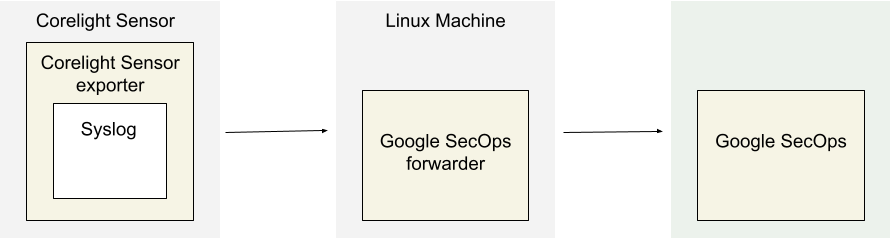
The architecture diagram shows the following components:

  • Corelight Sensor: The system running the Corelight Sensor .

  • Corelight Sensor exporter: The Corelight Sensor exporter collects log data from the Sensor, and forwards it to the Google Security Operations forwarder.

  • Google Security Operations forwarder: The Google Security Operations forwarder is a lightweight software component, deployed in the customer's network, that supports syslog. The Google Security Operations forwarder forwards the logs to Google Security Operations.

  • Google Security Operations: Google Security Operations retains and analyzes the logs from Corelight Sensor.

Configure the Google Security Operations forwarder

To configure the Google Security Operations forwarder, do the following:

  1. Set up a Google Security Operations forwarder. See Install and configure the forwarder on Linux.

  2. Configure the Google Security Operations forwarder to send logs to Google Security Operations.

  collectors:
    - syslog:
        common:
          enabled: true
          data_type:  CORELIGHT
          data_hint:
          batch_n_seconds: 10
          batch_n_bytes: 1048576
        tcp_address: <Chronicle forwarder listening IP:Port>
        tcp_buffer_size: 524288
        udp_address: <Chronicle forwarder listening IP:Port>
        connection_timeout_sec: 60
Configure the Corelight Sensor exporter

  1. Log into Corelight Sensor as an administrator.
  2. Select the Export tab.
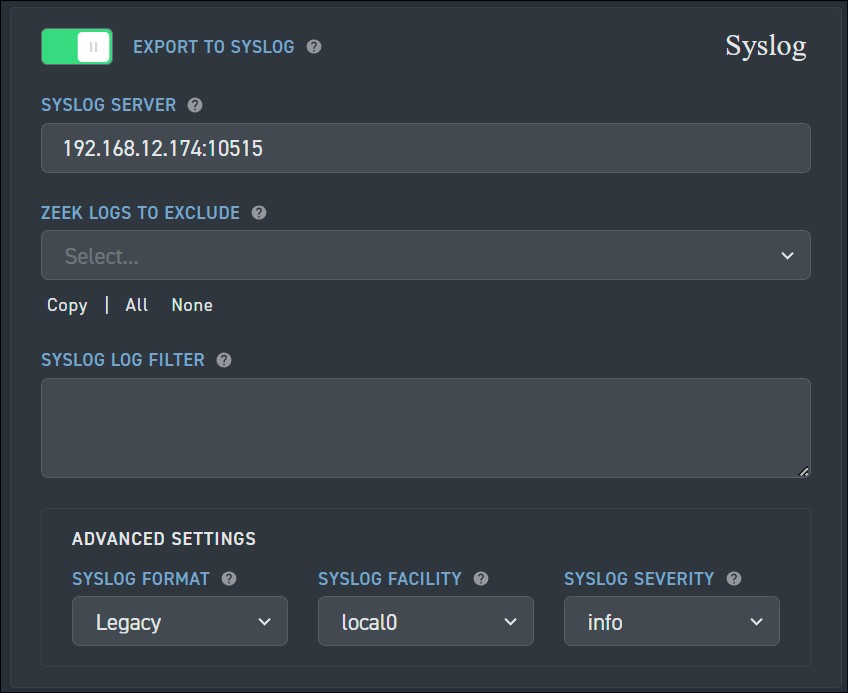
  3. Find and enable EXPORT TO SYSLOG option.
  4. Under EXPORT TO SYSLOG, configure the following fields:
  • SYSLOG SERVER: Specify the IP address and port of the Google Security Operations forwarder syslog listener.
  • Navigate to Advanced Settings > SYSLOG FORMAT, and change the setting to Legacy.

Corelight Sensor Configuration

  1. Click Apply Changes.

Supported Corelight log types

The Corelight parser supports the following log types:

Log Type

  • asset_classification
  • conn
  • conn_long
  • conn_red
  • conn_agg
  • dce_rpc
  • dns
  • dns_red
  • files
  • files_red
  • http
  • http2
  • http_red
  • intel
  • irc
  • notice
  • rdp
  • sip
  • smb_files
  • smb_mapping
  • smtp
  • smtp_links
  • ssh
  • ssl
  • ssl_red
  • suricata_corelight
  • bacnet
  • cip
Download Tool