 caniphish/phishious
An open-source Secure Email Gateway (SEG) evaluation toolkit designed for red-teamers.



Phishious is an open-source Secure Email Gateway (SEG) evaluation toolkit designed for red-teamers and developed by the team at CanIPhish. Phishious provides the ability to see how various Secure Email Gateway technologies behave when presented with phishing material.
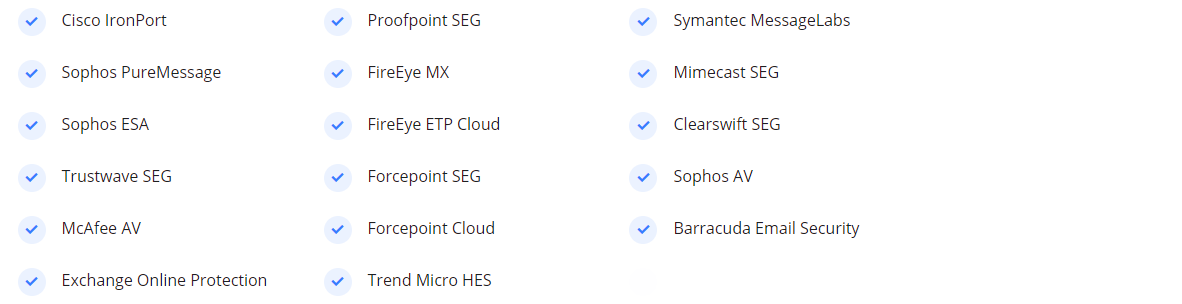
We're not joking when we say that Phishious is a world first in Secure Email Gateway evaluation. There is currently no other tool available (free or paid) that provides you the ability to scan your phish against an array of Secure Email Gateways. The closest utility is VirusTotal, however this specifically focuses on Malware detection and not Spam/Phish detection.
Through use of Phishious, you'll be able to freely test your phishing material against the world's most popular Secure Email Gateways. This is an invaluable capability as it provides you an indication of how successful your phishing campaign may be.
Phishious exploits a common misconfiguration where many organisations broadcast overly sensitive information in email bounce responses and non-delivery reports. The sensitive information typically comes in the form of original untampered inbound message headers.
By feeding this information into Phishious, it can extract the relevant information and detect when an email is likely to end up in a targets junk folder or be completely blocked by the SEG. When we scale this across many targets, we're able to aggregate this information to provide a holistic view on how various SEGs behave when delivered certain phishing material.
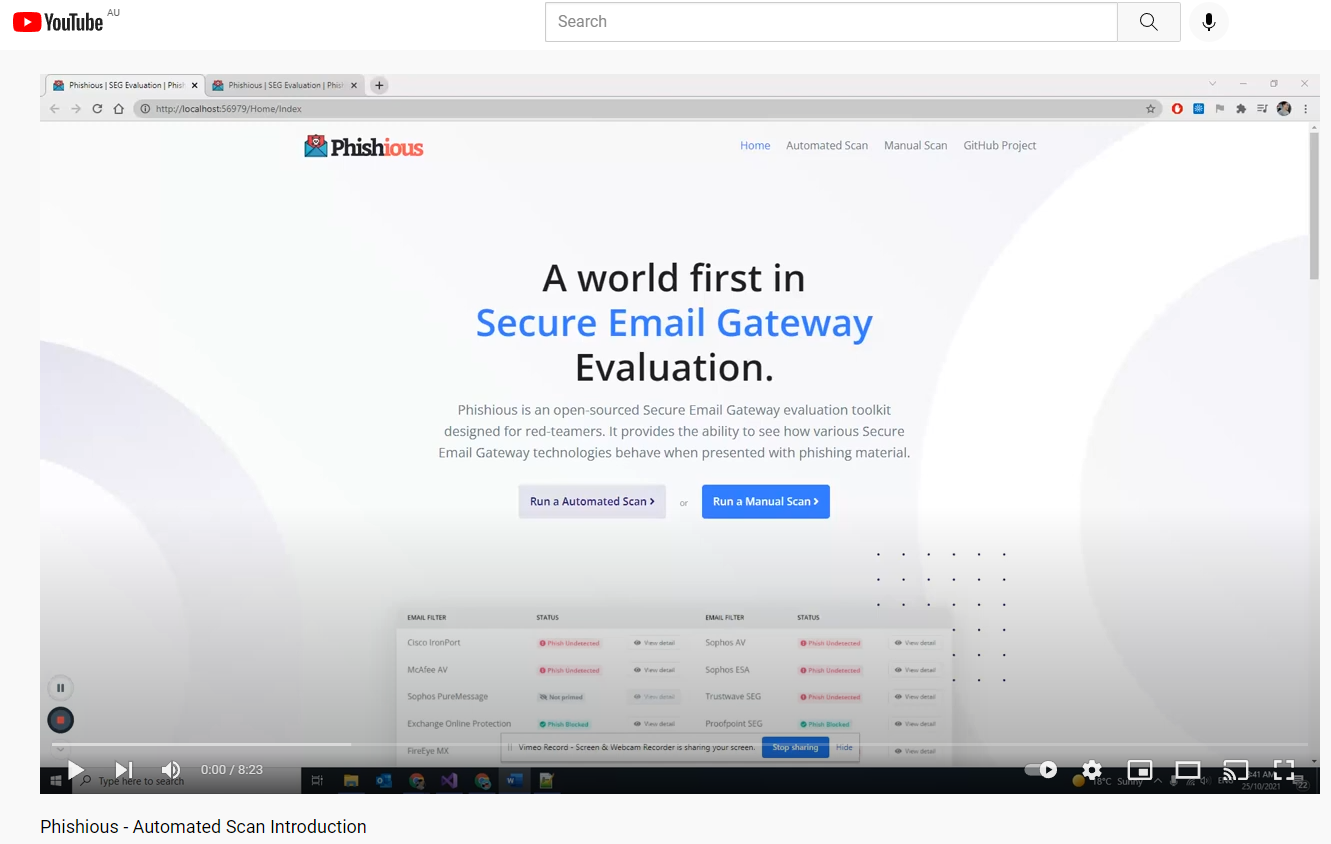
To better understand email bounce attacks and the resulting issues, please read the following Blog Post, watch this BSides Canberra presentation or watch the below introduction video on youtube.
Windows 10 Endpoint, Windows Server 2012+ or any Linux system capable of running .NET Core 5.0 (see https://dotnet.microsoft.com/download/dotnet/5.0)
Phishious is a .NET Core 5.0 MVC Web Application. Accordingly it can be run on Windows using IIS or Linux using Apache as the Web Server. However the simplest way to use Phishious is to clone the project and then Debug it using your favourite IDE (e.g. Visual Studio, Visual Studio Code, Rider, etc.).
The automated scan adds an orchestration layer whereby Phishious automatically sends emails, ingests bounce responses and analyses mail headers with only a few clicks. The main exercise on you as the user is to identify vulnerable mail receivers.
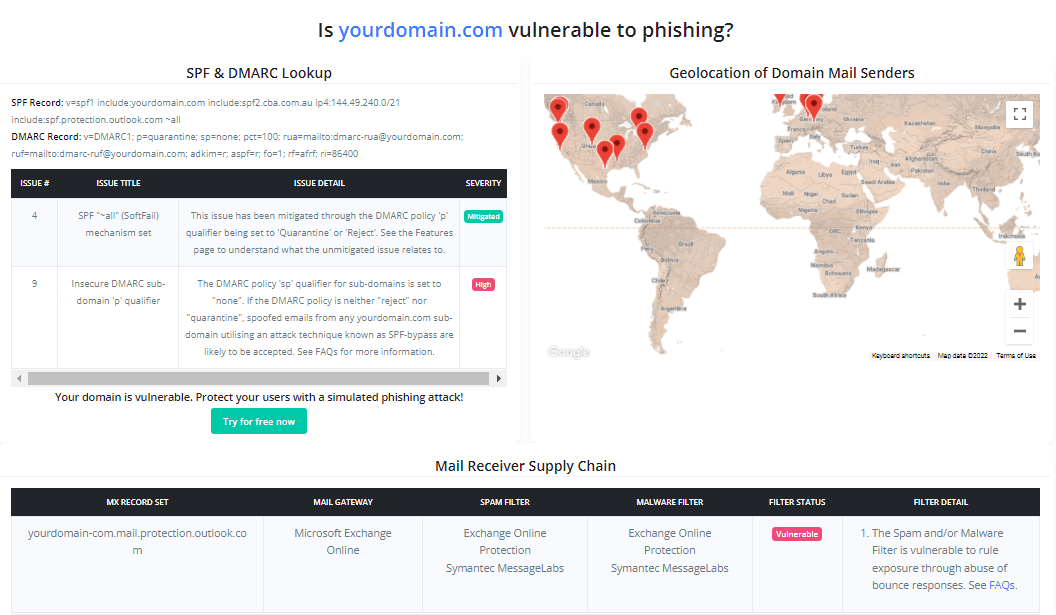
As Phishious is designed to abuse public infrastructure, you need to identify a variety of targets who use differing mail security technologies (e.g. Target 1 uses Sophos PureMessage, Target 2 uses Cisco IronPort, etc.). Identification of Vulnerable Mail Receivers can be found through manual analysis (e.g. CanIPhish Supply Chain Analysis) or programmatic means (e.g. CanIPhish Supply Chain API).
Reference: The accompanying image is of a CanIPhish Supply Chain Scan which shows a vulnerable 'Mail Receiver Supply Chain'.
Target Settings. Input target domains seperated by a space, line or comma. Follow this up by inputing a non-existent address into the local part address
SMTP Settings. Input the SMTP server settings you plan on using.
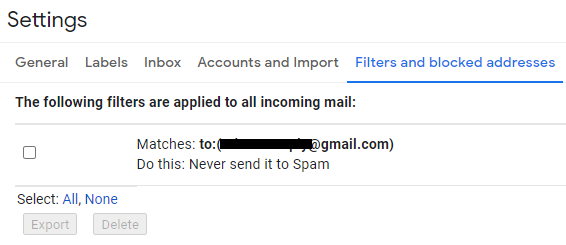
Note: If using Gmail then use a throwaway Gmail address with "Less secure app access" enabled. This setting can be toggled by clicking here - https://myaccount.google.com/lesssecureapps. Setup a Filter so any inbound email is never sent to spam (configured under Settings Cog > See All Settings > Filters and Blocked Addresses > Create a new filter). Finally for Gmail, the username and password are your gmail email address and password.
Storage Scan Settings. Input the location where the email bounce responses will land. At current, both Gmail and Amazon S3 are supported as storage destinations.
Note: For use of Amazon S3, you will likely need to setup some form of forwarding capability to forward bounce responses to this location (e.g. Amazon SES Mail Receiver with S3 as the destination).
Email Priming Settings. Input your sending email address, display name and a non-malicious subject and email body. Email priming is used to baseline normal behaviour of the respective Secure Email Gateway technologies, so we can analyse the delta from this when we deliver our malicious mail.
Once all settings have been provided, click 'Save Settings' followed by 'Prime Filters'. Wait up to a minute for Priming to complete.
Time to email malicious content to those same targets emailed during Priming.

