 0x999-x/jsluicepp
jsluice++ is a Burp Suite extension designed for passive and active scanning of JavaScript traffic using the CLI tool jsluice


jsluice++ is a Burp Suite extension designed for passive and active scanning of JavaScript traffic using the CLI tool jsluice.
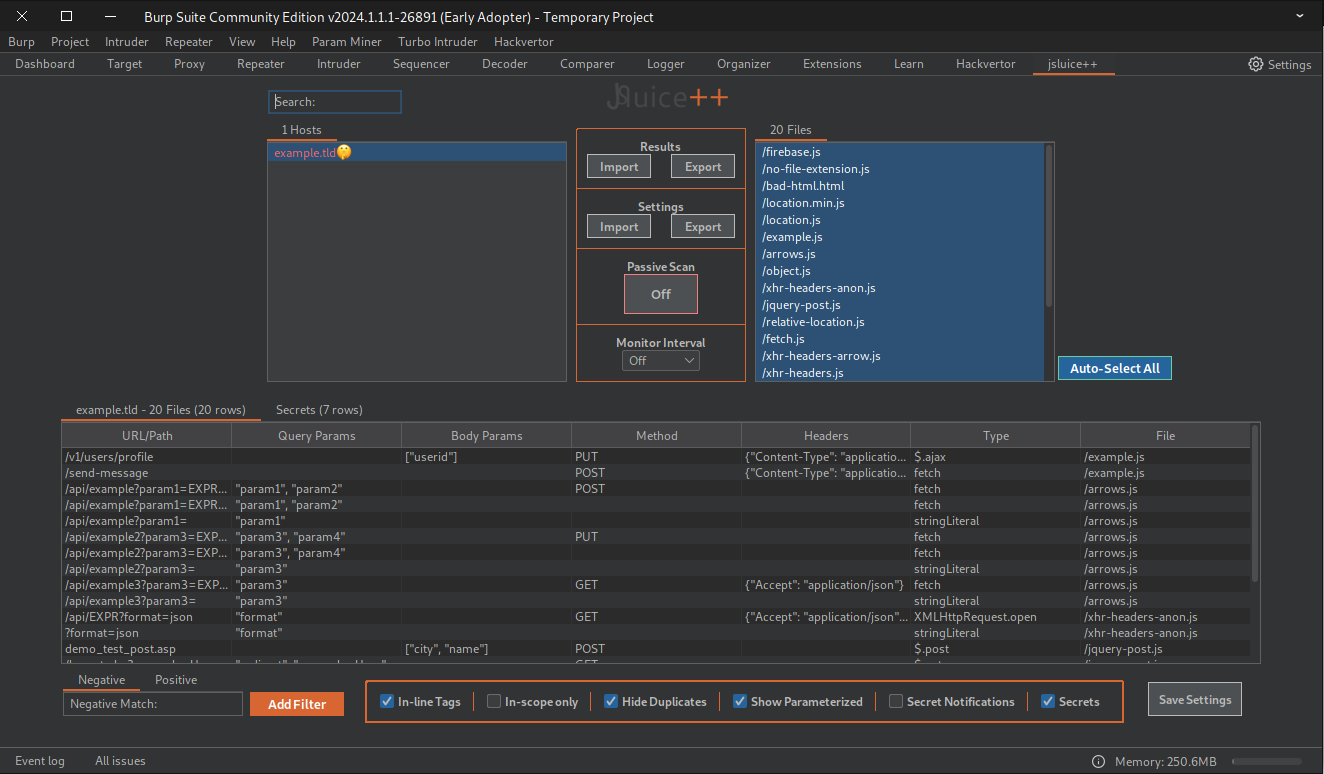
The extension utilizes jsluice's capabilities to extract URLs, paths, and secrets from static JavaScript files and integrates it with Burp Suite, allowing you to easily scan javascript traffic from Burp Suite's Sitemap or Proxy while also offering a user-friendly interface for data inspection and a variety of additional useful features
Requirements:
if this isn't your first time installing a jython extension you can skip to step 3.
go install github.com/BishopFox/jsluice/cmd/jsluice@latest (ensure that the jsluice binary is in your $PATH otherwise the extension won't work)The extension adds an item to Burp Suite's context menu which allows you to easily process responses from Burp Suite's Sitemap tab
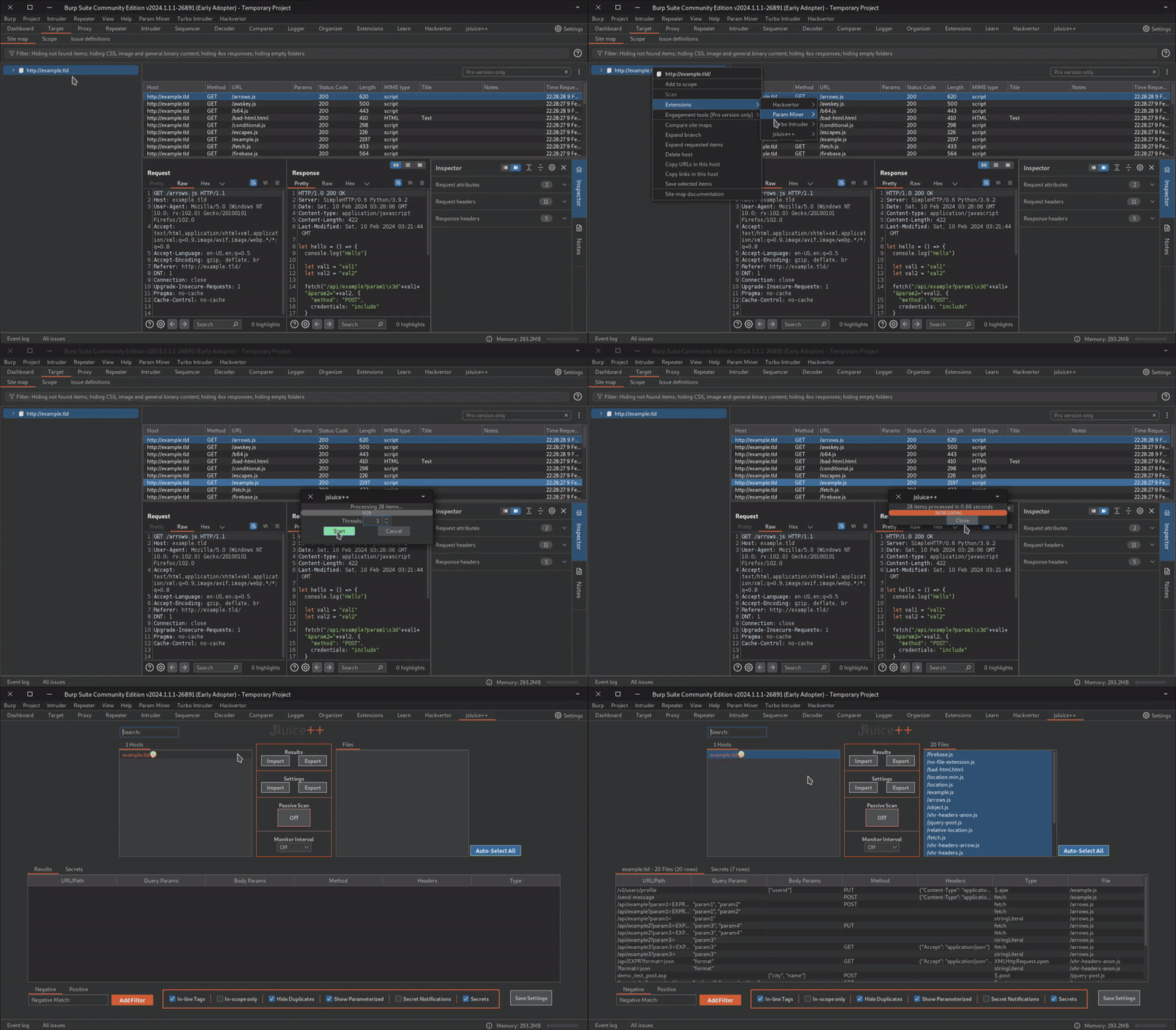
to do so simply right click any host in the sitemap tree or any item in the sitemap table and select Extensions->jsluice++->Process selected item(s) in Burp Suite's context menu.
When processing items from the site map tree the extension will get the site map of every selected item (Multiple hosts can be processed)
Default: Off
When Passive scan is toggled on the extension will register an http handler and process responses from traffic flowing through Burp Suite's Proxy (it's recommended to use the in-scope only feature when enabling passive scan to reduce noise)
The extension will process any URL with a .js file extension or a JavaScript mime type and a success status code (2xx) using jsluice's urls mode.
The processed JavaScript file is temporarily saved locally in the ".jsluicepp" directory and gets removed after jsluice has finished processing it,
If jsluice returns any data, the host associated with the URL will be added to the Hosts list, to view the results from jsluice simply select the host and the desired file (multiple files can be selected).
Note: the same URL (GET parameters excluded) will not be processed more than once until the extension is reloaded, this doesn't apply to monitored urls.
Every file in the Files list can be monitored by the extension, to do so simply right-click the file and select the "Monitor URL" option from the popup menu (repeat this step if you wish to Stop Monitoring the URL),
When a new URL is monitored it's details are saved to .jsluicepp/monitored_urls.txt and a copy of the output from jsluice is saved locally to .jsluicepp/monitored_files/{host}_{filename_hash}(Secrets excluded),
Monitored files are colored green in the Files list,
The rate at which requests are sent to the monitored URLs is determined by the selected value in the Monitor Interval selector,
Monitor interval options are:
if jsluice has returned data that is different from the locally saved copy you will be notified with the following popup dialog:
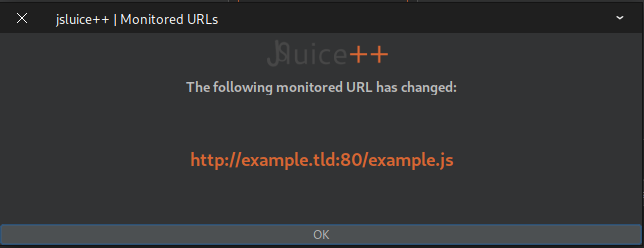
the locally saved copy of the file will get moved to .jsluicepp/monitored_files/{host}_{filename_hash}.old and a new copy of the new file will be saved,
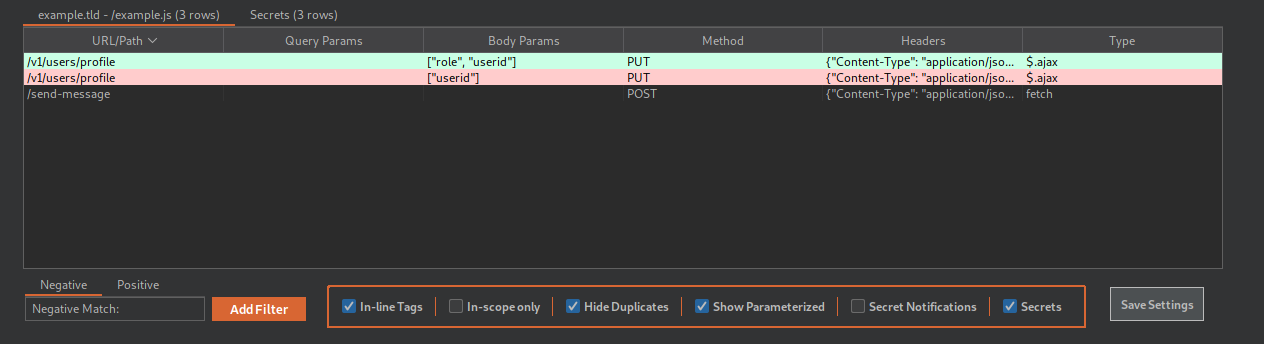
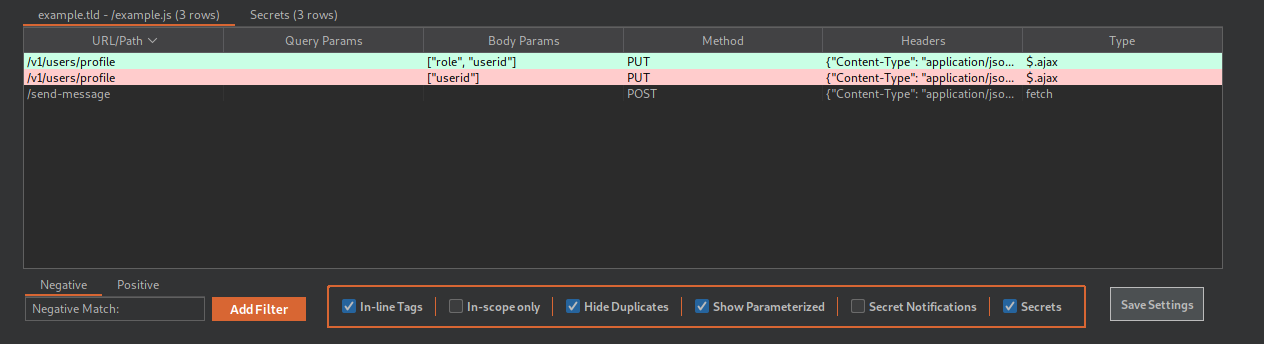
When selecting the monitored file in the extension new/modified rows will be colored green and previous versions of modified rows/deleted rows will be colored red, example:
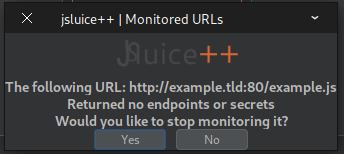
if a Monitored URL responds with a non-success status code(2xx) or if jsluice returns no output you will be prompted with a popup dialog asking if you wish to Stop Monitoring the URL, if "Yes" is selected all local copies of the file will be removed.
Every row in the URL/Paths results table can be sent to Burp Suite's Repeater by right clicking any row and selecting the "Send to Repeater" option in the popup menu.
Query Params, Body Params & Headers will be included if any exist,
if the URL/Path column starts with "http://" or "https://" or "//" the host will be extracted from the URL/Path column otherwise the selected host will be used,
if a content-type header with a value of application/json or application/xml or text/xml is present in the Headers column the body of the request will be formatted accordingly.
Default: On
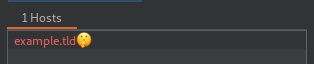
If selected a "Secrets" results table is added to the UI and the extension will use jsluice's secrets mode on the file after the urls mode has finished, if any unique secrets are found the host will be colored red with a 🤫 emoji next to it, example:
if you wish to use a custom patterns config you can do so by modifying the 'secrets_command' variable in the code.
