
Bastillion v5.2.0
Bastillion gives you a clean, browser-based way to manage SSH access across all your systems—like a bastion host with a friendly dashboard.







Bastillion
A modern, web-based SSH console and SSH key management tool.
Bastillion gives you a clean, browser-based way to manage SSH access across all your systems — like a bastion host with a friendly dashboard. It does two things:
-
Web-based SSH terminal — once a host is registered, authorized users can open one or more live terminal sessions to it directly from the browser, with commands optionally broadcast across every open session at once (think tmux's synchronized panes, but for a fleet of remote hosts instead of local panes).
-
SSH key management — Bastillion holds its own SSH keypair and pushes/rotates public keys across the hosts you register, so individual users never need to hold or manage long-lived keys to those systems themselves.
- Log in with 2-factor authentication (Authy or Google Authenticator)
- Manage and distribute SSH public keys, and disable/rotate them centrally
- Launch secure multi-session web shells and share commands across sessions
- Record every session and replay it on demand — audit-ready evidence for any compliance framework
- Group systems into Profiles and control exactly who can reach what
- Save and re-run Composite Scripts across a whole fleet at once
- Stack TLS/SSL over SSH for extra protection
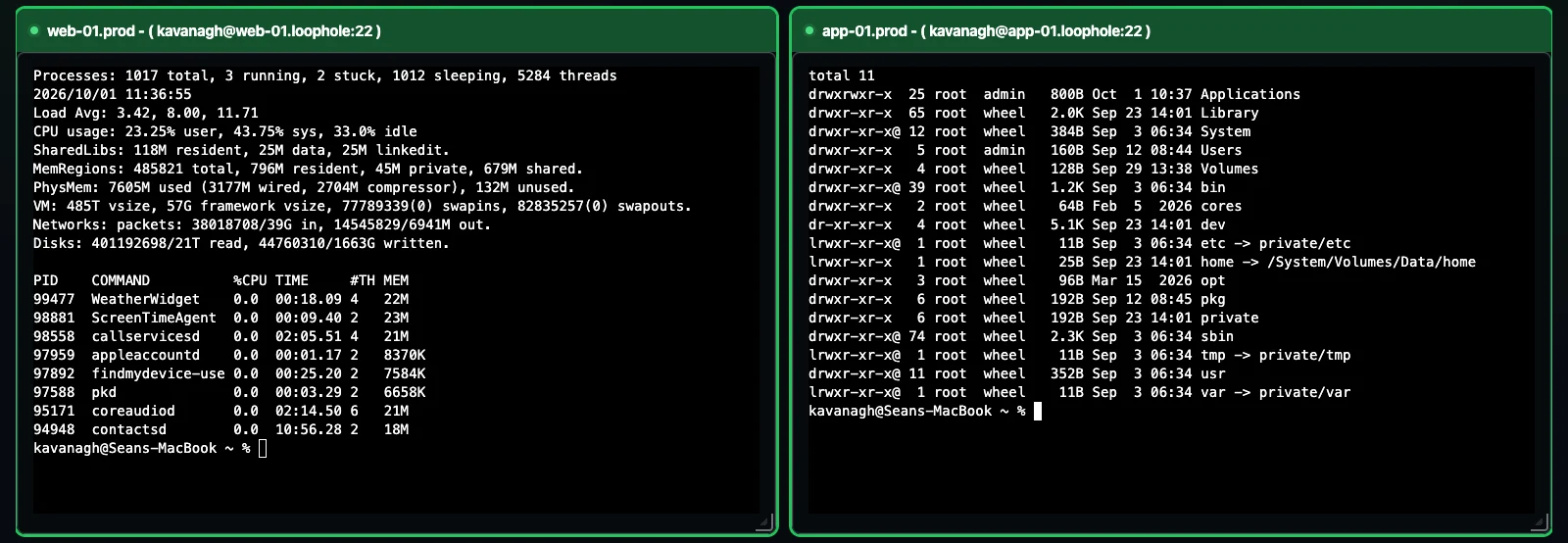
Two live SSH sessions to the existing web and application example hosts.
Contents
- How It Works
- What's New
- Licensing
- Installation Options
- Prerequisites
- Download and Run
- Build from Source
- TLS / HTTPS
- Configuration
- More Screenshots
- License
How It Works
Bastillion sits between your users and the systems they need to reach, acting as a trusted third party rather than a simple password vault. Here's the whole lifecycle, end to end.
1. Bastillion generates its own SSH keypair
On first startup, before anything else, Bastillion generates an Ed25519 keypair for itself — this is the one key that ever gets pushed to your hosts. It's shown in the console output and always visible under Settings.
2. Register a system
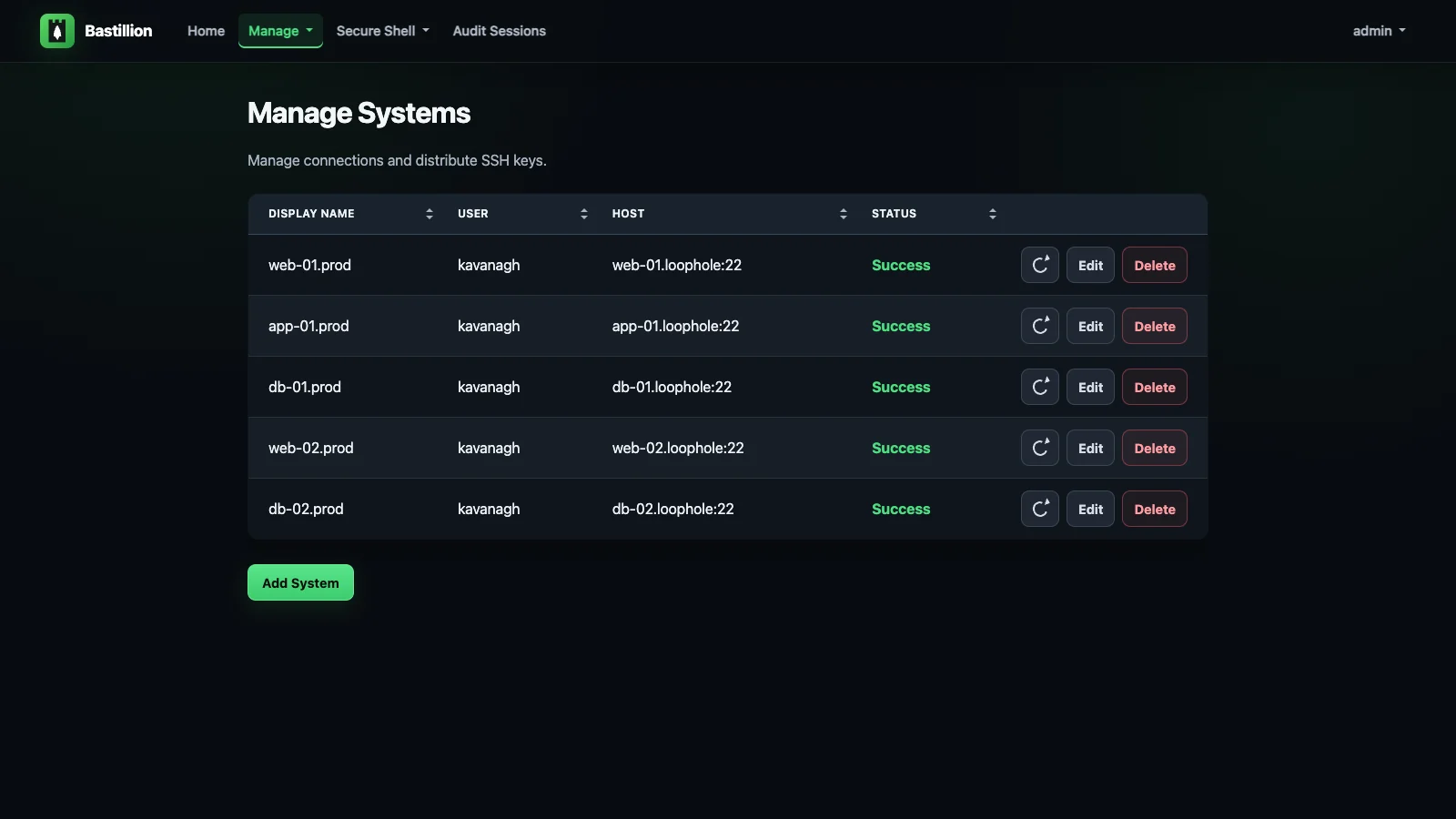
An admin adds a host under Manage → Systems (user, host, port, and the path to that
host's authorized_keys file). Bastillion authenticates once with a password or
passphrase you supply, then pushes its own public key into that host's authorized_keys.
From then on it connects using that key — no stored passwords, ever. Status flips to
Success the moment the key is in place.
3. Group systems into Profiles, assign Users
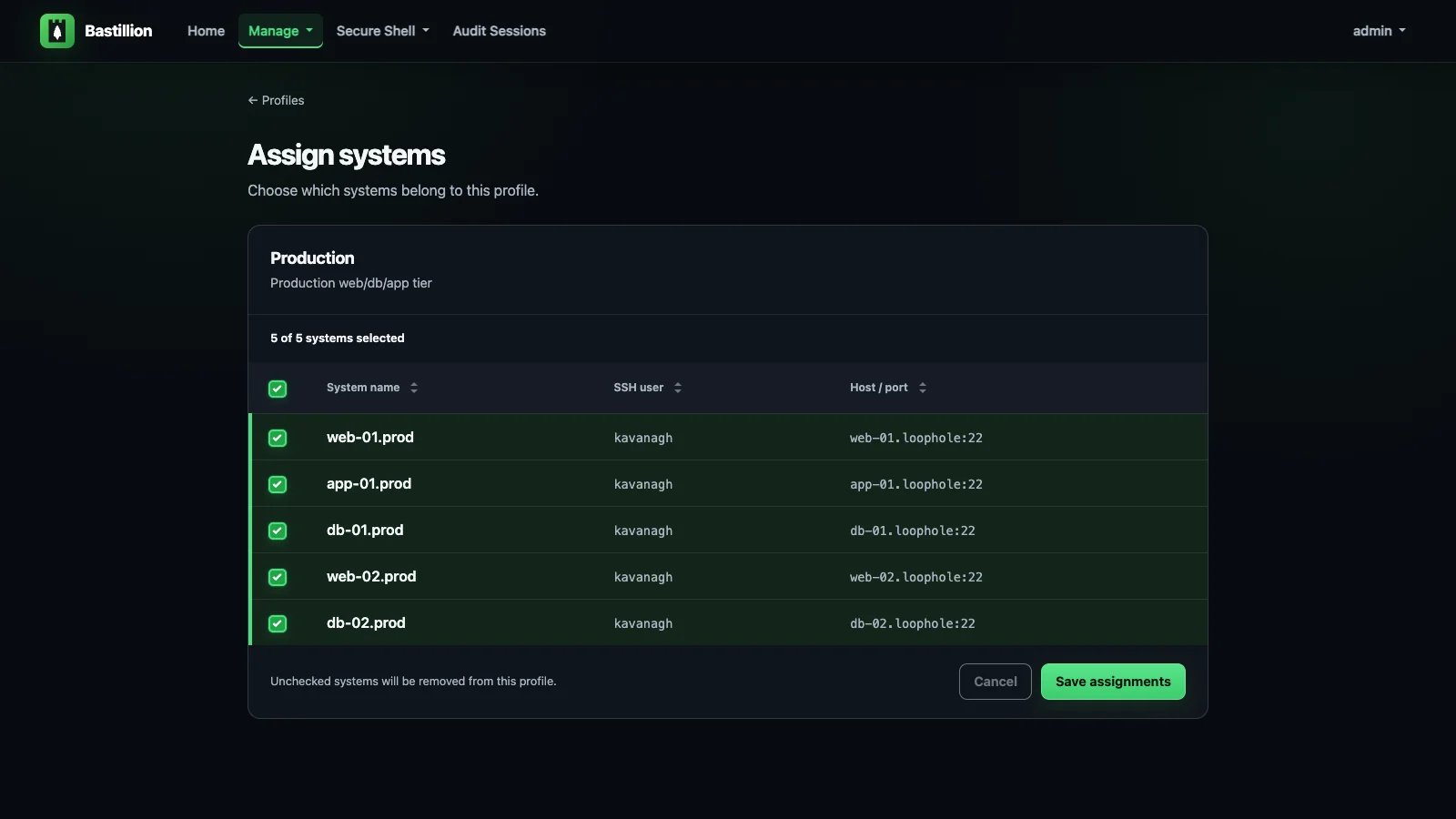
Systems get grouped into named Profiles — think "Production," "Staging," "Database Tier." Users are then linked to profiles under Manage → Users, which is the only thing that controls who can reach what. Revoke a profile assignment and that access is gone immediately, no key rotation needed.
4. Open terminals — and broadcast to all of them at once
Assigned users open Secure Shell → Terminals, pick one or more systems, and get live, resizable, xterm-based terminals in the browser, side by side. Type once, and it goes to every terminal marked active — the same keystroke, the same command, the same output shape, across as many hosts as you selected.
5. Rotate or revoke keys centrally
Because every host trusts the same application key (not one key per user), disabling it once under Manage SSH Keys revokes access everywhere immediately — no need to touch target systems by hand, no hunting down which server has which stale key.

6. Verify the host is who it claims to be
Every connection checks the host key the target system presents against the one Bastillion recorded for it. The first time a host is seen, its key is recorded and trusted; if that key later changes, the connection is refused and the system appears under Manage → Host Keys as changed — blocked, showing the approved fingerprint and the offered one together so you can tell a rebuilt host from an intercepted connection. Trusting the new key is a deliberate, logged act.
This matters more for a bastion than for a laptop. Bastillion hands the target system its private key, and on authentication fallback the password or passphrase you supplied — so anything that can answer on a managed system's address collects credentials for it. Until this check existed, nothing compared that key against anything.
Set hostKeyVerification=strict to also require a manager to approve each newly seen host
before the first connection to it, or off to restore the old behaviour — see
Configuration.
7. Every session is recorded — audit and replay
Everything typed and every byte returned in those terminals is recorded automatically. Managers open Audit Sessions, filter by user or system, and replay any session — side by side for sessions that spanned multiple hosts, with a text filter to jump straight to the lines that matter. Output streams into the page as it loads, so even a session that dumped hundreds of megabytes of logs replays without breaking a sweat.
If you need to show an auditor who ran what, where, and when — this is that evidence,
captured out of the box. Practically every compliance framework has a privileged-access
audit-trail requirement somewhere (PCI DSS, HIPAA, SOC 2, ISO 27001 — pick yours), and
this checks that box without a commercial PAM product. Sessions are kept for 90 days by
default (deleteAuditLogAfter), and recording can be switched off with
ENABLE_INTERNAL_AUDIT=false — see Auditing.